Hi, I’m Abhilash! A seasoned web developer with 15 years of experience specializing in Ruby and Ruby on Rails. Since 2010, I’ve built scalable, robust web applications and worked with frameworks like Angular, Sinatra, Laravel, Node.js, Vue and React.
Passionate about clean, maintainable code and continuous learning, I share insights, tutorials, and experiences here. Let’s explore the ever-evolving world of web development together!
As I mentioned in the previous post, I have decided to move away from micro-services. To achieve this, I am taking an AWS EC2 instance and configuring each micro-service on this instance. For this setup, I am using an Ubuntu 16.04 machine because my application setup is a bit old. However, if you have newer versions of Rails, Ruby, etc., you may want to choose Ubuntu 20.04.
Our setup includes Ruby on Rails (5.2.1) micro-services (5-10 in number), a NodeJS application, a Sinatra Application, and an Angular 9.1 Front-End Application.
To begin, go to the AWS EC2 home page and select an Ubuntu 16.04 machine with default configurations and SSH enabled.
Install Mysql 5.7 (Remember this is for Ubuntu 16.04, 18.04 versions)
sudo apt-get install mysql-server-5.7 mysql-client-core-5.7 libmysqlclient-dev
sudo service mysql status # or
systemctl status mysql
username: <your-username>, password: <your-password>
You can also try mysql_secure_installation, if you use other mysql version.
Note that if you are setting up Ubuntu 20.04, there is a significant change in MySQL, as the version of MySQL is now 8.0 instead of 5.7. If you have applications running in MySQL 5.7, it is recommended that you set up and use Ubuntu 16.04 or 18.04.
We will continue the installation process in our next post.
As part of our startup, our predecessors chose to use micro-services for our new website as it is a trending technology.
This decision has many benefits, such as:
Scaling a website becomes much easier when using micro-services, as each service can be scaled independently based on its individual needs.
The loosely coupled nature of micro-services also allows for easier development and maintenance, as changes to one service do not affect the functionality of other services.
Additionally, deployment can be focused on each individual service, making the overall process more efficient.
Micro-services also allow for the use of different technologies for each service, providing greater flexibility and the ability to choose the best tools for each task.
Finally, testing can be concentrated on one service at a time, allowing for more thorough and effective testing, which can result in higher quality code and a better user experience.
In developing our application with micro-services, we considered the potential problems that we may face in the future. However, it is important to note that we also need to consider whether these problems will have a significant impact compared to the potential disadvantages of using micro-services.
One factor to keep in mind is that our website is currently experiencing low traffic and we are acquiring clients gradually. As such, we need to consider whether the benefits of micro-services outweigh any potential drawbacks for our particular situation.
Regardless, some potential issues with micro-services include increased complexity and overhead in development, as well as potential performance issues when integrating multiple services. Additionally, managing multiple services and ensuring they communicate effectively can also be a challenge.
Despite the benefits of micro-services, we have faced some issues in implementing them. One significant challenge is the increased complexity of deployment and maintenance that comes with having multiple services. This can require more time and resources to manage and can potentially increase the likelihood of errors.
Additionally, the cost of using AWS ECS for hosting all of the micro-services can be higher than using other hosting solutions for a less traffic website. This is something to consider when weighing the benefits and drawbacks of using micro-services for our specific needs.
Another challenge we have faced is managing dependencies between services, which can be difficult to avoid. When one service goes offline, it can cause issues with other services, leading to a “No Service” issue on the website.
Finally, it can be very difficult to go back to a monolithic application even if we combine 3-4 services together, as they may use different software or software versions. This can make it challenging to make changes or updates to the application as a whole.
It is important to carefully consider whether micro-service architecture is the best fit for your business and current situation. If you have a less used website or are just starting your business, it may not be necessary or cost-effective to implement micro-services.
It is important to take the time to evaluate the benefits and drawbacks of using micro-services for your specific needs and budget. Keep in mind that hosting multiple micro-services can come with additional costs, so be prepared to pay a minimum amount for hosting if you decide to go this route.
Ultimately, the decision to use micro-services should be based on a thorough assessment of your business needs and available resources, rather than simply following a trend or industry hype.
Set up:
Used AWS ECS (ec2 launch type) with services and task definitions defined
11 Micro-services, 11 containers are spinning
Cost: Rs.12k ($160) per month
Workaround:
Consider using AWS Fargate type but not sure these issues get resolved
Deploy all the services in one EC2 Instance without using ECS
To configure the best test suite in Rails using the RSpec framework and other supporting libraries, such as Factory Bot and Database Cleaner, we’ll remove the Rails native test folder and related configurations.
To begin, we’ll add the necessary gems to our Gemfile:
group :development, :test do
  # Rspec testing module and needed libs
  gem 'factory_bot_rails', '5.2.0'
  gem 'rspec-rails', '~> 4.0.0'
end

group :test do
  # db cleaner for test suite
  gem 'database_cleaner-active_record', '~> 2.0.1'
end
Now do
bunde install # this installs all the above gems
If your Rails application already includes the built-in Rails test suite, you’ll need to remove it in order to use the RSpec module instead.
I recommend using RSpec over the Rails native test module, as RSpec provides more robust helpers and mechanisms for testing.
To disable the Rails test suite, navigate to the application.rb file and comment out the following line:
# require 'rails/test_unit/railtie'
inside the class Application add this line:
# Don't generate system test files.
config.generators.system_tests = nil
Remove the native rails test folder:
rm -r test/
We use factories over fixtures. Remove this line from rails_helper.rb
config.use_transactional_fixtures = false # instead of true
This is for preventing rails to generate the native test files when we run rails generators.
Database Cleaner
Now we configure the database cleaner that is used for managing data in our test cycles.
Open rails_helper.rb file and require that module
require 'rspec/rails'
require 'database_cleaner'  # <= add here
Note: Use only if you run integration tests with capybara or dealing with javascript codes in the test suite.
“Capybara spins up an instance of our Rails app that can’t see our test data transaction so even tho we’ve created a user in our tests, signing in will fail because to the Capybara run instance of our app, there are no users.”
I experienced database credentials issues:
➜ rspec
An error occurred while loading ./spec/models/user_spec.rb.
Failure/Error: ActiveRecord::Migration.maintain_test_schema!

Mysql2::Error::ConnectionError:
  Access denied for user 'username'@'localhost' (using password: NO)
Initially, I planned to use Database Cleaner, but later I realized that an error I was experiencing was actually due to a corrupted credentials.yml.enc file. I’m not sure how it happened.
To check if your credentials are still intact, try editing the file and verifying that the necessary information is still present.
EDITOR="code --wait" bin/rails credentials:edit
Now in the Rspec configuration block we do the Database Cleaner configuration.
Add the following file:
spec/support/database_cleaner.rb
Inside, add the following:
# DB cleaner using database cleaner library
RSpec.configure do |config|
  # This says that before the entire test suite runs, clear
  # the test database out completely
  config.before(:suite) do
    DatabaseCleaner.strategy = :transaction
    DatabaseCleaner.clean_with(:truncation)
  end

  # This sets the default database cleaning strategy to
  # be transactions
  config.before(:each) do
    DatabaseCleaner.strategy = :transaction
  end

  # include this if you uses capybara integration tests
  config.before(:each, :js => true) do
    DatabaseCleaner.strategy = :truncation
  end

  # These lines hook up database_cleaner around the beginning
  # and end of each test, telling it to execute whatever
  # cleanup strategy we selected
  config.before(:each) do
    DatabaseCleaner.start
  end

  config.after(:each) do
    DatabaseCleaner.clean
  end
end
and be sure to require this file in rails_helper.rb
require 'rspec/rails'
require 'database_cleaner'
require_relative 'support/database_cleaner'  # <= here
Configure Factories
Note: We use factories over fixtures because factories provide better features that make writing test cases an easy task.
Create a folder to generate the factories:
mkdir spec/factories
Rails generators will automatically generate factory files for models inside this folder.
A generator for model automatically creating the following files:
spec/models/model_spec.rb
spec/factories/model.rb
Now lets load Factory bot configuration to rails test suite.
Add the following file:
spec/support/factory_bot.rb
and be sure to require this file in rails_helper.rb
# Dir[Rails.root.join('spec', 'support', '**', '*.rb')].sort.each { |f| require f }
You can uncomment the line to make all factories available in your test suite, but I don’t recommend this approach as it can slow down test execution. Instead, it’s better to load each factory as needed.
Here’s the final version of the rails_helper.rb file. Note that we won’t be using Capybara for integration tests, so we’re not including the database_cleaner configuration:
# This file is copied to spec/ when you run 'rails generate rspec:install'
require 'spec_helper'
ENV['RAILS_ENV'] ||= 'test'
require File.expand_path('../config/environment', __dir__)
# Prevent database truncation if the environment is production
abort('The Rails environment is running in production mode!') if Rails.env.production?
require 'rspec/rails'
require_relative 'support/factory_bot'

# Checks for pending migrations and applies them before tests are run.
# If you are not using ActiveRecord, you can remove these lines.
begin
  ActiveRecord::Migration.maintain_test_schema!
rescue ActiveRecord::PendingMigrationError => e
  puts e.to_s.strip
  exit 1
end
RSpec.configure do |config|
  # If you're not using ActiveRecord, or you'd prefer not to run each of your
  # examples within a transaction, remove the following line or assign false
  # instead of true.
  config.use_transactional_fixtures = false

  config.infer_spec_type_from_file_location!

  # Filter lines from Rails gems in backtraces.
  config.filter_rails_from_backtrace!
  # arbitrary gems may also be filtered via:
  # config.filter_gems_from_backtrace("gem name")
end
Lets generate a model spec. A model spec is used to test smaller parts of the system, such as classes or methods.
# RSpec also provides its own spec file generators
➜ rails generate rspec:model user
      create  spec/models/user_spec.rb
      invoke  factory_bot
      create    spec/factories/users.rb
Now run the rpsec command. That’s it. You can see the output from rspec.
➜ rspec
*

Pending: (Failures listed here are expected and do not affect your suite's status)

  1) Item add some examples to (or delete) /home/.../spec/models/user_spec.rb
     # Not yet implemented
     # ./spec/models/user_spec.rb:4

Finished in 0.00455 seconds (files took 1.06 seconds to load)
1 example, 0 failures, 1 pending
Lets discuss how to write a perfect model spec in the next lesson.
Subscribe to a topic that is already created in AWS SNS and send sms to all numbers who has the subscription.
Send SMS directly to a mobile number.
You can find the following aws doc as a starting point from web and it describes how to create a topic, subscribe a topic and sending sms to the mobile numbers.
On the navigation panel, choose Mobile, Text messaging (SMS).
On the Mobile text messaging (SMS) page, in the Text messaging preferences section, choose Edit.
On the Edit text messaging preferences page, in the Details section, do the following:
For Default sender ID , enter the provided sender ID to be used (Zomato) as the default for all messages from your account.
Choose Save changes.
If you don’t want to register sender id, then skip this method: set_sns_client_attrs and publish the sms. It take the sms as ‘Promotional’ and sender id will be 8 character random number. Amazon use this type of sms from International route and it costs you almost $0.02 (Rs. 1.5) per sms. Very high rate. So I recommend to register any sender id that resembles your product or company name, from Jio trueconnect (that is free, link given below) and use it in SNS.
If you don’t know how to register sender id, follow this:
For AWS SNS service, there is 2 way of sending sms.
Local route
International route
For local route the price is Rs. 0.20 per sms For international route the price will be Rs 1.58 per sms – too high
by default AWS SNS use International route
If you are from India follow the TRAI registration For considering local route we have to register our use case and message templates with TRAI .
So first register here: https://www.vilpower.in/ as an enterprise / company with all company details and our purpose
These registration requirements are designed to reduce the number of unsolicited messages that Indian consumers receive, and to protect consumers from potentially harmful messages
Recently Indian Govt made DLT Registration mandatory for sending sms.
Example: Take Msg from AD-ZOMATO , here ZOMATO is 6 char sender id that we can give in the service provider and send sms before. But now we have to register this in DLT then only our service provider can use this.
After registering DLT we get an ENTITY ID. This entity id need to be attached in our’s otp service provider for sending otp msgs.
If you are using SNS service for the first time you should increase your SMS quota:
AWS says:
If you're new to SMS messaging with Amazon SNS, request a monthly SMS spending threshold that meets the expected demands of your SMS use case. By default, your monthly spending threshold is $1.00 (USD). You can request to increase your spending threshold in the same support case that includes your request for a sender ID
Because Amazon SNS is a distributed system, it stops sending SMS messages within minutes of the spending quota being exceeded. During this period, if you continue to send SMS messages, you might incur costs that exceed your quota.
unset GEM_HOME

rvm implode

rm -rf ~/.rvm

sudo rm -rf /usr/share/rvm

sudo rm /etc/profile.d/rvm.sh

sudo rm /etc/rvmrc

sudo rm ~/.rvmrc

vim ~/.zshrc  # or ~/.bash_profile related to machine/software you use and remove rvm related lines
Make sure that your ~/.bash_profile or ~/.zshrc file contains the following lines to load rvm to the shell:
# RVM manual script for loading rvm to shell
[[ -s "$HOME/.rvm/scripts/rvm" ]] && . "$HOME/.rvm/scripts/rvm"
After installing check RVM by:
➜ rvm list

# No rvm rubies installed yet. Try 'rvm help install'.

➜ rvm install 2.7.2
Searching for binary rubies, this might take some time.
Found remote file https://rubies.travis-ci.org/ubuntu/18.04/x86_64/ruby-2.7.2.tar.bz2
Checking requirements for ubuntu.
Requirements installation successful.
ruby-2.7.2 - #configure
ruby-2.7.2 - #download
 ..............
No checksum for downloaded archive, recording checksum in user configuration.
ruby-2.7.2 - #validate archive
ruby-2.7.2 - #extract
ruby-2.7.2 - #validate binary
ruby-2.7.2 - #setup
ruby-2.7.2 - #gemset created ~/.rvm/gems/ruby-2.7.2@global
ruby-2.7.2 - #importing gemset ~/.rvm/gemsets/global.gems..................................
ruby-2.7.2 - #generating global wrappers.......
ruby-2.7.2 - #gemset created ~/.rvm/gems/ruby-2.7.2
ruby-2.7.2 - #importing gemsetfile ~/.rvm/gemsets/default.gems evaluated to empty gem list
ruby-2.7.2 - #generating default wrappers.......

➜ rvm list
=* ruby-2.7.2 [ x86_64 ]

# => - current
# =* - current && default
#  * - default

➜ rvm gemset list

gemsets for ruby-2.7.2 (found in ~/.rvm/gems/ruby-2.7.2)
=> (default)
   global

➜ rvm gemset create foobar
ruby-2.7.2 - #gemset created ~/.rvm/gems/ruby-2.7.2@foobar
ruby-2.7.2 - #generating foobar wrappers.......

➜ rvm gemset list

gemsets for ruby-2.7.2 (found in ~/.rvm/gems/ruby-2.7.2)
=> (default)
   foobar
   global

➜ rvm gemset use foobar
Using ruby-2.7.2 with gemset foobar

➜ rvm gemset list

gemsets for ruby-2.7.2 (found in ~/.rvm/gems/ruby-2.7.2)
   (default)
=> foobar
   global

➜ rvm list gemsets

rvm gemsets

   ruby-2.7.2 [ x86_64 ]
=> ruby-2.7.2@foobar [ x86_64 ]
   ruby-2.7.2@global [ x86_64 ]
For preserving the gemset for the current directory create .rvmrc file:
vim .rvmrc
# add this: rvm --rvmrc use foobar
If rvm is not loading into the shell after changing the terminal preferences, check the rvm_path env variable.
$rvm_path
zsh: no such file or directory: /usr/share/rvm
If you don’t have that directory you must change the above path to a correct rvm installed path.
By default rvm installed in this path: ${HOME}/.rvm So you can add this path to rvm_path
Set it like:
export rvm_path="${HOME}/.rvm"
You can add this line into your ~/.zshrc OR ~/.bash_profile file.
You can check rvm env variables and info by:
env | grep rvm
rvm info
Check ruby version by: ruby -v If ruby is not loading try to add the following line into your bash_profile:
export PATH=~/.rvm/gems/ruby-2.7.2/bin:$PATH # change version: ruby-2.7.2 to your installed version
source ~/.bash_profile OR source ~/.zshrc # whatever you use
ruby -v
In the past, I made the decision to create the portlet and service builder directly within the Eclipse workspace, rather than creating a Liferay workspace project within the Eclipse workspace. However, this approach has caused some challenges when attempting to add the service builder to my portlet, as both of them are located within the Eclipse workspace.
Could not run phased build action using Gradle distribution 'https://services.gradle.org/distributions/gradle-5.6.4-bin.zip'.
Build file '/home/abhilash/eclipse-workspace/register-emailbox/build.gradle' line: 32
A problem occurred evaluating root project 'register-emailbox'.
Project with path ':sitesService:sitesService-api' could not be found in root project 'register-emailbox'.
Several individuals have encountered this particular issue, and you can find detailed guidance on resolving it in the Liferay developer article focused on creating a service builder.
Through extensive research, I discovered that the solution to this issue requires creating both a portlet and a service builder within the Liferay workspace, rather than the Eclipse workspace. Specifically, it is essential to create a Liferay workspace project inside the Eclipse workspace to address this problem effectively.
Lets do that this time.
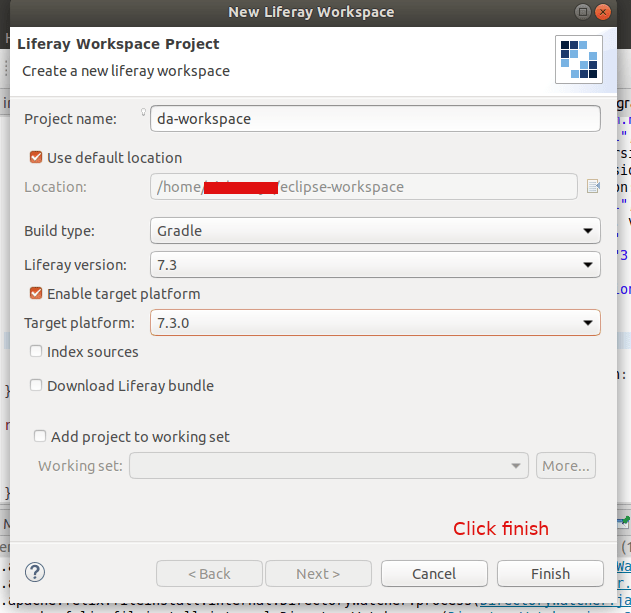
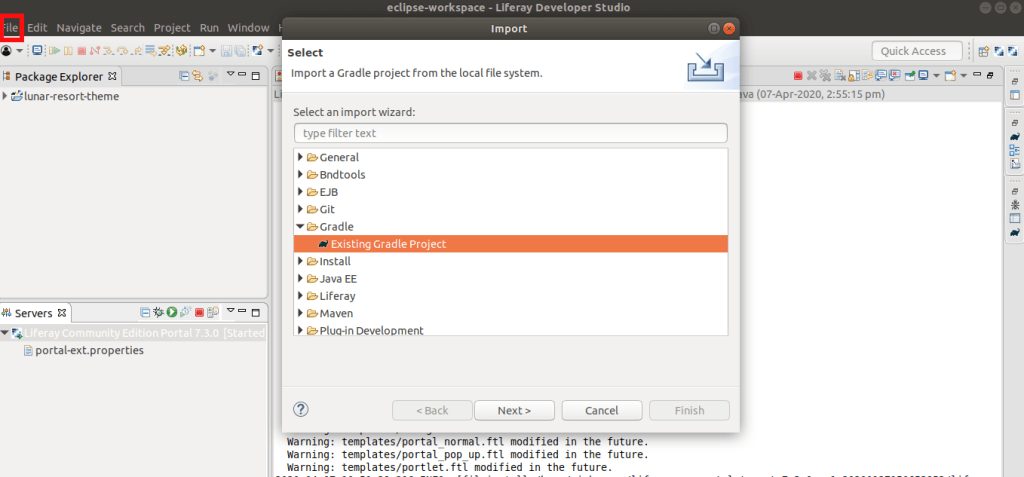
Click File -> New -> Liferay Workspace Project
Provide a Project Name and click on Finish
Next right click on the da-workspace, New -> Liferay Module Project
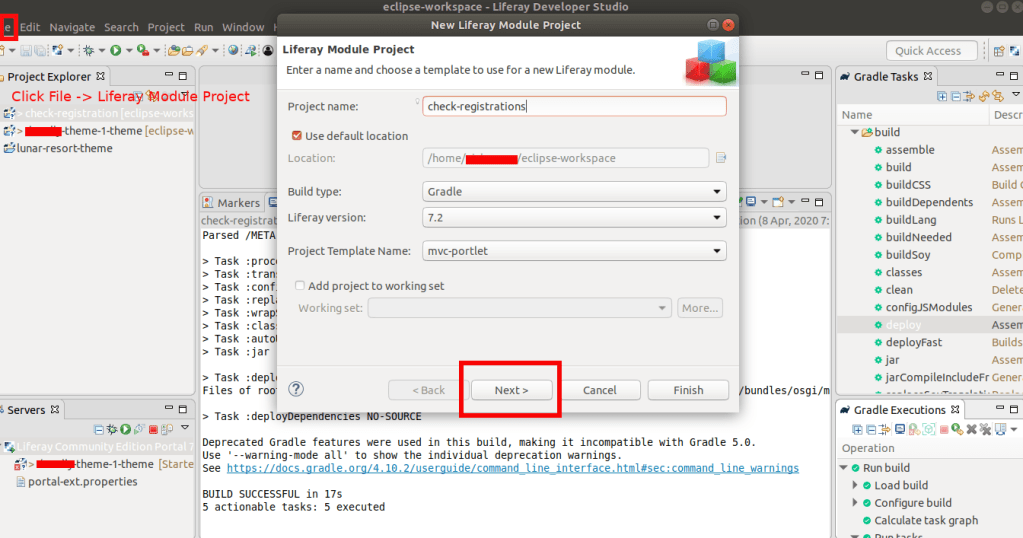
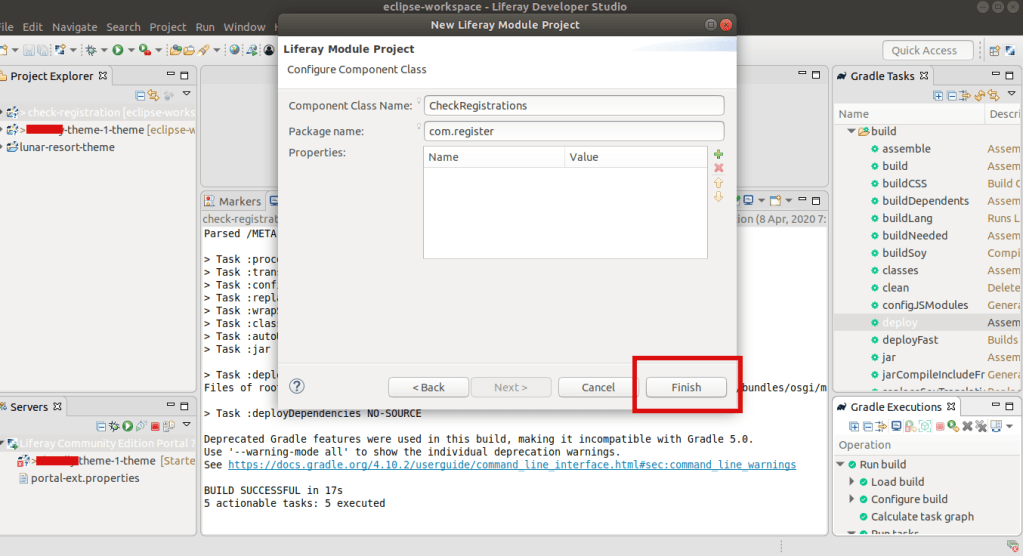
Provide the Project Name, then it automatically changes the Location Provide the class name and project name
Deploy this service by clicking on the gradle section of IDE and double click on deploy
Deployed successfully
You can see the module os created inside our new Liferay Workspace: da-workspace
Jar file created
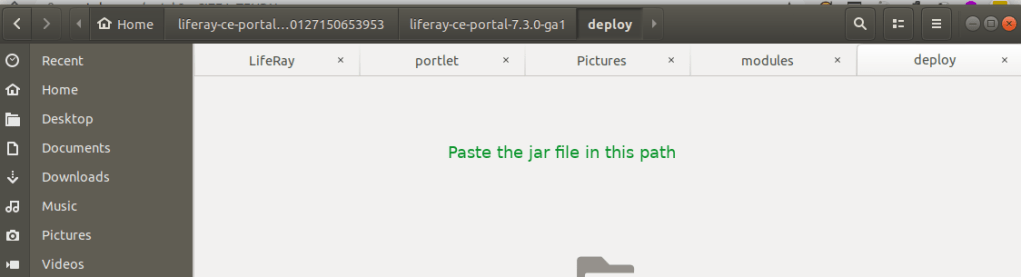
Copy this jar file and paste into the liferay server folder path given below:
2020-04-14 09:16:09.299 INFO [fileinstall-/home/abhilash/liferay-ce-portal-tomcat-7.3.0-ga1-20200127150653953/liferay-ce-portal-7.3.0-ga1/osgi/modules][BundleStartStopLogger:39] STARTED com.emailbox_1.0.0 [1117]
Status -> STARTED
Now delete our old services. Goto the Goshell and uninstal the bundles:
Now goto the liferay and check our newly created portlet
Now lets repeat the steps for creating the service-builder from the previous article. But this time create it from da-workspace
File -> New -> Liferay Module Project
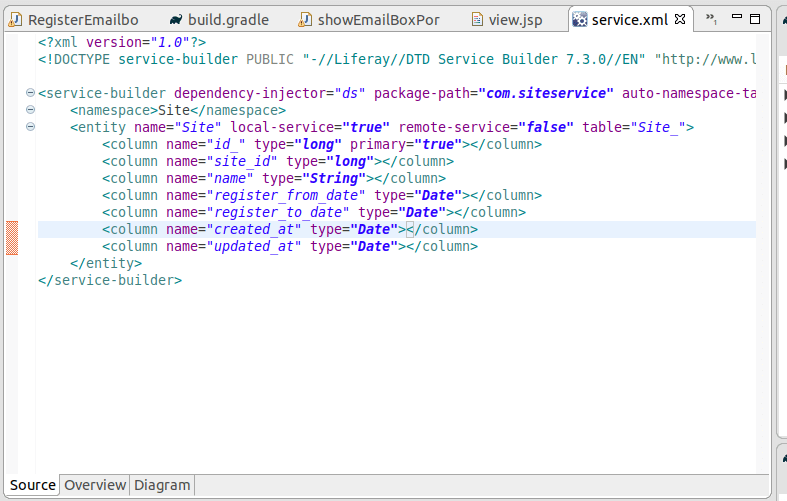
Services are created – For details check the previous articleFolder structure for the portlet and the service builder
Add the details as shown in the below screenshots (If any doubt check the previous article).
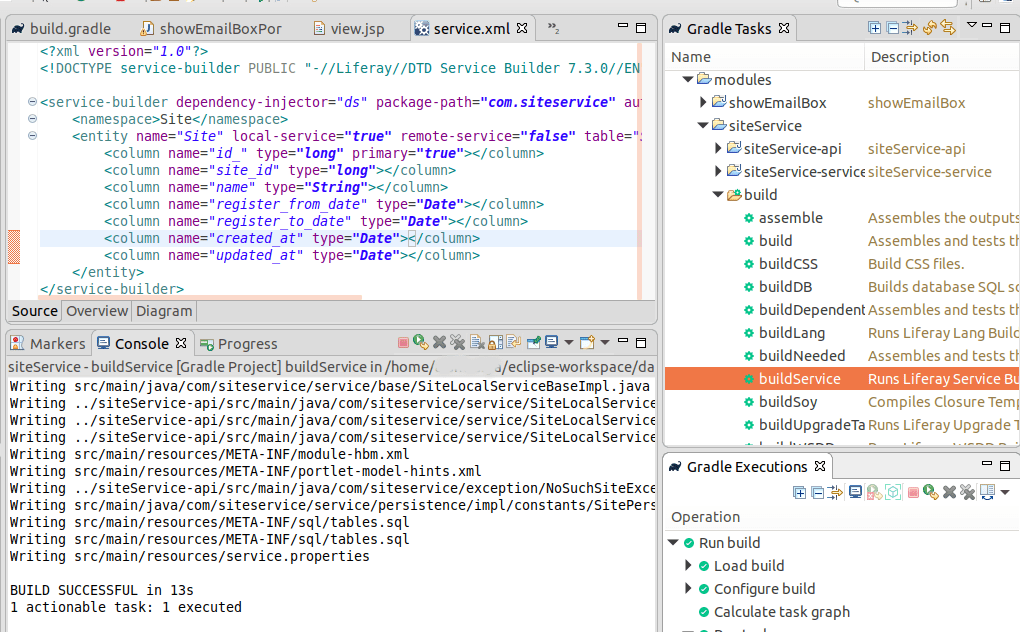
Do builder service and deploy
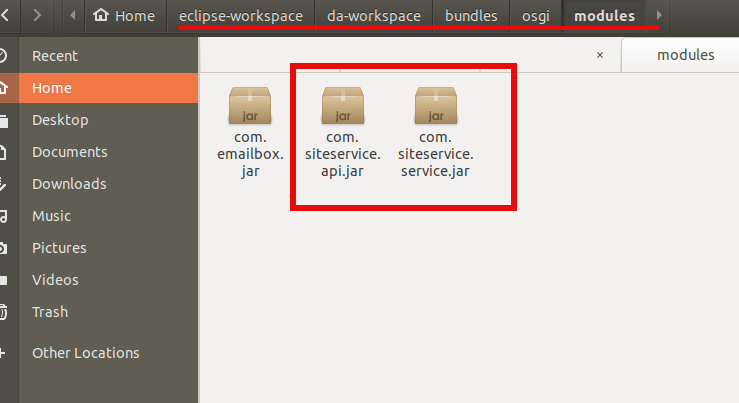
Copy this jar files one by one to the server’s deploy folder. First *api.jarand then *service.jar
Server logs:
liferay-ce-portal-tomcat-7.3.0-ga1-20200127150653953/liferay-ce-portal-7.3.0-ga1/osgi/modules][BundleStartStopLogger:39] STARTED com.siteservice.api_1.0.0 [1118]

liferay-ce-portal-7.3.0-ga1/osgi/modules][BundleStartStopLogger:39] STARTED com.siteservice.service_1.0.0 [1119]
Check the database, you can see the Site_ Table and columns are created.
Now add the service builder dependancy to the portlet
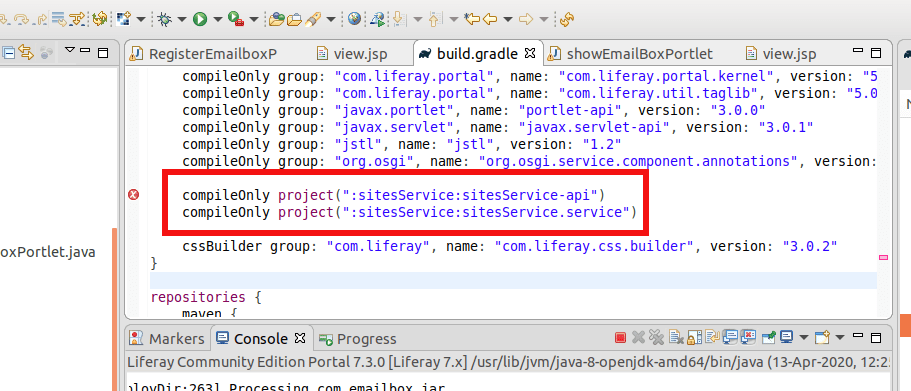
Add this two lines in the build.gradle file
Right click on showEmailBox portlet and gradle -> refresh gradle project
DONE! You are successfully binded the service builder to your portlet.
now add the following to your portal class file above the doView function
But what is we needed to fetch suppose some sites which has particular site_id Or fetch all sites which has registered after this time etc?
For all these custom query to mysql db, we needed to create a custom finder methods. So lets create one.
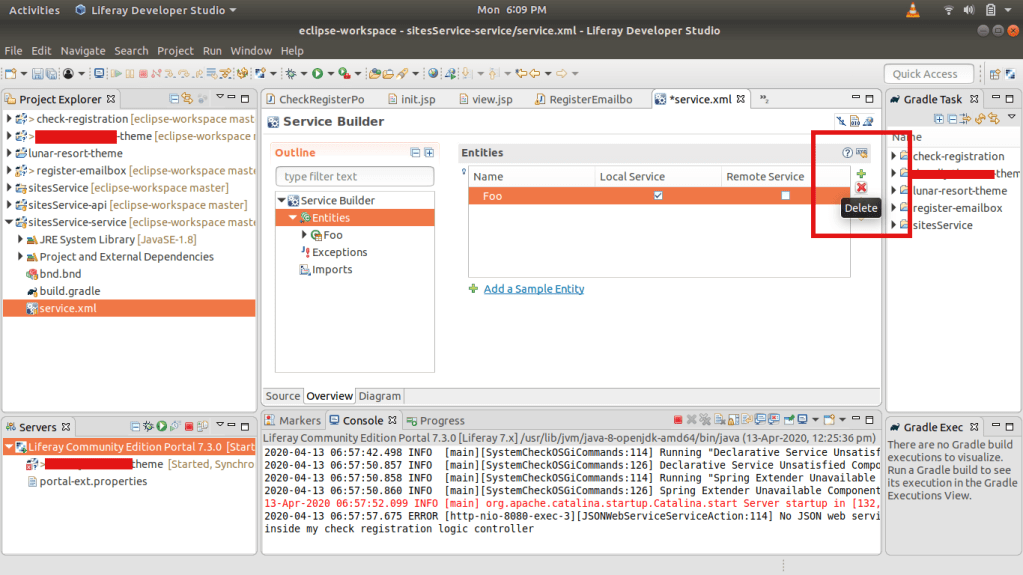
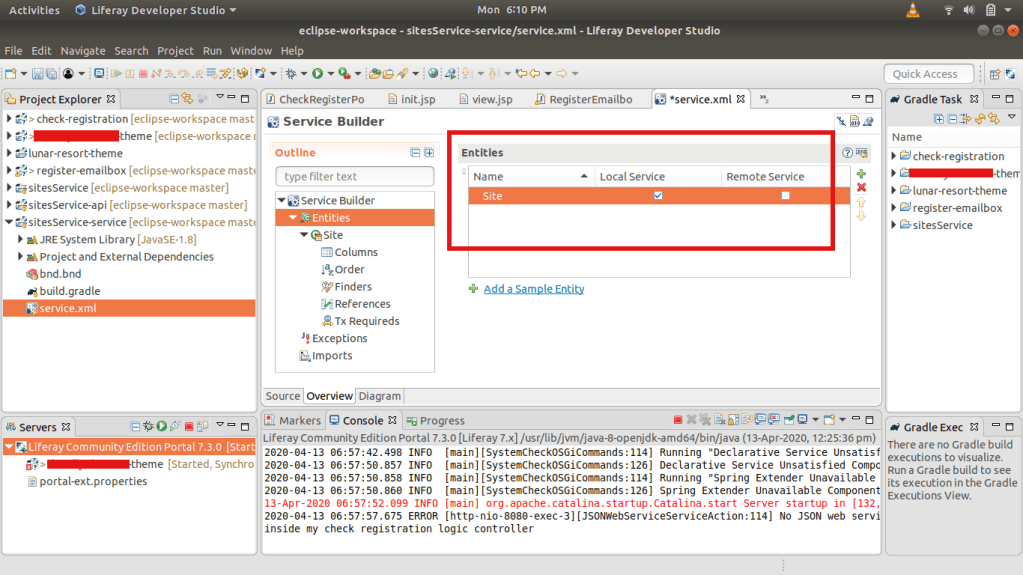
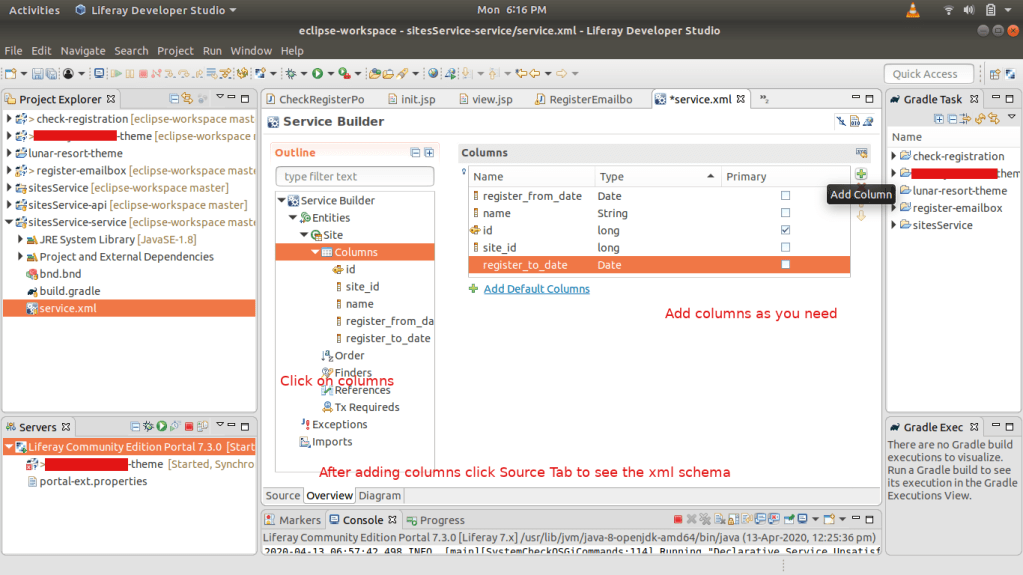
Open service.xml of `siteService-service`
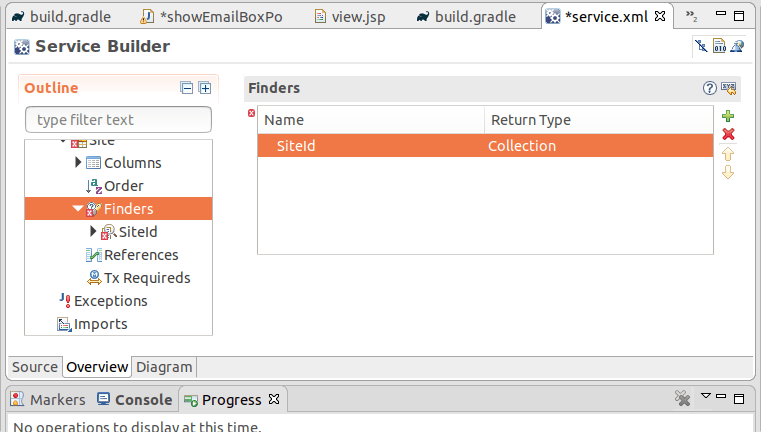
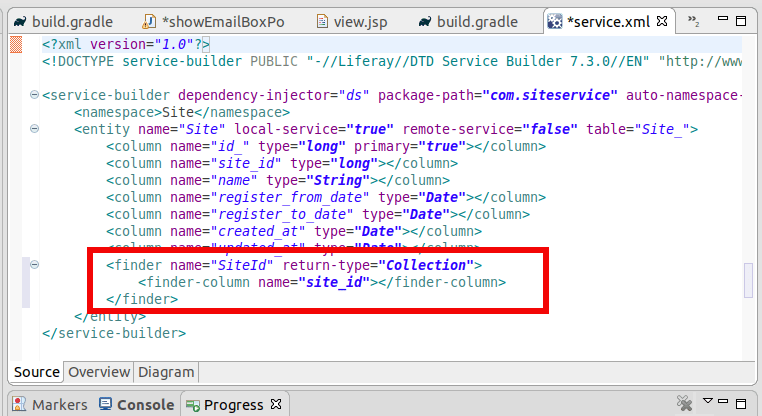
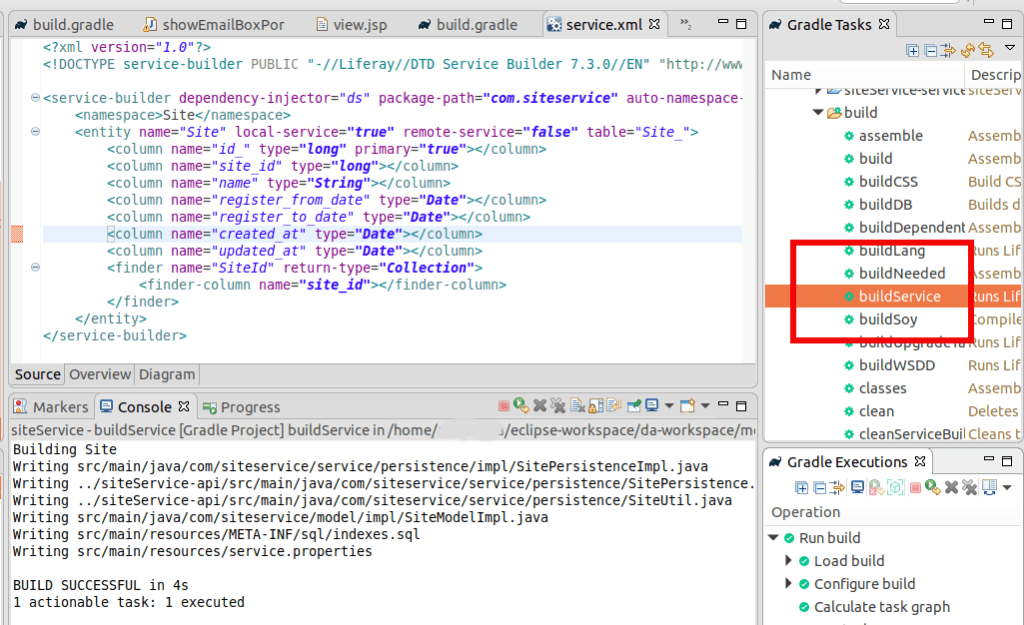
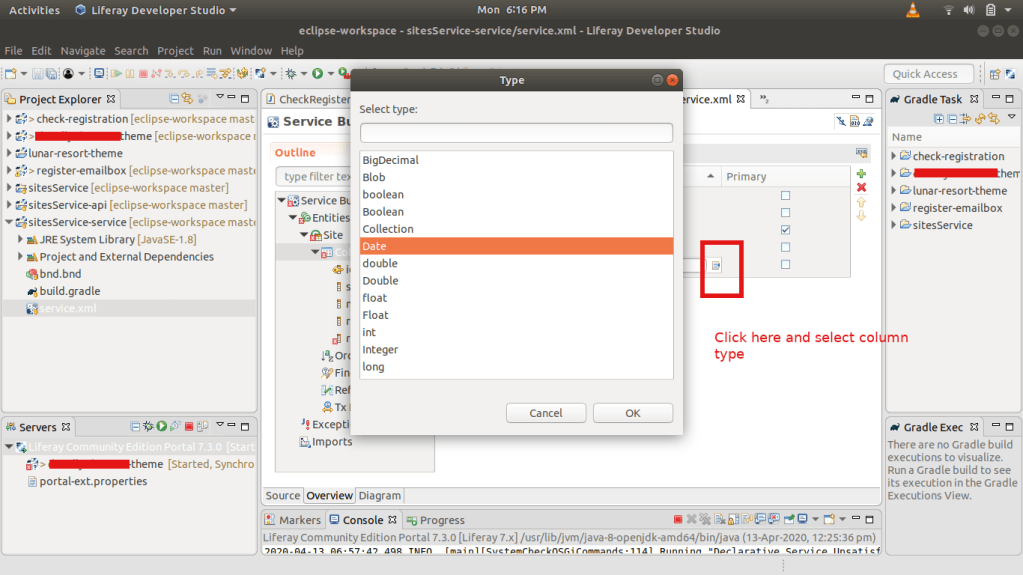
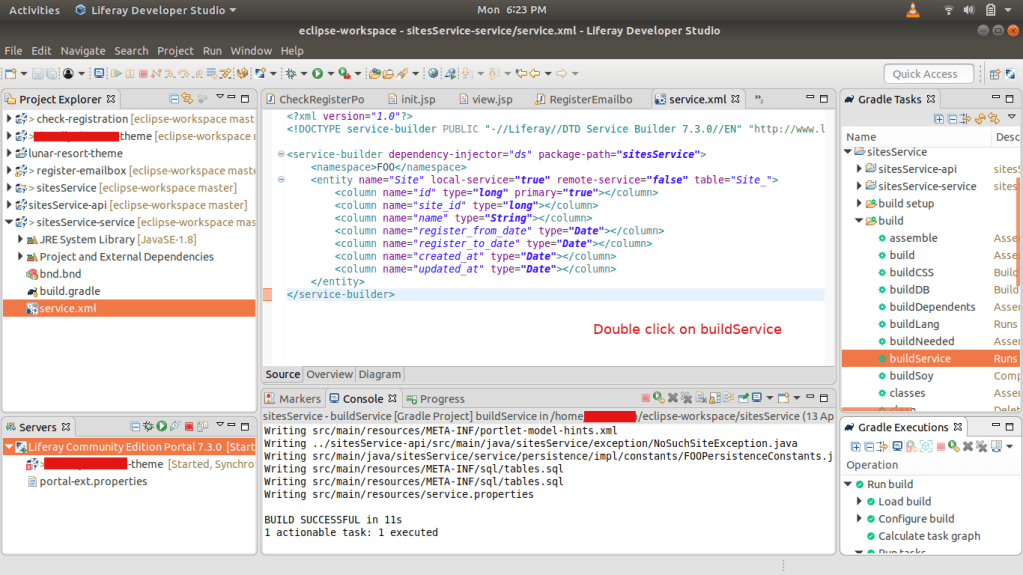
Click on Finders and add Name and TypeClick on Finder column and add the db column to findClick on Source, you can see the finder is addedDouble click on the buildService to build the service
Now we can add custom finder findBySiteId to this service.
Open siteLocalServiceImpl.java
package com.siteservice.service.impl;

import com.liferay.portal.aop.AopService;
import com.siteservice.model.Site;
import com.siteservice.service.base.SiteLocalServiceBaseImpl;

import java.util.List;

import org.osgi.service.component.annotations.Component;


@Component(
	property = "model.class.name=com.siteservice.model.Site",
	service = AopService.class
)
public class SiteLocalServiceImpl extends SiteLocalServiceBaseImpl {

	public List<Site> findBySiteId(long site_id) {
		return sitePersistence.findBySiteId(site_id);
	}
}
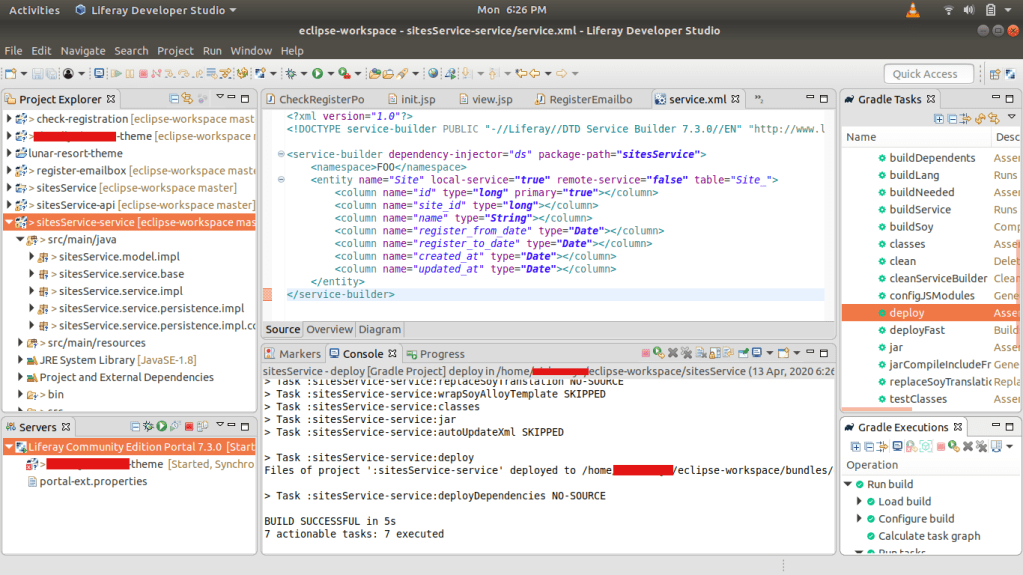
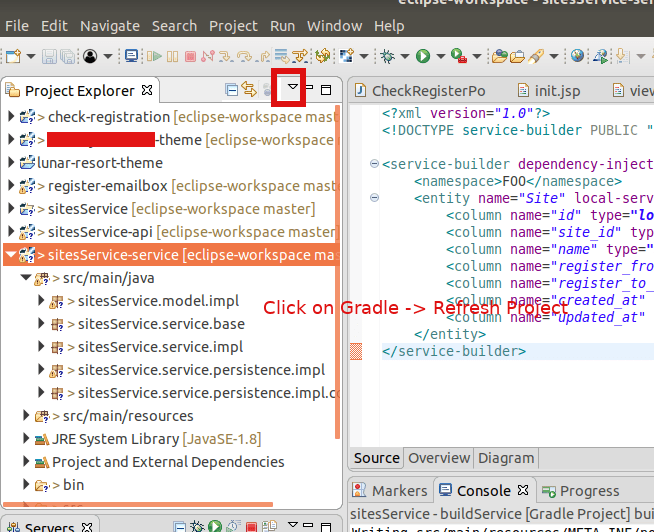
Now do the buildService for siteService. Then Gradle -> Refresh and deploy the service. Copy this jar files one by one to the server’s deploy folder. First *api.jar and then *service.jar
Refresh Gradle project for the portlet – showEmailBox
Add the following to the doView function of the portlet
Site site = _siteLocalService.findBySiteId(2233).get(0);

System.out.println("We got the site: ---------");
System.out.println(site);
and don’t forget to create a site entry in the database with id: 2233
and then copy the *-service.jar into the same folder
You can see these are processing and started in the server logs.
INFO  [com.liferay.portal.kernel.deploy.auto.AutoDeployScanner][AutoDeployDir:263] Processing sitesService.api.jar

~/liferay-ce-portal-tomcat-7.3.0-ga1-20200127150653953/liferay-ce-portal-7.3.0-ga1/osgi/modules][BundleStartStopLogger:39] STARTED sitesService.api_1.0.0 [1115]

[com.liferay.portal.kernel.deploy.auto.AutoDeployScanner][AutoDeployDir:263] Processing sitesService.service.jar

~/liferay-ce-portal-tomcat-7.3.0-ga1-20200127150653953/liferay-ce-portal-7.3.0-ga1/osgi/modules][BundleStartStopLogger:39] STARTED sitesService.service_1.0.0 [1116]
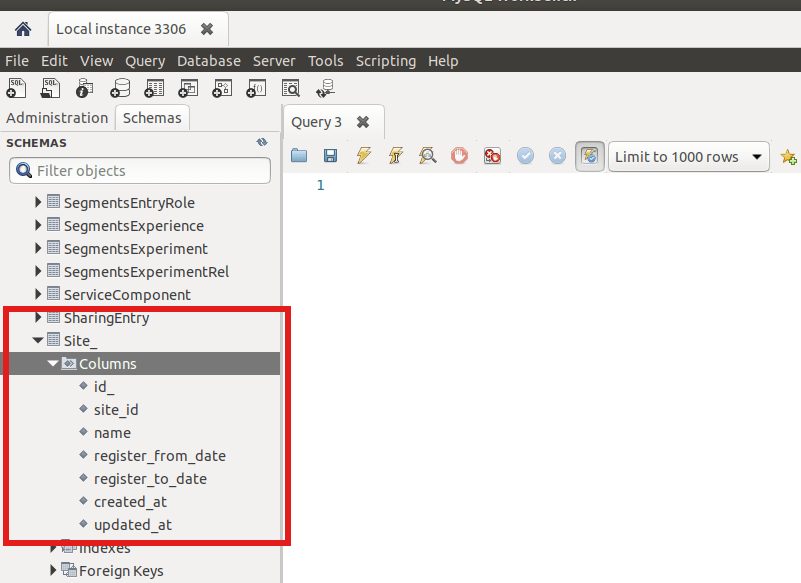
Now check the database, if the Site_ table with all columns are created or not
You can see the table and columns are created. In the next topic we discuss about adding services to this service builder.
A portlet is fragment on a webpage as web application and is used with portlets on the same webpage.
When you access a web site, you interact with an application. That application may be simple: it may only show you information, such as an article. The application may be complex, including forms, sending data etc. These applications run on a platform that provides application developers the building blocks they need to make applications.
If there are so many implementations of MVC frameworks in Java, why did Liferay create yet another one?
Liferay MVC provides these benefits:
It’s lightweight, as opposed to many other Java MVC frameworks. There are no special configuration files that need to be kept in sync with your code. It’s a simple extension of GenericPortlet. You avoid writing a bunch of boilerplate code, since Liferay’s MVC framework simply looks for some pre-defined parameters when the init() method is called. The controller can be broken down into MVC command classes, each of which handles the controller code for a particular portlet phase (render, action, and resource serving phases). Liferay’s portlets use it. That means there are plenty of robust implementations to reference when you need to design or troubleshoot your Liferay applications.
Each portlet phase executes different operations:
Init:
The init() method is called by the portlet container during deployment and reads init parameters defined in portlet.xml file. The Portlet interface exposes the init method as: void init (PortletConfig config) throws PortletException The PortletConfig interface is to retrieve configuration from the portlet definition in the deployment descriptor. The portlet can only read the configuration data. The configuration information contains the portlet name, the portlet initialization parameters, the portlet resource bundle and the portlet application context.
Render:
Generates the portlet’s contents based on the portlet’s current state. When this phase runs on one portlet, it also runs on all other portlets on the page. The Render phase runs when any portlets on the page complete the Action or Event phases.
In this phase portlet generates content and renders on webpage.
The render phase is called in below cases: 1. The page that contains portlet is rendered on web page 2. After completing Action Phase 3. After completing Event Processing phase
In response to a user action, performs some operation that changes the portlet’s state. The Action phase can also trigger events that are processed by the Event phase. Following the Action phase and optional Event phase, the Render phase then regenerates the portlet’s contents.
its result of user actions such as add,edit, delete
only one portlet can be entered into action phase for a request in a portlet container
Any events triggered during the Action phase are handled during the Event phaseof the portlet lifecycle. Events can be used when portlets want to communicatewith each other. The Render phase will be called when all events have been handled.
Event:
Processes events triggered in the Action phase. Events are used for IPC. Once the portlet processes all events, the portal calls the Render phase on all portlets on the page. Resource-serving: Serves a resource independent from the rest of the lifecycle. This lets a portlet serve dynamic content without running the Render phase on all portlets on a page. The Resource-serving phase handles AJAX requests.
Reference:
You can see more details and clarify your doubts by checking the following docs:
Step 4: Deploy again so that you can see the jar file is created as below:
The jar file created
Copy the jar file into this tomcat server folder, so that it can pick the package
Step 5: You can see the package status in the Gogo shell Liferay provides, goto the http://localhost:8080 and check inside the Configuration section Gogo Shell. Type command: lb
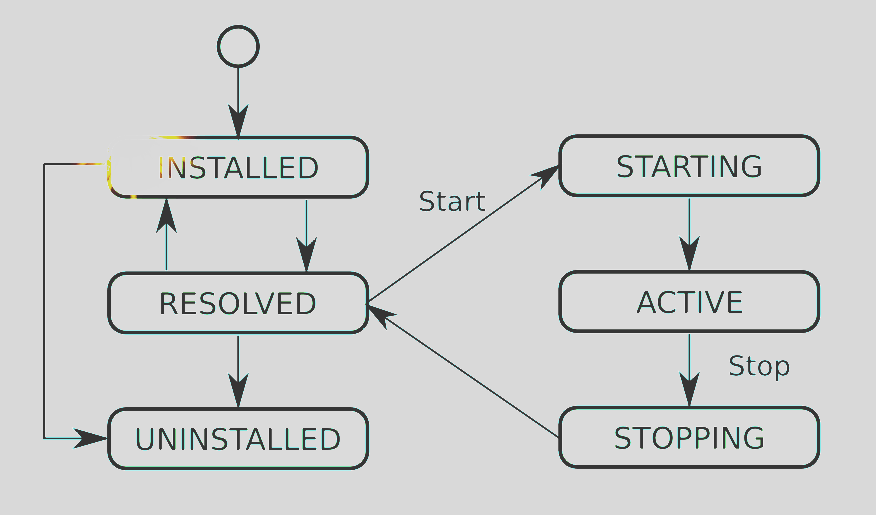
See the status – Installed. It should be ACTIVE after we deploy it.
Here are the list of osgi lifecycle status:
Step 6: Handle the Errors if any
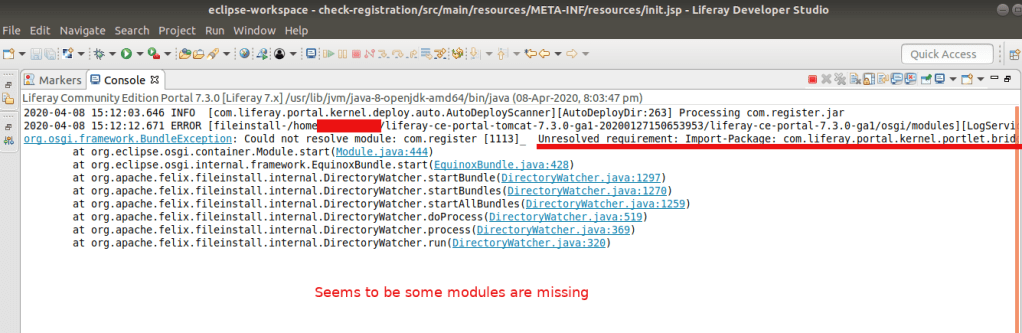
I am getting some issues with this creation, lets see what is the problem.
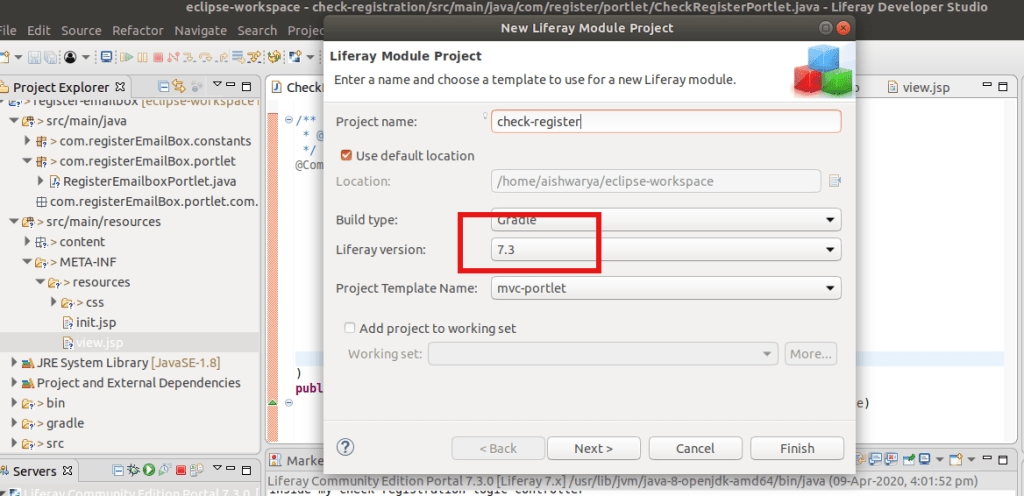
I don’t have any idea why I am getting this. After some research I tried to add the module that is missing here, but no luck. Then I realised we are on Liferay 7.3 and See the pic of the IDE there we selected 7.2 version because thats the latest version available there. Hmm…So…yeahh that may be the issue here. You got that!
So Update your IDE and create the package again.
Now it Works!
And check our newly created portlet in the right side section (inside Widget) of Liferay Site.
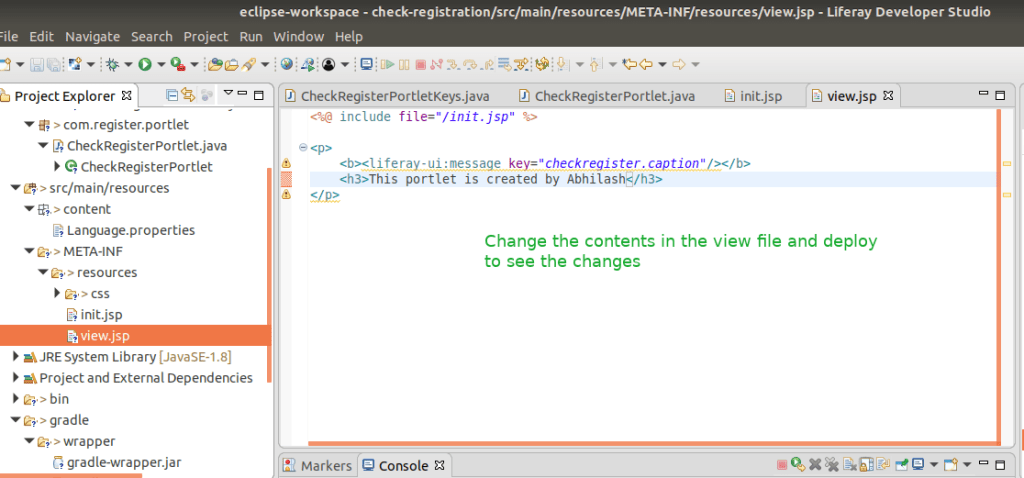
You can see this messge that we wrote inside the Class inside my check registration logic controller in your server console in IDE. And this message This portlet is created by Abhilash inside the Portlet.
Congrats .. You have created your first custom portlet in Liferay.
Goto your workspace folder (our developer studio workspace ~/eclipse-workspace):
$ cd ~/eclipse-workspace
$ nvm use 10.5
$ npm install -g generator-liferay-theme
$ npm install -g yo gulp
$ yo liferay-theme
Provide theme name, id, liferay version and font information
? What would you like to call your theme? Theme Moon
? What id would you like to give to your theme? theme-moon
? Which version of Liferay is this theme for? 7.3
? Would you like to add Font Awesome to your theme? No
.........
The project has been created successfully.

 Now we will invoke gulp init for you, to configure your deployment
strategy.

Remember, that you can change your answers whenever you want by
running gulp init again.

? Select your deployment strategy (Use arrow keys)
❯ Local App Server   // select this
  Docker Container
  Other

? Select your deployment strategy Local App Server
? Enter the path to your app server directory: /home/abhilash/liferay-ce-portal-tomcat-7.3.0-ga1-20200127150653953/liferay-ce-portal-7.3.0-ga1/tomcat-9.0.17
? Enter the url to your production or development site: http://localhost:8080
Run the command below from the theme’s root folder to build the files:
$ cd theme-moon
$ gulp build   # this creates the build folder
Now do the following changes to edit the created theme.
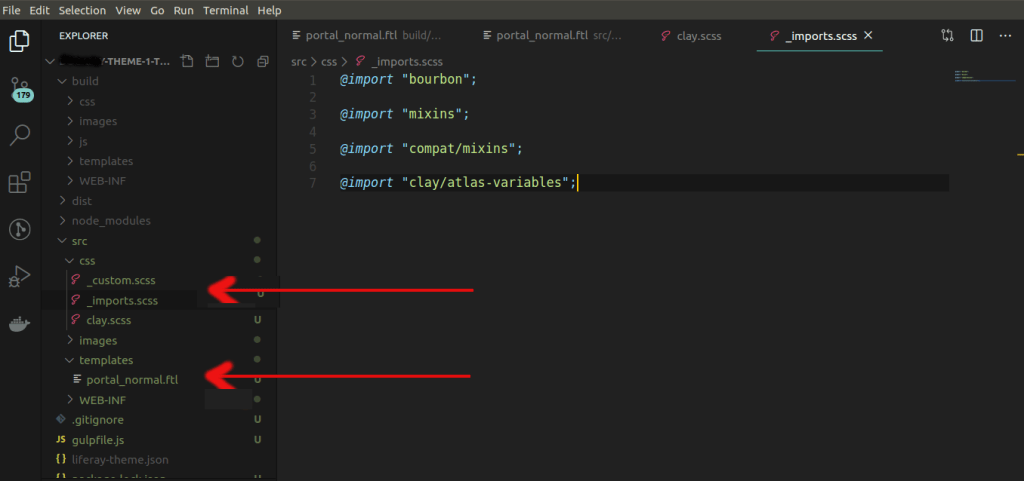
** Create a new /src/templates/ folder and copy portal_normal.ftl from the build/templates/ folder into it.
Configure the theme to extend the Atlas theme. Add aclay.scss file to the theme’s /src/css/ folder and add the import shown below:
@import "clay/atlas";
Create an _imports.scss file in the /src/css/ folder and add the imports shown below to it. This includes the default imports and replaces the clay/base-variables with the Atlas base variables:
You’ve generated the theme, prepared it for development, and configured it to extend the Atlas theme
Customizing the Header and Logo of your theme
Open portal_normal.ftl and replace the <header>...</header> element and contents with the updated code snippet below. This updates the structure slightly, making the banner expand the full width of the Header, and adds a new header_css_class variable to the class attribute. This variable is defined in a later step.
The logo’s height is retrieved with the ${site_logo_height} variable. The height of the logo is a bit too large for the this theme, so you must adjust it. Remove the width attribute from the logo’s image so it defaults to auto:
This applies Bootstrap and Clay utility classes to provide the overall look and feel of the Header. Assigning the classes to a variable keeps portal_normal clean and makes the code easy to maintain. If you want to update the classes, you just have to modify the variable (e.g. header_css_class = header_css_class + " my-new-class").
Add the code snippet below to update the logo_css_class variable to use Bootstrap’s navbar-brand class:
NEW THUMBNAIL FOR THE THEME
Before you upload the theme to see what it looks like so far, you must create a theme thumbnail so you can identify it. Create a thumbnail.png and replace the default from the /src/images/ folder. Note that its dimensions are 480px by 270px. These dimensions are required to display the theme thumbnail properly.
DEVELOPER MODE (If not enabled you may face CSS / JS loading issues )
The theme isn’t complete yet, but you’ll deploy what you have so you can replace the default logo with the your logo. Enable Developer Mode before deploying your theme, so the theme’s files are not cached for future deployments.
Once I faced CSS loading issue in my AWS Liferay site for one theme. After a lot of research I found that, the server doesn’t haveportal-ext.propertiesfile and not enabled the so calledDeveloper Mode
Custom CSS Loading in Liferay
My custom _import.scss almost look like this:
/* These inject tags are used for dynamically creating imports for themelet styles, you can place them where ever you like in this file. */
/* inject:imports */
/* endinject */
/* This file allows you to override default styles in one central location for easier upgrade and maintenance. */
@import "bourbon";

@import "mixins";

@import "compat/mixins";

@import "clay/atlas-variables";
@import "./style.scss";
@import "./innerstyle.scss";
@import "./mixedslider.scss";
------
Liferay loads this css file in HTML like as follows:
This is because of I was not enabled the ‘Developer Mode’ in portal.ext file.
After enabling it as below, my _import.scss styles shows up in Liferay’s main.css file.
Create a portal-ext.properties file in your server’s root folder if it doesn’t exist.
Add the line below to it:
include-and-override=portal-developer.properties
Start the server, if it’s not already started, and deploy the theme with the command below:
$ gulp deploy
.....
[20:34:49] Finished 'plugin:deploy' after 32 ms
[20:34:49] Finished 'deploy:war' after 32 ms
[20:34:49] Finished 'deploy' after 4.78 s
CHANGE LOGO
Open the Control Menu and navigate to Site Builder → Pages. Click the Gear icon next to Public Pages to open the configuration menu. Under the Look and Feel tab, scroll down and click the Change Current Theme button and select the Lunar Resort Theme. Scroll to the Logo heading, click the Change button, upload the new-logo.png logo, and click the Save button to apply the theme and logo.





















 The Rails Drop