Liferay 7.3: Connect with MYSQL database

Go inside the downloaded liferay portal folder. And start the tomcat server

cd ~/liferay-ce-portal-tomcat-7.3.0-ga1-20200127150653953/liferay-ce-portal-7.3.0-ga1/tomcat-9.0.17/bin
sh startup.sh


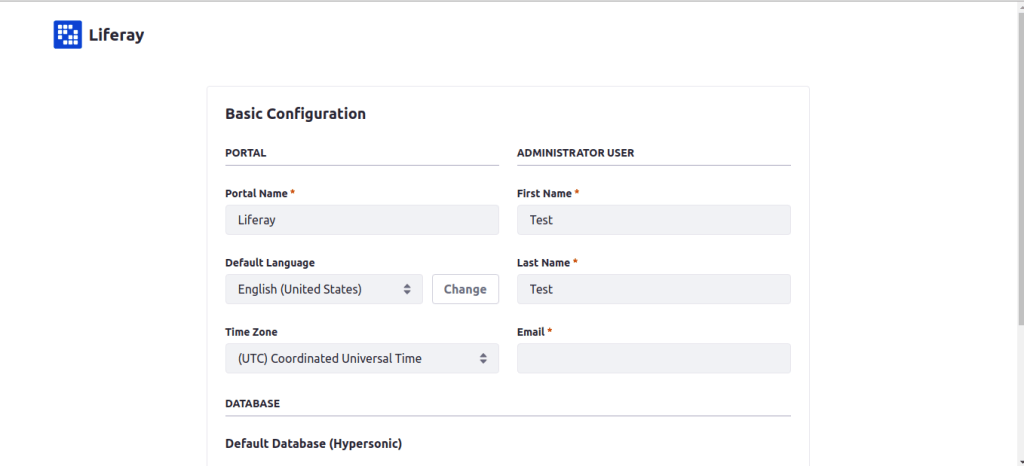
Goto http://localhost:8080/ and start setting up liferay configurations as follows:
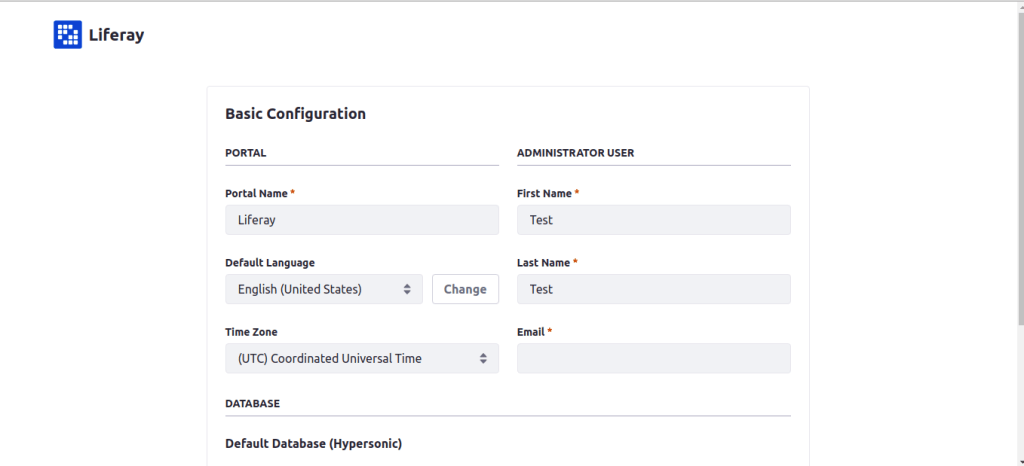
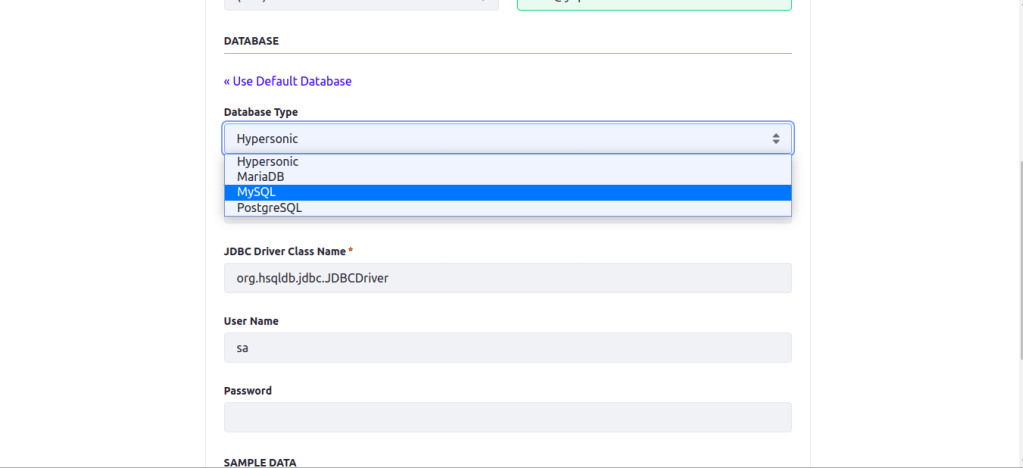
Do the basic configuration and change database to mysql

Mysql database is recommended fot staging and production environment.

JDBC URL:
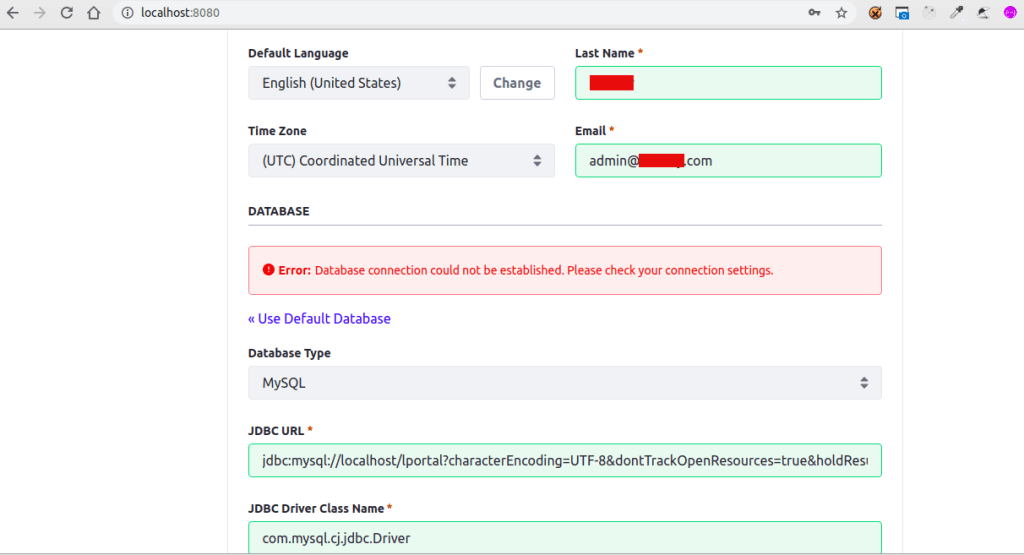
jdbc:mysql://localhost/lportal?characterEncoding=UTF-8&dontTrackOpenResources=true&holdResultsOpenOverStatementClose=true&serverTimezone
=GMT&useFastDateParsing=false&useUnicode=true
JDBC Driver Class Name: com.mysql.cj.jdbc.Driver

If you get the error like this, some of your provided mysql configuration went wrong. Check your mysql username and password.
If the given mysql configuration is correct, then you have to check the Liferay DB exists in your Mysql database. Else create the DB `lportal` as follows:
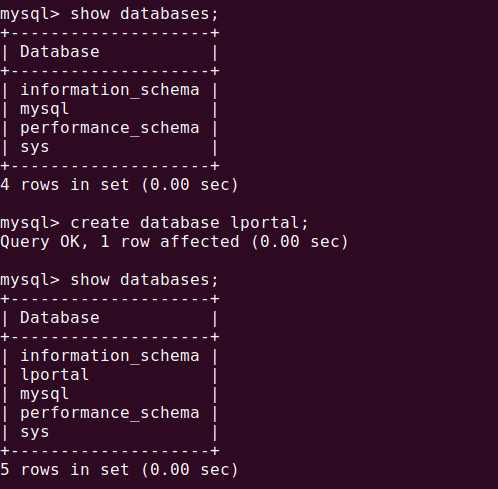
Create database ‘lportal’

Now click on the Configure button, you will be ready to go
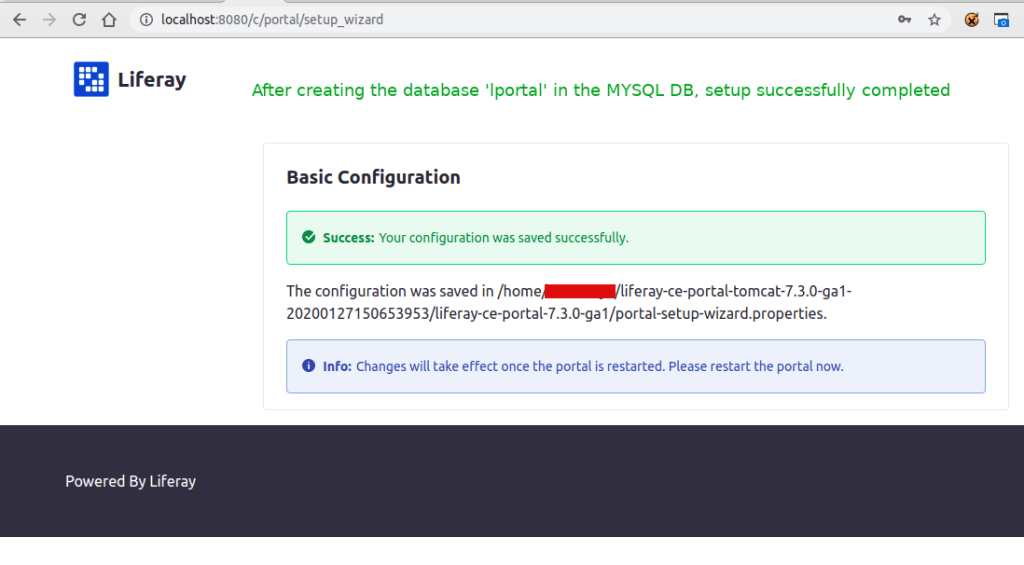
Open ‘~/liferay-ce-portal-tomcat-7.3.0-ga1-20200127150653953/liferay-ce-portal-7.3.0-ga1/portal-setup-wizard.properties’ file and you can see the above configurations added by liferay.

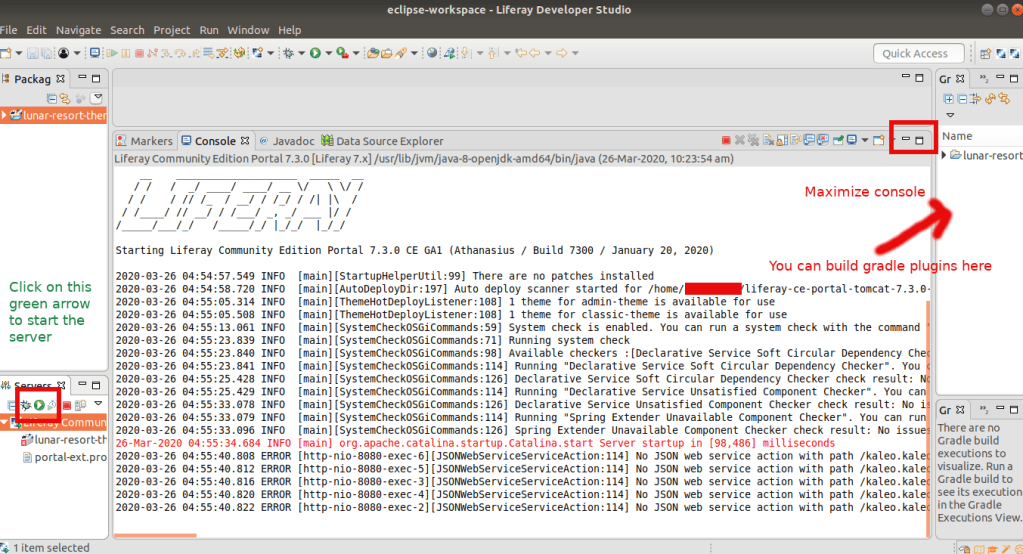
You can see the above server log in Dev studio. Here mentioned about which property files loads during the start and picking MYSQL DB, creating tables for first time in `lportal` database, inserting data to the table

You can see the following tables populated in the database lportal

mysql> show tables;
+--------------------------------+
| Tables_in_lportal              |
+--------------------------------+
| AMImageEntry                   |
| AccountEntry                   |
| AccountEntryOrganizationRel    |
| AccountEntryUserRel            |
| AccountRole                    |
| Account_                       |
| Address                        |
| AnnouncementsDelivery          |
| AnnouncementsEntry             |
| AnnouncementsFlag              |
| AppBuilderApp                  |
| AppBuilderAppDeployment        |
| AssetAutoTaggerEntry           |
| AssetCategory                  |
| AssetCategoryProperty          |
| AssetDisplayPageEntry          |
| AssetEntries_AssetCategories   |
| AssetEntries_AssetTags         |
| AssetEntry                     |
| AssetEntryAssetCategoryRel     |
| AssetEntryUsage                |
| AssetLink                      |
| AssetListEntry                 |
| AssetListEntryAssetEntryRel    |
| AssetListEntrySegmentsEntryRel |
| AssetListEntryUsage            |
| AssetTag                       |
| AssetVocabulary                |
| Audit_AuditEvent               |
| BackgroundTask                 |
| BatchEngineExportTask          |
| BatchEngineImportTask          |
| BlogsEntry                     |
| BlogsStatsUser                 |
| BrowserTracker                 |
| CTCollection                   |
| CTEntry                        |
| CTMessage                      |
| CTPreferences                  |
| CTProcess                      |
| CTSContent                     |
| Calendar                       |
| CalendarBooking                |
| CalendarNotificationTemplate   |
| CalendarResource               |
| ChangesetCollection            |
| ChangesetEntry                 |
| ClassName_                     |
| Company                        |
| CompanyInfo                    |
| Configuration_                 |
| Contact_                       |
| Contacts_Entry                 |
| Counter                        |
| Country                        |
| DDLRecord                      |
| DDLRecordSet                   |
| DDLRecordSetVersion            |
| DDLRecordVersion               |
| DDMContent                     |
| DDMDataProviderInstance        |
| DDMDataProviderInstanceLink    |
| DDMFormInstance                |
| DDMFormInstanceRecord          |
| DDMFormInstanceRecordVersion   |
| DDMFormInstanceVersion         |
| DDMStorageLink                 |
| DDMStructure                   |
| DDMStructureLayout             |
| DDMStructureLink               |
| DDMStructureVersion            |
| DDMTemplate                    |
| DDMTemplateLink                |
| DDMTemplateVersion             |
| DEDataDefinitionFieldLink      |
| DEDataListView                 |
| DLContent                      |
| DLFileEntry                    |
| DLFileEntryMetadata            |
| DLFileEntryType                |
| DLFileEntryTypes_DLFolders     |
| DLFileRank                     |
| DLFileShortcut                 |
| DLFileVersion                  |
| DLFileVersionPreview           |
| DLFolder                       |
| DLOpenerFileEntryReference     |
| DLSyncEvent                    |
| EmailAddress                   |
| ExpandoColumn                  |
| ExpandoRow                     |
| ExpandoTable                   |
| ExpandoValue                   |
| ExportImportConfiguration      |
| FragmentCollection             |
| FragmentEntry                  |
| FragmentEntryLink              |
| FriendlyURLEntry               |
| FriendlyURLEntryLocalization   |
| FriendlyURLEntryMapping        |
| Group_                         |
| Groups_Orgs                    |
| Groups_Roles                   |
| Groups_UserGroups              |
| HtmlPreviewEntry               |
| IM_MemberRequest               |
| Image                          |
| JournalArticle                 |
| JournalArticleLocalization     |
| JournalArticleResource         |
| JournalContentSearch           |
| JournalFeed                    |
| JournalFolder                  |
| KBArticle                      |
| KBComment                      |
| KBFolder                       |
| KBTemplate                     |
| KaleoAction                    |
| KaleoCondition                 |
| KaleoDefinition                |
| KaleoDefinitionVersion         |
| KaleoInstance                  |
| KaleoInstanceToken             |
| KaleoLog                       |
| KaleoNode                      |
| KaleoNotification              |
| KaleoNotificationRecipient     |
| KaleoTask                      |
| KaleoTaskAssignment            |
| KaleoTaskAssignmentInstance    |
| KaleoTaskForm                  |
| KaleoTaskFormInstance          |
| KaleoTaskInstanceToken         |
| KaleoTimer                     |
| KaleoTimerInstanceToken        |
| KaleoTransition                |
| Layout                         |
| LayoutBranch                   |
| LayoutClassedModelUsage        |
| LayoutFriendlyURL              |
| LayoutPageTemplateCollection   |
| LayoutPageTemplateEntry        |
| LayoutPageTemplateStructure    |
| LayoutPageTemplateStructureRel |
| LayoutPrototype                |
| LayoutRevision                 |
| LayoutSEOEntry                 |
| LayoutSEOSite                  |
| LayoutSet                      |
| LayoutSetBranch                |
| LayoutSetPrototype             |
| ListType                       |
| Lock_                          |
| MBBan                          |
| MBCategory                     |
| MBDiscussion                   |
| MBMailingList                  |
| MBMessage                      |
| MBStatsUser                    |
| MBThread                       |
| MBThreadFlag                   |
| MDRAction                      |
| MDRRule                        |
| MDRRuleGroup                   |
| MDRRuleGroupInstance           |
| Marketplace_App                |
| Marketplace_Module             |
| MembershipRequest              |
| OA2Auths_OA2ScopeGrants        |
| OAuth2Application              |
| OAuth2ApplicationScopeAliases  |
| OAuth2Authorization            |
| OAuth2ScopeGrant               |
| OrgGroupRole                   |
| OrgLabor                       |
| Organization_                  |
| PasswordPolicy                 |
| PasswordPolicyRel              |
| PasswordTracker                |
| Phone                          |
| PluginSetting                  |
| PollsChoice                    |
| PollsQuestion                  |
| PollsVote                      |
| PortalPreferences              |
| Portlet                        |
| PortletItem                    |
| PortletPreferences             |
| QUARTZ_BLOB_TRIGGERS           |
| QUARTZ_CALENDARS               |
| QUARTZ_CRON_TRIGGERS           |
| QUARTZ_FIRED_TRIGGERS          |
| QUARTZ_JOB_DETAILS             |
| QUARTZ_LOCKS                   |
| QUARTZ_PAUSED_TRIGGER_GRPS     |
| QUARTZ_SCHEDULER_STATE         |
| QUARTZ_SIMPLE_TRIGGERS         |
| QUARTZ_SIMPROP_TRIGGERS        |
| QUARTZ_TRIGGERS                |
| RatingsEntry                   |
| RatingsStats                   |
| ReadingTimeEntry               |
| RecentLayoutBranch             |
| RecentLayoutRevision           |
| RecentLayoutSetBranch          |
| Region                         |
| Release_                       |
| Repository                     |
| RepositoryEntry                |
| ResourceAction                 |
| ResourcePermission             |
| Role_                          |
| SAPEntry                       |
| SegmentsEntry                  |
| SegmentsEntryRel               |
| SegmentsEntryRole              |
| SegmentsExperience             |
| SegmentsExperiment             |
| SegmentsExperimentRel          |
| ServiceComponent               |
| SharingEntry                   |
| SiteFriendlyURL                |
| SiteNavigationMenu             |
| SiteNavigationMenuItem         |
| SocialActivity                 |
| SocialActivityAchievement      |
| SocialActivityCounter          |
| SocialActivityLimit            |
| SocialActivitySet              |
| SocialActivitySetting          |
| SocialRelation                 |
| SocialRequest                  |
| Subscription                   |
| SystemEvent                    |
| Team                           |
| Ticket                         |
| TrashEntry                     |
| TrashVersion                   |
| UserGroup                      |
| UserGroupGroupRole             |
| UserGroupRole                  |
| UserGroups_Teams               |
| UserIdMapper                   |
| UserNotificationDelivery       |
| UserNotificationEvent          |
| UserTracker                    |
| UserTrackerPath                |
| User_                          |
| Users_Groups                   |
| Users_Orgs                     |
| Users_Roles                    |
| Users_Teams                    |
| Users_UserGroups               |
| ViewCountEntry                 |
| VirtualHost                    |
| WebDAVProps                    |
| Website                        |
| WikiNode                       |
| WikiPage                       |
| WikiPageResource               |
| WorkflowDefinitionLink         |
| WorkflowInstanceLink           |
+--------------------------------+
262 rows in set (0.00 sec)

mysql> 
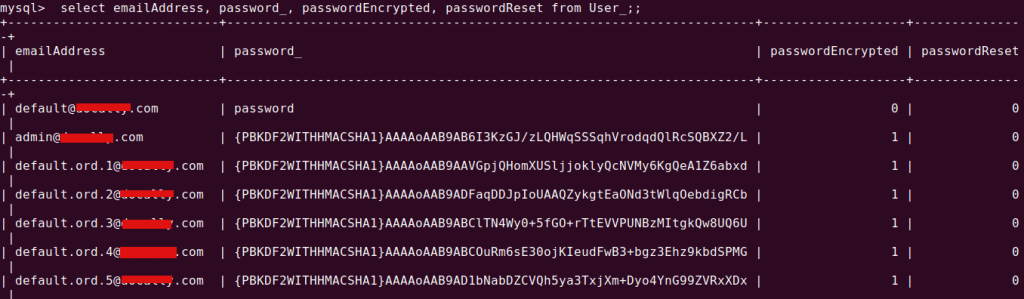
Here is the list of Users created. We are selected `Add Sample data` option at the time configuration. That is why we can see lot of users with my domain is listed

Login with

Email: provide the email given at the time of register

Password: test (default password for version 7.3)

If you are using Liferay 7.2 version, then this default password may not work. In this version liferay generates a random password, that you can check in the log file as below:

cd ~/Downloads/liferay-ce-portal-tomcat-7.2.1-ga2-20191111141448326/liferay-ce-portal-7.2.1-ga2/tomcat-9.0.17/logs/ && tail -f catalina.out


Search word password. You can get it.

After login you can see this terms of use page

Then a Password remainder page

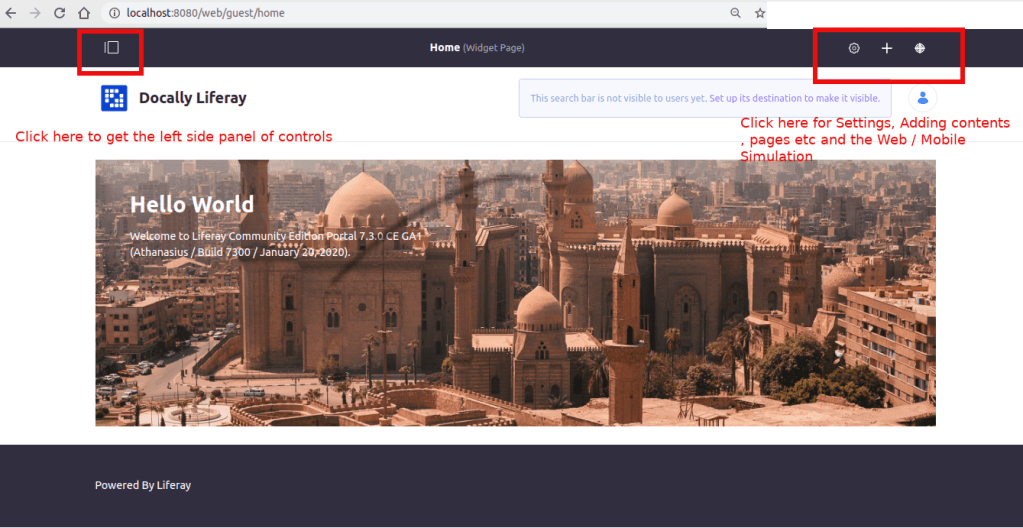
DONE! Congrats, you can see the admin home page with all controls

changing to new db from old db

Add the new db name ‘liferay721’ to portal-setup-wizard.properties

.........
jdbc.default.url=jdbc:mysql://localhost/liferay721?characterEncoding=UTF-8&dontTrackOpenResources=true&holdResultsOpenOverStatementClose=true&serverTimezone=GMT&useFastDateParsing=false&useUnicode=true
.........

Restart the server. Server Log:

Starting Liferay Community Edition Portal 7.2.1 CE GA2 (Mueller / Build 7201 / November 12, 2019)

2020-05-08 14:45:53.921 INFO  [main][StartupHelper:75] There are no patches installed
2020-05-08 14:45:54.000 WARN  [main][ReleaseLocalServiceImpl:238] Table 'liferay721.Release_' doesn't exist
2020-05-08 14:45:54.003 INFO  [main][ReleaseLocalServiceImpl:129] Create tables and populate with default data
...................
...................

Issues you may face during the setup

Once I created a DB names liferay_7_3_1 and the setup wizard finishes successfully and message shown to restart the server for get into the portal.

When I restart it I received the following issue:

An unexpected system error occurred.

java.lang.NullPointerException

Database is not setup properly. Check the DB name. Use characters as DB name if possible and start the server. If proper DB setup is done, then you can see 250 – 280 tables in database

and the following tables were created in the database named liferay_7_3_1

Only 155 rows

+--------------------------------+
| Tables_in_liferay_7_3_1        |
+--------------------------------+
| AccountEntry                   |
| AccountEntryOrganizationRel    |
| AccountEntryUserRel            |
.........
|
| Website                        |
| WikiNode                       |
| WikiPage                       |
| WikiPageResource               |
| WorkflowDefinitionLink         |
| WorkflowInstanceLink           |
+--------------------------------+
155 rows in set (0.00 sec)

Then I renamed the DB to liferay731. Then it works! So beware of underscore characters in your DB name.

Another error is shown when the server is not able to connect to your database, or database is not created that is specified as in your portal.ext.properties or portal-setup-wizard.properties

Create a database specified in properties file to get rid of the issue. Else check given DB permissions are correct

Liferay 7.3: Configure IDE

Step 1. Download it from

Download from here:
https://liferay.dev/project/-/asset_publisher/TyF2HQPLV1b5/content/ide-installation-instructions

Extract it to your /home directory

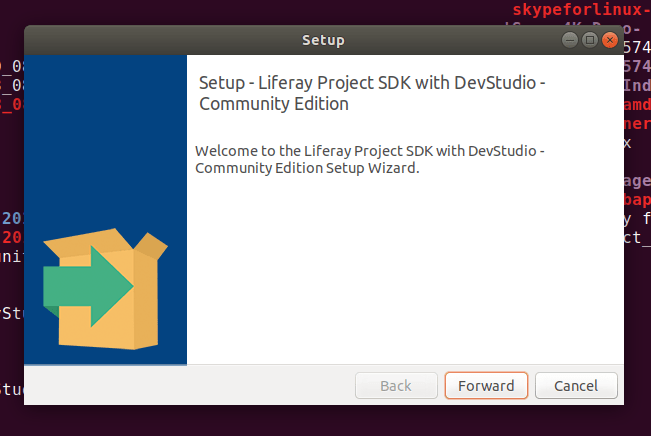
Step 2. run the installer

./LiferayProjectSDKwithDevStudioCommunityEdition-201910152009-linux-x64-installer.run

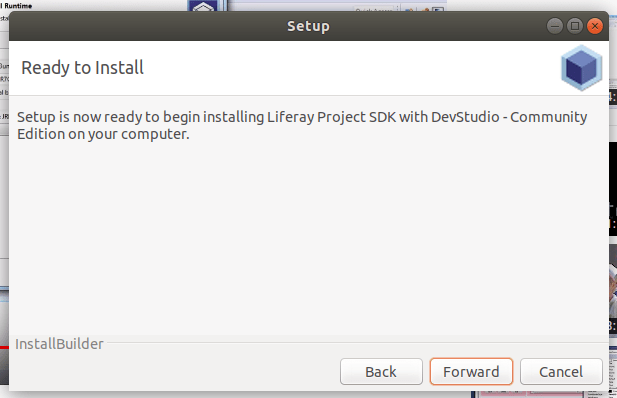
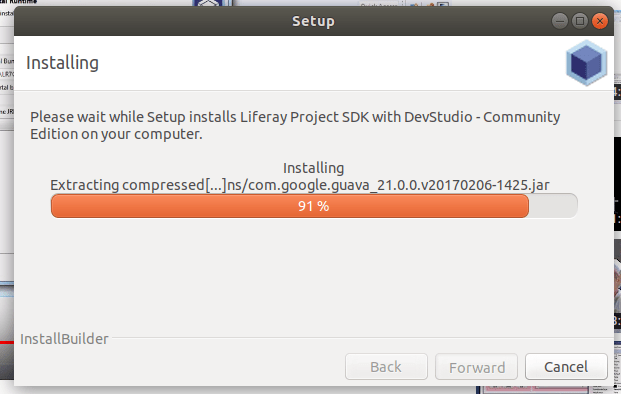
You can see the steps involving the process below.

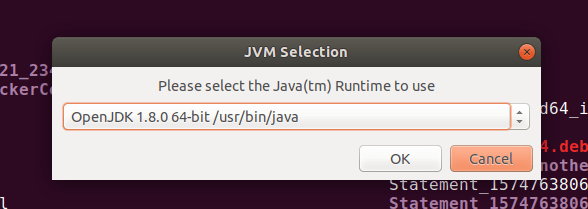
Select java runtime

After install Open it. Double click on the following file:

~/LiferayProjectSDKwithDevStudioCommunityEdition/liferay-developer-studio/DeveloperStudio

you can see the welcome page. Close it.


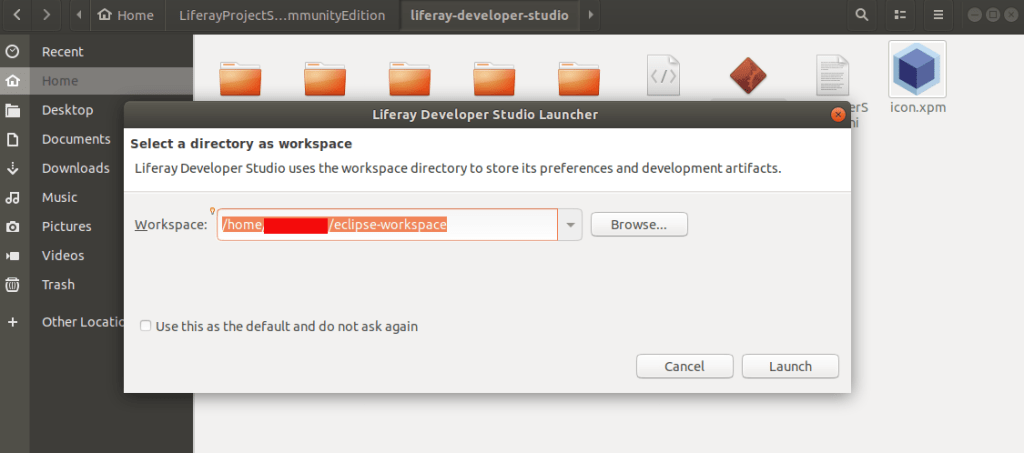
Click on Workbench to start on

This is how Liferay Studio Workspace home page look like

You can create liferay plugins / projects etc from here.

Step 3. Click on right corner first button and open perspective.

select Liferay plugins

Open Perspective

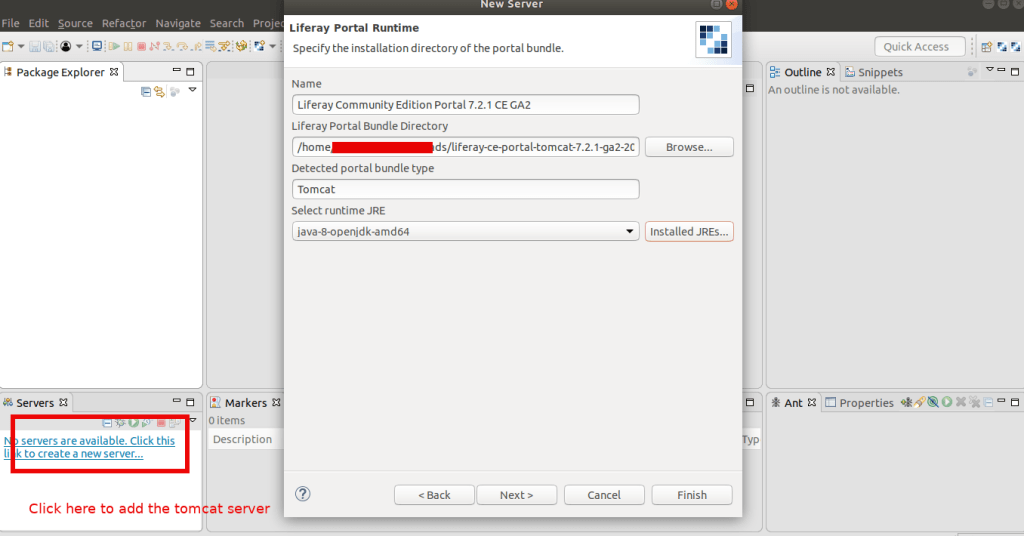
Step 4. Left bottom corner there is ‘Servers’ Tab

right click on it and select ‘New’ -> ‘Server’

Select ‘Liferay inc’ -> Liferay 7.x and click next

Add the tomcat server to your SDK to control the server from SDK. This helps you to see the server logs and other live status in IDE

Select the tomcat server path from your downloaded liferay portal

Make sure you are using the timestamp folder in the path of the server, else it not gonna work. It will show you an error like this:

If you start the tomcat server and try to access it without the timestamp PATH

You can add an existing resources created if available like theme etc to the server. If you don’t have any resources don’t worry. We are going to cover this in next chapter.

Click on the server name on the bottom left corner and you can see the configurations of the server.

Server Started. You can see the server logs in the console

LifeRay: What is Liferay? How to install it?

What is liferay?

With liferay we can create any number of custom sites. We can easily create sections like web content, blog content etc and share between those
sites. We can drag and drop sections to create website parts. So it is easy to use for admin users to add sections and drag to create pages.

“Liferay Portal is an open source enterprise web platform for building business solutions that deliver immediate results and long-term value. Liferay Portal started out as a personal development project in 2000 and was open sourced in 2001.”

Insallation:

Download liferay from: https://www.liferay.com/it/downloads-community

Or by command line:

wget https://releases.liferay.com/portal/7.3.1-ga2/liferay-ce-portal-tomcat-7.3.1-ga2-20200327090859603.tar.gz

Here we are going to install liferay version 7.3

Links:

https://portal.liferay.dev/docs/7-2/deploy/-/knowledge_base/d/installing-product

OR

check the readme file in (after downloading liferay portal)

~/Downloads/liferay-ce-portal-tomcat-7.3.1-ga2-20191111141448326/liferay-ce-portal-7.3.0-ga1/ folder

After that Download and install Java (JDK) 8 (if necessary) in your local environment.

OpenJDK 8

Java 8 is the current Long Term Support version and is still widely supported, though public maintenance ends in January 2019. To install OpenJDK 8, execute the following command:


sudo apt install openjdk-8-jdk
➜ java -version
openjdk version "1.8.0_232"
OpenJDK Runtime Environment (build 1.8.0_232-8u232-b09-0ubuntu1~18.04.1-b09)
OpenJDK 64-Bit Server VM (build 25.232-b09, mixed mode)

Extract the liferay portal .zip file. Copy the folder liferay-ce-portal-7.3.0-ga1 to your home path. And go inside the folder path as shown below:

cd ~/liferay-ce-portal-7.3.0-ga1/tomcat-9.0.17/bin

and do:

Start Tomcat server:

sh startup.sh

Using CATALINA_BASE:   /home/abhi/liferay-ce-portal-7.3.0-ga1/tomcat-9.0.17
Using CATALINA_HOME:   /home/abhi/liferay-ce-portal-7.3.0-ga1/tomcat-9.0.17
Using CATALINA_TMPDIR: /home/abhi/liferay-ce-portal-7.3.0-ga1/tomcat-9.0.17/temp
Using JRE_HOME:        /usr/lib/jvm/java-8-openjdk-amd64
Using CLASSPATH:       /home/abhi/liferay-ce-portal-7.3.0-ga1/tomcat-9.0.17/bin/bootstrap.jar:/home/abhi/liferay-ce-portal-7.3.0-ga1/tomcat-9.0.17/bin/tomcat-juli.jar
Tomcat started.

Restart command for Tomcat server:

sh shutdown.sh && sh startup.sh

Goto http://localhost:8080/

Go with default hypersonic DB if you are in testing environment.


Restart the Tomcat server

sh shutdown.sh && sh startup.sh

and goto http://localhost:8080

If the server is not started properly, you can check the logs here:

cd ~/liferay-ce-portal-7.3.0-ga1/tomcat-9.0.17/logs/ && tail -f catalina.out

I faced the following issue in new 7.3 version with mysql db which I didn’t face with 7.2 version with Hypersonic DB. My mysql db schema is not proper to version 7.3.

  __    ____________________  _____  __
   / /   /  _/ ____/ ____/ __ \/   \ \/ /
  / /    / // /_  / __/ / /_/ / /| |\  /
 / /____/ // __/ / /___/ _, _/ ___ |/ /
/_____/___/_/   /_____/_/ |_/_/  |_/_/

Starting Liferay Community Edition Portal 7.3.0 CE GA1 (Athanasius / Build 7300 / January 20, 2020)

2020-03-23 12:22:13.798 INFO  [main][StartupHelperUtil:99] There are no patches installed
You must first upgrade the portal to the required schema version 8.1.0
2020-03-23 12:22:13.860 ERROR [main][MainServlet:300] java.lang.RuntimeException: You must first upgrade the portal to the required schema version 8.1.0
java.lang.RuntimeException: You must first upgrade the portal to the required schema version 8.1.0
	at com.liferay.portal.events.StartupHelperUtil.verifyRequiredSchemaVersion(StartupHelperUtil.java:220)
	at com.liferay.portal.events.StartupAction.doRun(StartupAction.java:136)
	at com.liferay.portal.events.StartupAction.run(StartupAction.java:77)
	at com.liferay.portal.internal.servlet.MainServlet.init(MainServlet.java:297)

You’re presented a Basic Configuration page. Complete the configuration options. Liferay Portal uses an embedded database (HSQL) to make installation fast and easy. This database is not ready for production, so consider configuring a production-ready database (e.g., MySQL) if you plan on doing more than just exploring/testing. Agree to the terms and conditions, create a password, and configure a security question/answer.

You can now use Liferay Portal!

You can check all the projects from Liferay:

https://liferay.dev/projects

Get started from here:
https://portal.liferay.dev/

Liferay IDE:
https://liferay.dev/projects/ide

Liferay SDK:

“Liferay Plugin SDK is a development environment allows you to develop plugins for Liferay of all types such as Portlet, Themes, Layout Templates. The Liferay Plugin SDK is based on the Apache Ant tool and it can be integrated with all the common IDEs or used directly from the command line by executing a set of predefined commands (targets, in Ant’s nomenclature). In this tutorial I show how to configure the Plugin SDK in the Eclipse IDE”

Check this link (this doc is for version 6.1) :

https://portal.liferay.dev/docs/6-1/develop/-/knowledge_base/t/installing-the-sdk

LifeRay DXP:

This is the paid version from Liferay. With Liferay DXP you can implement not just static site, but something like today’s frontend fromeworks do (updating the DOM according to framework and spontaneous data change). Also you get the liferay support according to your plan.

Links:

https://www.liferay.com/products/dxp
https://www.liferay.com/solutions/websites
https://www.liferay.com/products/dxp/30-day-trial

Rubocop loading issue on VScode

If you are facing issue to load rubocop plugin to your VS code try the following steps to fix it.

The error message will be something like:

rubocop on VScode not working.Error “rubocop is not executable”

  1. First you have to ensure that you have installed ruby in your machine. if you are using docker containers for your project, ruby is installed inside the containers and VS Code cannot find it.
  2. Next install rubocop gem in your machine
                 $ gem install rubocop

3. Next take

  VS Code -> Settings -> search for 'rubocop' in Ruby > Rubocop: Execute Path

add the output of the following command:

        $ which rubocop

4. Reload the rubocop plugin from VS Code.

Now VS Code will get to execute rubocop.

Backup your system databases using Ruby backup gem

Install RVM (Or Rbenv) to manage your Ruby versions

 $ gpg --keyserver hkp://keys.gnupg.net --recv-keys 409B6B1796C275462A1703113804BB82D39DC0E3 7D2BAF1CF37B13E2069D6956105BD0E739499BDB
 $ curl -sSL https://get.rvm.io | bash 

Restart Terminal and type rvm -v

 $ rvm install 2.5
 $ rvm gemset create backup
 $ rvm gemset use backup
 $ gem install backup
 $ backup generate:model --trigger project_2_backup --archives --storages='s3' --compressor='gzip' --notifiers='mail' 
 Generated configuration file: '/home/ubuntu/Backup/config.rb'.
 Generated model file: '/home/ubuntu/Backup/models/project_2_backup.rb'.
 Usage:
   backup generate:model --trigger=TRIGGER
 Options:
   --trigger=TRIGGER
   [--config-path=CONFIG_PATH]  # Path to your Backup configuration directory
   [--databases=DATABASES]      # (mongodb, mysql, postgresql, redis, riak)
   [--storages=STORAGES]        # (cloudfiles, dropbox, ftp, local, ninefold, rsync, s3, scp, sftp)
   [--syncers=SYNCERS]          # (cloud_files, rsync_local, rsync_pull, rsync_push, s3)
   [--encryptors=ENCRYPTORS]    # (gpg, openssl)
   [--compressors=COMPRESSORS]  # (bzip2, gzip, lzma, pbzip2)
   [--notifiers=NOTIFIERS]      # (campfire, hipchat, mail, presently, prowl, twitter)
   [--archives]
   [--splitter]                 # use `--no-splitter` to disable
                               # Default: true 

Sample Model File

Add the following conf in Backup/models/project_2_backup.rb:

Example for mongodb

 database MongoDB do |db|
     db.name               = "db_name"
     db.username           = "db_username"
     db.password           = "db_pswd"
     db.host               = "localhost"
     db.port               = 27017 
     db.ipv6               = false
     #db.only_collections   = ["only", "these", "collections"]
     db.additional_options = ['--authenticationDatabase=admin']
     db.lock               = false
     db.oplog              = false
   end
   ## 
   # Amazon Simple Storage Service [Storage]
   #
   store_with S3 do |s3|
     # AWS Credentials
     s3.access_key_id     = "YOUR_ACCESS_KEY"
     s3.secret_access_key = "YOUR_SECRET_KEY"
     # Or, to use a IAM Profile:
     # s3.use_iam_profile = true
     s3.region            = "ap-southeast-2" 
     s3.bucket            = "bucket_name"
     s3.path              = "bucket_name_path"
     s3.keep              = 12
     # s3.keep              = Time.now - 2592000 # Remove all backups older than 1 month.
   end 

 # Notification mail infos
 notify_by Mail do |mail|
     mail.on_success           = true
     mail.on_warning           = true
     mail.on_failure           = true
     mail.from                 = "_____@gmail.com"
     mail.to                   = "____@___.com"
     mail.cc                   = "______@_____.com, _____@______.com"
     #mail.bcc                  = "bcc@email.com"
     #mail.reply_to             = "reply_to@email.com" 
     mail.address              = "smtp.gmail.com"
     mail.port                 = 587
     mail.domain               = "domain_name"
     mail.user_name            = "email_username"
     mail.password             = "email_password"
     mail.authentication       = "plain"
     mail.encryption           = :starttls
 end 

Once you’ve setup your configuration, check your work with:

$ backup check

If there are no errors, the check should report:

[2019/03/28 10:02:26][info] Configuration Check Succeeded.

Perform Backup:

$ backup perform --trigger project_2_backup

The Keep Option

keep a specified number of backups in storage. After each backup is performed, it will remove older backup package files based on the keep setting.

keep as a Number

If a number has been specified and once the keep limit has been reached, the oldest backup will be removed.

Note that if keep is set to 5, then the 6th backup will be transferred and stored, before the oldest is removed. So be sure you have space available for keep + 1 backups

keep as Time

When a Time object is set to keep it will keep backups until that time. Everything older than the set time will be removed.

install JRE/JDK on ubuntu 16.06

For Mac system Download ‘dmg’ file from here and double click on it.

http://www.oracle.com/technetwork/java/javase/downloads/jdk8-downloads-2133151.html

For Linux: 

Don’t install OpenJDK

 $ sudo apt update && sudo apt install openjdk-9-jre-headless
 $ java -version
 openjdk version "9-internal"
 OpenJDK Runtime Environment (build 9-internal+0-2016-04-14-195246.buildd.src)
 OpenJDK 64-Bit Server VM (build 9-internal+0-2016-04-14-195246.buildd.src, mixed mode) 

Install Oracle Java:

 $ sudo add-apt-repository ppa:webupd8team/java
 $ sudo apt-get update
 $ sudo apt-get install oracle-java8-installer
 $ java -version
 java version "1.8.0_171"
 Java(TM) SE Runtime Environment (build 1.8.0_171-b11)
 Java HotSpot(TM) 64-Bit Server VM (build 25.171-b11, mixed mode) 

After installing Java on Linux system, You must have to set JAVA_HOME and JRE_HOME environment variables. Which is used by many Java applications to find Java libraries during runtime. You can set these variables in /etc/environment file using the following command.

 cat >> /etc/environment <<EOL
 JAVA_HOME=/usr/lib/jvm/java-8-oracle
 JRE_HOME=/usr/lib/jvm/java-8-oracle/jre
 EOL 

Enable MongoDB Access Control

The default data directory for MongoDB is /data/db

This can be overridden by a dbpath option specified on the command line or in a configuration file.

If you install MongoDB via a package manager such as Homebrew or MacPorts these installs typically create a default data directory other than /data/db and set the dbpath in a configuration file.

You can check the dbpath by:

db.serverCmdLineOpts()

in your mongo shell

 "storage" : {
    "dbPath" : "/usr/local/var/mongodb"
 }, 

The following procedure first adds a user administrator to a MongoDB instance running without access control and then enables access control.

1.  Start MongoDB without access control.

$ mongod --port 27017 --dbpath /data/db1

2. Connect to the instance.

$ mongo --port 27017

3. Create the user administrator.

In the admin database, add a user with the userAdminAnyDatabase role. For example, the following creates the user myUserAdmin in the admin database:

Note: The database where you create the user (in this example, admin) is the user’s authentication database.

 > db.createUser(
 ...   {
 ...     user: "abhilash",
 ...     pwd: “password!“,
 ...     roles: [ { role: "userAdminAnyDatabase", db: "admin" } ]
 ...   }
 ... ) 

 Successfully added user: {
 "user" : "abhilash",
 "roles" : [
  {
    "role" : "userAdminAnyDatabase",
    "db" : "admin"
  }
 ]
 } 

Disconnect the mongo shell.

4. Re-start the MongoDB instance with access control.

$ mongod --auth --port 27017 --dbpath /usr/local/var/mongodb/db1

Clients that connect to this instance must now authenticate themselves as a MongoDB user.

 > db.auth();
 Error: auth expects either (username, password) or ({ user: username, pwd: password })
 0
 > db
 test 

** To authenticate during connection:

$ mongo --port 27017 -u "abhilash" -p "password!” --authenticationDatabase "admin"

** To authenticate after connecting

Connect the mongo shell

 $ mongo
 > use admin
 > db.auth("abhilash", “password!“ )
 > mongo
 MongoDB shell version v3.4.7
 connecting to: mongodb://127.0.0.1:27017
 MongoDB server version: 3.4.7
 Server has startup warnings:
 2018-01-22T10:32:18.027+0530 I CONTROL  [initandlisten]
 2018-01-22T10:32:18.027+0530 I CONTROL  [initandlisten] ** WARNING: Access control is not enabled for the database.
 2018-01-22T10:32:18.027+0530 I CONTROL  [initandlisten] **          Read and write access to data and configuration is unrestricted.
 2018-01-22T10:32:18.027+0530 I CONTROL  [initandlisten]
 > use admin
 switched to db admin
 > db
 admin
 > db.auth("abhilash", "password!”);
 1
 > use my_dbname;
 > db.createUser(
   {
     user: "vadmin",
     pwd: “pass111!”,
     roles: [ { role: "readWrite", db: "my_dbname" },
              { role: "read", db: "test" } ]
   }
 ) 

Reference:  Mongodb enable-authentication 

A Ruby on Rails Application without models

This blog is a quick walkthrough of creating a Ruby On Rails application without a model.

Find Rails new options from here:
https://gist.github.com/abhilashak/3c0c62fa62b2f7a439c417b68d032575

Find Gemfile options from here:

http://bundler.io/v1.2/gemfile.html

Install Ruby/Rails using rbenv

$ touch .rbenv-gemsets
$ echo project-name > .rbenv-gemsets
$ rbenv gemset active
$ rbenv install 2.5.3
$ gem install bundler
$ rbenv rehash
$ gem install rails -v 5.2.9
$ rbenv rehash
$ rails new my-new-porject --skip-active-record --skip-bundle -v 5.2.9

Add in Gemfile:

ruby “2.5.3”

comment jbuilder, we don’t need it.

# gem 'jbuilder', '~> 2.8’

Move rbenv gems file to new rails app folder

$ mv .rbenv-gemsets my-new-porject

$ touch .ruby-version

$ echo 2.5.3 > .ruby-version

$ gem install bundler

$ bundle

$ ruby -v
ruby 2.5.3p105 (2018-10-18 revision 65156) [x86_64-darwin18]

Start Rails server:

$ rails s

Gemfile add:

# Bootstrap Theme

gem 'bootstrap', '~> 4.3.0’

# Slim template Engine

gem 'slim', '>=4.0.1’

Do Bundle Install

$ bundle

Rename css to scss because we use bootsrap mixins and variables that work with scss files

$ mv app/assets/stylesheets/application.css app/assets/stylesheets/application.scss

Import Bootstrap styles in app/assets/stylesheets/application.scss:

// Custom bootstrap variables must be set or imported *before* bootstrap.
@import "bootstrap";

Then, remove all the *= require and *= require_tree statements from the Sass file. Instead, use @import to import Sass files.

Bootstrap JavaScript depends on jQuery
Add jquery-rails to Gemfile:

gem 'jquery-rails', '~> 4.3.4’

Bootstrap tooltips and popovers depend on popper.js for positioning.
Add Bootstrap dependencies and Bootstrap to your application.js:

//= require jquery3
//= require popper
//= require bootstrap-sprockets

While bootstrap-sprockets provides individual Bootstrap components for ease of debugging, you may alternatively require the concatenated bootstrap for faster compilation:

//= require jquery3
//= require popper
//= require bootstrap

Sass: Individual components

All Bootstrap opponents will be imported by default.
You can also import components explicitly. To start with a full list of modules copy _bootstrap.scss file into your assets as _bootstrap-custom.scss. Then comment out components you do not want from _bootstrap-custom. In the application Sass file, replace @import ‘bootstrap’ with:

@import 'bootstrap-custom';

Your application.css:

/*
 * This is a manifest file that'll be compiled into application.css, which will include all the files
 * listed below.
 *
 * Any CSS and SCSS file within this directory, lib/assets/stylesheets, or any plugin's
 * vendor/assets/stylesheets directory can be referenced here using a relative path.
 *
 * You're free to add application-wide styles to this file and they'll appear at the bottom of the
 * compiled file so the styles you add here take precedence over styles defined in any other CSS/SCSS
 * files in this directory. Styles in this file should be added after the last require_* statement.
 * It is generally better to create a new file per style scope.
 *
 */

/*Custom bootstrap variables must be set or imported *before* bootstrap.
  The available variables can be found: 
  https://github.com/twbs/bootstrap-rubygem/blob/master/assets/stylesheets/bootstrap/_variables.scss
*/
@import "bootstrap";

Your application.js File:

// This is a manifest file that'll be compiled into application.js, which will include all the files
// listed below.
//
// Any JavaScript/Coffee file within this directory, lib/assets/javascripts, or any plugin's
// vendor/assets/javascripts directory can be referenced here using a relative path.
//
// It's not advisable to add code directly here, but if you do, it'll appear at the bottom of the
// compiled file. JavaScript code in this file should be added after the last require_* statement.
//
// Read Sprockets README (https://github.com/rails/sprockets#sprockets-directives) for details
// about supported directives.
//
//= require rails-ujs
//= require turbolinks
//= require_tree .
//= require jquery3
//= require popper
//= require bootstrap-sprockets

You can check sample bootstrap forms here:

https://bootsnipp.com/snippets/featured/login-amp-signup-forms-in-panel

Remove cable.js from javascripts # we don’t need this for now

Rails 5.2.0 API Only application with latest Ruby 2.5.1

Check for the new ruby and rails versions
https://www.ruby-lang.org/en/downloads/
https://rubygems.org/gems/rails/versions

Here we are going to install Ruby – 2.5.1 & Rails – 5.2.0 (API only application)

Get rbenv into action
If you are not installed rbenv, you can install it from here:
https://github.com/rbenv/rbenv
After the installation make sure that, your $PATH has included rbenv/shims path. Else rbenv will not work.

1. $ rbenv install --list # Gets the list of ruby versions available

$ rbenv install 2.5.1

ruby-build: definition not found: 2.5.1

The following versions contain `2.5.1' in the name:
  rbx-2.5.1

See all available versions with `rbenv install --list'.

If the version you need is missing, try upgrading ruby-build:

  brew update && brew upgrade ruby-build

Oops..!

rbenv cannot find the version: 2.5.1

Upgrade ruby-build

Mac OSX:

$ brew upgrade ruby-build --HEAD

Now install ruby 2.5.1

$ rbenv install 2.5.1

Create a new gemset:

Rbenv gemset is a separate script and not coming with rbenv. If you are not installed this, you can install it from here:
https://github.com/jf/rbenv-gemset

$ rbenv gemset create 2.5.1 demo-app
That set up a directory for you in ~/.rbenv/versions/2.5.1/gemsets/demo-app

Set the ruby version to the newest

$ rbenv local 2.5.1

$ rbenv version
=> 2.5.1

    Activate New Gemset


For activating a gemset we need to create a .rbenv-gemsets file in the current directory.

$ touch .rbenv-gemsets
$ echo demo-app > .rbenv-gemsets

Check active gemset:

$ rbenv gemset active

Install Rails 5.2.0 API only Application

$ gem install rails -v '5.2.0'

$ rails -v
Rails 5.2.0

Later we can delete this .rbenv-gemsets file and add a new file named ‘.ruby-gemset’ in the rails project directory. I cannot find any other option for doing this. If anyone know more about this, please give a comment. I appreciate that.

Create a New Rails app

$ rails new demo-app  --api -T # API only skip the testing framework altogether

For Full Rails:

$ rails new demo-app -T -d postgresql # skip the testing framework altogether, uses Postgres Database

-T to exclude Minitest – the default testing framework if you are planning to use RSpec to test your API.

Rspec test framework:
https://github.com/rspec/rspec-rails

You can use the following with Rspec.
Shoulda Matchers:
Collection of testing matchers extracted from Shoulda (http://matchers.shoulda.io)
https://github.com/thoughtbot/shoulda-matchers

Database Cleaner:
Strategies for cleaning databases in Ruby. Can be used to ensure a clean state for testing
https://github.com/DatabaseCleaner/database_cleaner

Faker:
A library for generating fake data such as names, addresses, and phone numbers.
https://github.com/stympy/faker

use option: –no-rdoc –no-ri # skips the documentation

Remove Rbenv Gemset and add Ruby gems file

$ rm .rbenv-gemsets

$ cd demo-app
$ touch .ruby-gemset
$ echo demo-app > .ruby-gemset
$ rails s
=> Booting Puma
=> Rails 5.2.0 application starting in development
=> Run `rails server -h` for more startup options
Puma starting in single mode...
* Version 3.11.4 (ruby 2.5.1-p57), codename: Love Song
* Min threads: 5, max threads: 5
* Environment: development
* Listening on tcp://0.0.0.0:3000
Use Ctrl-C to stop

Goto http://localhost:3000/

rails-5.2.api-application

Done! Lets go…

Install Learning Locker (NodeJS) in your Mac OSX

Visit the following link to install LL on CentOS, Fedora, Ubuntu, and Debian OS
http://docs.learninglocker.net/guides-installing/

Mac OS is not supported in the installation process specified above.

You can install Learning Locker in Mac OSX by custom installation.

Steps to Install LL in Mac OSX:

1. Clone the repo from learning locker git repo

$ git clone https://github.com/LearningLocker/learninglocker.git

Enter into the directory and install the requirements:

$ yarn install

You can be built 5 distinct services with this codebase.
2. Install services

If you want to install all services on the same machine, you can use the following one command:
$ yarn build-all

Install Services separately if you want to install each service in different servers

Install the UI Server
$ yarn build-ui-server

Install the UI Client
$ yarn build-ui-client

Install the API Server
$ yarn build-api-server

Install the Worker
$ yarn build-worker-server

Install CLI
$ yarn build-cli-server

Note: Copy the .env.example into a new .env file and edit as required

RUNNING THE SERVICES VIA PM2

Install pm2 , if you have not yet installed
$ npm i -g pm2

To start API, Scheduler, UI, Worker services, navigate to the LL working directory and run:

$ pm2 start pm2/all.json

INSTALLING THE XAPI SERVICE

Step 1: Clone the repo
$ git clone https://github.com/LearningLocker/xapi-service.git

Step 2: Enter into the directory and install the requirements and build

$ yarn install
$ yarn build

Note: Copy the .env.example into a new .env file and edit as required

To start the xAPI service, navigate to the xAPI Service working directory and run:

$ pm2 start pm2/xapi.json

You can check the service status:

$ pm2 status

$ pm2 restart all # restart all services

$ pm2 logs # view logs

Launch the UI:
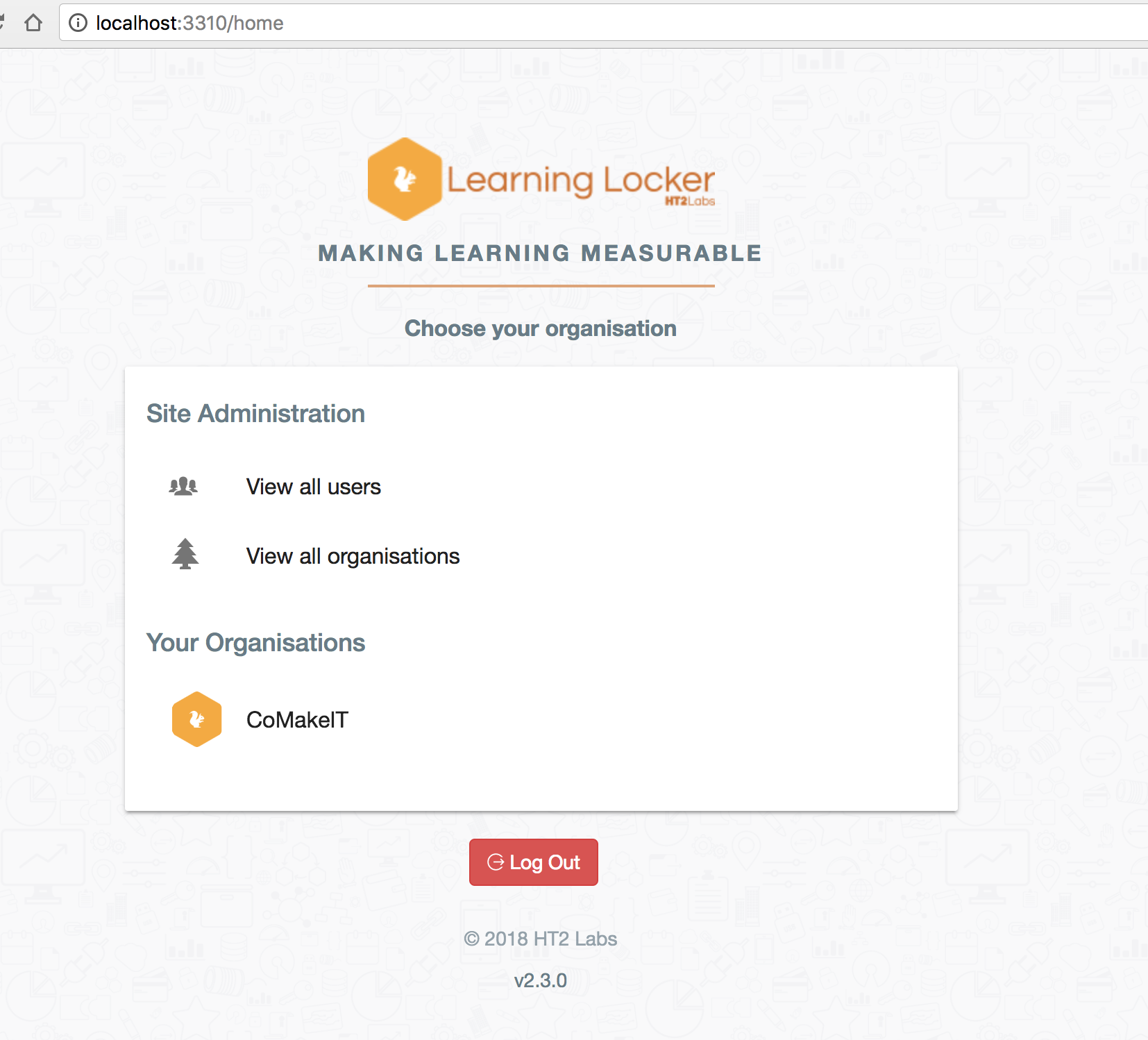
http://localhost:3310/login, note that I have change the UI port in .env to 3310, as other services running in default port

TheLearningLockerMac

Now you have to create User for logging in. Lets create an Admin User by the following command.

$ node cli/dist/server createSiteAdmin [email] [organisation] [password]

In order to use this command you have to install the CLI server for LL, that I already mentioned in the installation steps.

An Admin Example
$ node cli/dist/server createSiteAdmin "MyEmailId" "CoMakeIT" “myPassword”

You can run the migrations by the following command if any pending migrations exists

$ node cli/dist/server migrateMongo

LL-sign-in-error

Now try to Login with the credentials.

Ooops… there is an issue, and we can’t login

After doing some research I found the issue. We need to add a secret key base to our Application to work with JWT tokens.
Open .env file and find:

# Unique string used for hashing
# Recommended length, 256 bits
APP_SECRET=

Create a 256 bit length hash key and give as a value. As I am a Rails developer, It is easy for me to create one by going into any my Rails project and type

$ rake secret

I get One! 🙂

Or you can use some online applications like: https://randomkeygen.com/

And do:
$ pm2 restart all

from LL project folder

LL-dashboard

Try to sign in again

Wohh, Its done. Great. Now you can try some bit of dashboard items like Graphs. Go on.