$ sudo apt update && sudo apt install openjdk-9-jre-headless
$ java -version
openjdk version "9-internal"
OpenJDK Runtime Environment (build 9-internal+0-2016-04-14-195246.buildd.src)
OpenJDK 64-Bit Server VM (build 9-internal+0-2016-04-14-195246.buildd.src, mixed mode)
Install Oracle Java:
$ sudo add-apt-repository ppa:webupd8team/java
$ sudo apt-get update
$ sudo apt-get install oracle-java8-installer
$ java -version
java version "1.8.0_171"
Java(TM) SE Runtime Environment (build 1.8.0_171-b11)
Java HotSpot(TM) 64-Bit Server VM (build 25.171-b11, mixed mode)
After installing Java on Linux system, You must have to set JAVA_HOME and JRE_HOME environment variables. Which is used by many Java applications to find Java libraries during runtime. You can set these variables in /etc/environment file using the following command.
The default data directory for MongoDB is /data/db
This can be overridden by a dbpath option specified on the command line or in a configuration file.
If you install MongoDB via a package manager such as Homebrew or MacPorts these installs typically create a default data directory other than /data/db and set the dbpath in a configuration file.
$ mongo
> use admin
> db.auth("abhilash", “password!“ )
> mongo
MongoDB shell version v3.4.7
connecting to: mongodb://127.0.0.1:27017
MongoDB server version: 3.4.7
Server has startup warnings:
2018-01-22T10:32:18.027+0530 I CONTROL [initandlisten]
2018-01-22T10:32:18.027+0530 I CONTROL [initandlisten] ** WARNING: Access control is not enabled for the database.
2018-01-22T10:32:18.027+0530 I CONTROL [initandlisten] ** Read and write access to data and configuration is unrestricted.
2018-01-22T10:32:18.027+0530 I CONTROL [initandlisten]
> use admin
switched to db admin
> db
admin
> db.auth("abhilash", "password!”);
1
> use my_dbname;
> db.createUser(
{
user: "vadmin",
pwd: “pass111!”,
roles: [ { role: "readWrite", db: "my_dbname" },
{ role: "read", db: "test" } ]
}
)
While bootstrap-sprockets provides individual Bootstrap components for ease of debugging, you may alternatively require the concatenated bootstrap for faster compilation:
All Bootstrap opponents will be imported by default. You can also import components explicitly. To start with a full list of modules copy _bootstrap.scss file into your assets as _bootstrap-custom.scss. Then comment out components you do not want from _bootstrap-custom. In the application Sass file, replace @import ‘bootstrap’ with:
@import 'bootstrap-custom';
Your application.css:
/*
* This is a manifest file that'll be compiled into application.css, which will include all the files
* listed below.
*
* Any CSS and SCSS file within this directory, lib/assets/stylesheets, or any plugin's
* vendor/assets/stylesheets directory can be referenced here using a relative path.
*
* You're free to add application-wide styles to this file and they'll appear at the bottom of the
* compiled file so the styles you add here take precedence over styles defined in any other CSS/SCSS
* files in this directory. Styles in this file should be added after the last require_* statement.
* It is generally better to create a new file per style scope.
*
*/
/*Custom bootstrap variables must be set or imported *before* bootstrap.
The available variables can be found:
https://github.com/twbs/bootstrap-rubygem/blob/master/assets/stylesheets/bootstrap/_variables.scss
*/
@import "bootstrap";
Your application.js File:
// This is a manifest file that'll be compiled into application.js, which will include all the files
// listed below.
//
// Any JavaScript/Coffee file within this directory, lib/assets/javascripts, or any plugin's
// vendor/assets/javascripts directory can be referenced here using a relative path.
//
// It's not advisable to add code directly here, but if you do, it'll appear at the bottom of the
// compiled file. JavaScript code in this file should be added after the last require_* statement.
//
// Read Sprockets README (https://github.com/rails/sprockets#sprockets-directives) for details
// about supported directives.
//
//= require rails-ujs
//= require turbolinks
//= require_tree .
//= require jquery3
//= require popper
//= require bootstrap-sprockets
Here we are going to install Ruby – 2.5.1 & Rails – 5.2.0 (API only application)
Get rbenv into action
If you are not installed rbenv, you can install it from here: https://github.com/rbenv/rbenv
After the installation make sure that, your $PATH has included rbenv/shims path. Else rbenv will not work.
1. $ rbenv install --list # Gets the list of ruby versions available
$ rbenv install 2.5.1
ruby-build: definition not found: 2.5.1
The following versions contain `2.5.1' in the name:
rbx-2.5.1
See all available versions with `rbenv install --list'.
If the version you need is missing, try upgrading ruby-build:
brew update && brew upgrade ruby-build
Rbenv gemset is a separate script and not coming with rbenv. If you are not installed this, you can install it from here: https://github.com/jf/rbenv-gemset
$ rbenv gemset create 2.5.1 demo-app
That set up a directory for you in ~/.rbenv/versions/2.5.1/gemsets/demo-app
Set the ruby version to the newest
$ rbenv local 2.5.1
$ rbenv version
=> 2.5.1
Activate New Gemset
For activating a gemset we need to create a .rbenv-gemsets file in the current directory.
Later we can delete this .rbenv-gemsets file and add a new file named ‘.ruby-gemset’ in the rails project directory. I cannot find any other option for doing this. If anyone know more about this, please give a comment. I appreciate that.
Create a New Rails app
$ rails new demo-app --api -T # API only skip the testing framework altogether
For Full Rails:
$ rails new demo-app -T -d postgresql # skip the testing framework altogether, uses Postgres Database
-T to exclude Minitest – the default testing framework if you are planning to use RSpec to test your API.
$ rails s
=> Booting Puma
=> Rails 5.2.0 application starting in development
=> Run `rails server -h` for more startup options
Puma starting in single mode...
* Version 3.11.4 (ruby 2.5.1-p57), codename: Love Song
* Min threads: 5, max threads: 5
* Environment: development
* Listening on tcp://0.0.0.0:3000
Use Ctrl-C to stop
In order to use this command you have to install the CLI server for LL, that I already mentioned in the installation steps.
An Admin Example $ node cli/dist/server createSiteAdmin "MyEmailId" "CoMakeIT" “myPassword”
You can run the migrations by the following command if any pending migrations exists
$ node cli/dist/server migrateMongo
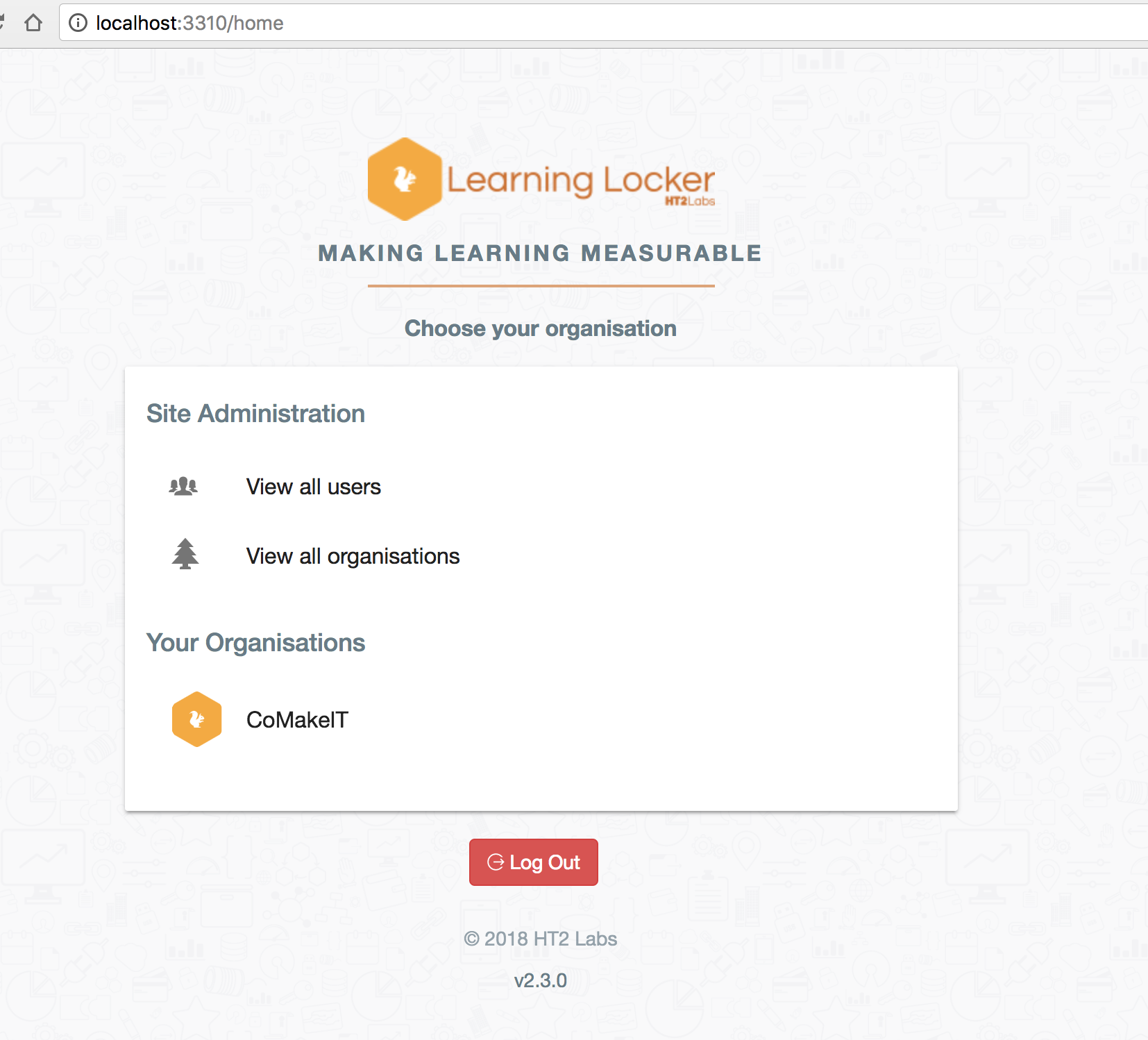
Now try to Login with the credentials.
Ooops… there is an issue, and we can’t login
After doing some research I found the issue. We need to add a secret key base to our Application to work with JWT tokens.
Open .env file and find:
# Unique string used for hashing
# Recommended length, 256 bits
APP_SECRET=
Create a 256 bit length hash key and give as a value. As I am a Rails developer, It is easy for me to create one by going into any my Rails project and type
Laravel is a php web framework which following the model–view–controller (MVC) architectural pattern. It is gaining more and more popularity nowadays.
It is almost followed Ruby on Rails framework pattern, not only for MVC structure but also for the pattern that Rails adopt for doing various tasks. It uses composer that installs the software snippets you needed to achieve a particular task as Rails does it with bundler to pick gems.
The drawback of Laravel is it cannot achieve the power of Ruby like meta-programming through php. So I need to write some more code in Laravel and its actually feels irritating if you want to write less code without the same repetitive patterns and keep it DRY.
This will install ‘composer.phar ‘ in the current directory.
Move that to bin folder to get it globally available as a command and rename it to composer
$ mv composer.phar /usr/local/bin/composer
Open new tab and Type
$ composer
Install Lareval
Using composer
$ composer create-project --prefer-dist laravel/laravel blog "5.4.*"
From laravel/laravel github repo OR via larval installer
$ laravel new blog
-bash: laravel: command not found
Install it:
$ composer global require "laravel/installer"
this makes it globally accessible
Make sure to place the $HOME/.composer/vendor/bin directory (or the equivalent directory for your OS) in your $PATH so the laravel executable can be located by your system.
Basically if you need to generate url based on the current url during a request OR you can create your own Urls by using Rails ‘ActionDispatch::Integration::Session‘ class.
Rails creates an object ‘app’. It is and action dispatch session object.
You can make use of that object for creating your own URLs like:
An executable file to open the sublime editor is already contained in the Sublime directory itself. By default this is not added to your $PATH, in your command-line interpreter.
So add that executable file to one of the directory that included in $PATH.