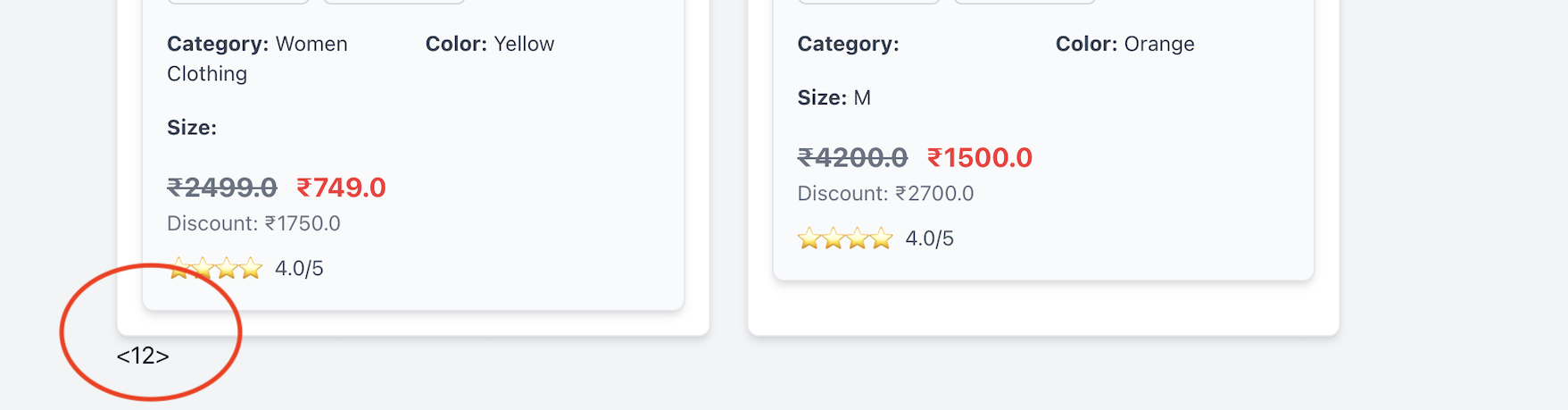
You can see that in the query Tab in Debugbar, select * from products query has been replaced with limit query. But this is not the case where you go through the entire thousand hundreds of products, for example searching. We can think of view caching and SQL indexing for such a situation.
As Rails developers, we’ve all been there – your application starts slowing down as data grows, pages take longer to load, and memory usage spikes. Before you blame Rails itself or consider rewriting your entire application, you should profile your app to understand what’s really happening behind the scenes.
Most of the time, the issue lies in how the app is written: unnecessary SQL queries, excessive object allocations, or inefficient code patterns. Before you think about rewriting your app or switching frameworks, profile it.
That’s where Rails Debugbar shines— It helps you identify bottlenecks like slow database queries, excessive object allocations, and memory leaks – all from a convenient toolbar at the bottom of your development environment.
🤔 What is Rails Debugbar?
Rails Debugbar is a browser-integrated dev tool that adds a neat, powerful panel at the bottom of your app in development. It helps you answer questions like:
How long is a request taking?
How many SQL queries are being executed?
How many Ruby objects are being allocated?
Which parts of my code are slow?
It’s like a surgeon’s X-ray for your app—giving you visibility into internals without needing to dig into logs or guess. Get a better understanding of your application performance and behavior (SQL queries, jobs, cache, routes, logs, etc)
⚙️ Installation & Setup (Rails 8)
Prerequisites
Ruby on Rails 5.2+ (works perfectly with Rails 8)
A Ruby version supported by your Rails version
1. Add it to your Gemfile:
group :development do
  gem 'debugbar'
end
Then run:
bundle install
2. Add the Debugbar layout helpers in your application layout:
In app/views/layouts/application.html.erb, just before the closing </head> and </body> tags:
<%= debugbar_head if defined?(Debugbar) %>
...
<%= debugbar_body if defined?(Debugbar) %>
That’s it! When you restart your server, you’ll see a sleek Debugbar docked at the bottom of the screen.
You can see ActionCable interacting with debugbar_channel in logs:
Rails Debugbar includes several tabs. Let’s go through the most useful ones—with real-world examples of how to interpret and improve performance using the data.
1. Queries Tab
This tab shows all SQL queries executed during the request, including their duration in milliseconds.
Example:
You see this in the Queries tab:
SELECT * FROM users WHERE email = 'test@example.com'  (15ms)
SELECT * FROM products WHERE user_id = 1                 (20ms)
SELECT * FROM comments WHERE product_id IN (...)         (150ms)
You realize:
The third query is taking 10x more time.
You’re not using eager loading, and it’s triggering N+1 queries.
This loads the comments in a single query, reducing load time and object allocation.
2. Timeline Tab
Gives you a timeline breakdown of how long each part of the request takes—view rendering, database, middleware, etc.
Example:
You notice that rendering a partial takes 120ms, way more than expected.
<%= render 'shared/sidebar' %>
How to Fix:
Check the partial for:
Heavy loops or database calls
Uncached helper methods
Move the partial to use a fragment cache:
<% cache('sidebar') do %>
  <%= render 'shared/sidebar' %>
<% end %>
Another Example Problem: If you notice view rendering takes 800ms for a simple page.
Solution: Investigate partials being rendered. You might be:
Rendering unnecessary partials
Using complex helpers in views
Need to implement caching
# Before
<%= render @products %> # Renders _product.html.erb for each

# After (with caching)
<% @products.each do |product| %>
  <% cache product do %>
    <%= render product %>
  <% end %>
<% end %>
3. Memory Tab
Tracks memory usage and object allocations per request.
Example:
You load a dashboard page and see 25,000+ objects allocated. Yikes.
Dig into the view and see:
<% User.all.each do |user| %>
  ...
<% end %>
That’s loading all users into memory.
How to Fix:
Use pagination or lazy loading:
@users = User.page(params[:page]).per(20)
Now the object count drops dramatically.
4. Environment & Request Info
See request parameters, environment variables, session data, and headers.
Example:
You’re debugging an API endpoint and want to confirm the incoming headers or params—Debugbar shows them neatly in this tab.
It can help identify:
Wrong content-type headers
CSRF issues
Auth headers or missing cookies
💡 Debugbar Best Practices
Use it early: Don’t wait until your app is slow—profile as you build.
Watch out for hidden N+1 in associations, partials, or background jobs.
Keep an eye on object counts to reduce memory pressure in production.
Use fragment and Russian doll caching where needed, based on render timelines.
Regularly review slow pages with Debugbar open—it’s a development-time lifesaver.
💭 Final Thoughts
Rails Debugbar offers an easy, visual way to profile and optimize your Rails 8 app. Whether you’re debugging a slow page, inspecting a query storm, or chasing down memory leaks, this tool gives you insight without friction.
So before you overhaul your architecture or blame Rails, fire up Debugbar—and fix the real issues.
Rack provides a minimal, modular, and adaptable interface for developing web applications in Ruby. By wrapping HTTP requests and responses in the simplest way possible, it unifies and distills the bridge between web servers, web frameworks, and web application into a single method call.
Where is it used?
Rails (built on Rack)
Sinatra and Hanami
Middleware development
What is a Rack-Based Application?
A Rack-based application is any Ruby web application that implements the Rack interface. This means the app must follow Rack’s simple calling convention:
app = Proc.new do |env|
  ['200', { 'Content-Type' => 'text/html' }, ['Hello, Rack!']]
end
This returns an array of three elements:
HTTP status code ('200')
Headers ({ 'Content-Type' => 'text/html' })
Response body (['Hello, Rack!'])
Example: Basic Rack Application
require 'rack'

app = Proc.new do |env|
  ['200', { 'Content-Type' => 'text/html' }, ['Hello, Rack!']]
end

Rack::Handler::WEBrick.run app, Port: 9292
Run it with:
ruby my_rack_app.rb
Open http://localhost:9292 in your browser.
Does Rails Use Rack?
Yes, Rails uses Rack. Rack serves as the interface between Rails and web servers like Puma or WEBrick.
How Rails Uses Rack
When a request comes in:
The web server (Puma/WEBrick) receives it.
The server passes the request to Rack.
Rack processes the request and sends it through Rails middleware.
After passing through the middleware stack, Rails’ router (ActionDispatch) decides which controller/action should handle the request.
The response is generated, sent back through Rack, and returned to the web server.
Check /design_studio/config.ru file in our Rails 8 app is responsible for starting the server.
You can actually run a Rails app using just Rack!
Create a config.ru file / use existing one:
require_relative 'config/environment'
run Rails.application
Run it using Rack:
rackup -p 4343

open http://localhost:4343/products
This runs your Rails app without Puma or WEBrick, proving Rails works via Rack.
Is Rack a Server?
No, Rack is not a server. Instead, Rack is a middleware interface that sits between the web server (like Puma or WEBrick) and your Ruby application (like Rails or Sinatra).
How Does Rack Fit with Web Servers Like Puma and WEBrick?
Puma and WEBrick support Rack by implementing the Rack::Handler interface, allowing them to serve any Rack-based application, such as Rails and Sinatra.
Puma and WEBrick are not built “on top of” Rack—they are independent web servers.
However, they implement Rack::Handler, which means they support Rack applications.
This allows them to serve Rails, Sinatra, and other Rack-based applications.
The Relationship Between Rack, Web Servers, and Rails
Rack provides a standard API for handling HTTP requests and responses.
Web servers (Puma, WEBrick, etc.) implement Rack::Handler so they can run any Rack-based app.
Rails supports Rack by implementing the Rack interface, allowing it to interact with web servers and middleware.
How Rails Supports Rack
Rack Middleware: Rails includes middleware components that process requests before they reach controllers.
Rack Interface: Rails applications can be run using config.ru, which follows the Rack convention.
Web Server Communication: Rails works with Rack-compatible servers like Puma and WEBrick.
Illustration of How a Request Flows
The browser sends a request to the server (Puma/WEBrick).
The server passes the request to Rack.
Rack processes the request (passing it through middleware).
Rails handles the request and generates a response.
The response goes back through Rack and is sent to the server, which then passes it to the browser.
So, while Rack is not a server, it allows web servers to communicate with Ruby web applications like Rails.
Adding Middleware in a Rails 8 App
Middleware is a way to process requests before they reach your Rails application.
How Does Middleware Fit In?
Middleware in Rails is just a Rack application that modifies requests/responses before they reach the main Rails app.
Example: Custom Middleware
Create a new file in app/middleware/my_middleware.rb:
class MyMiddleware
  def initialize(app)
    @app = app
  end

  def call(env)
    status, headers, body = @app.call(env)
    body = ["Custom Middleware: "] + body
    [status, headers, body]
  end
end
Now, add it to Rails in config/application.rb:
config.middleware.use MyMiddleware
Restart your Rails server, and all responses will be prefixed with Custom Middleware:
To attach multiple images to a Product model in Rails 8, Active Storage provides the best way using has_many_attached. Below are the steps to set up multiple image attachments in a local development environment.
1️⃣ Install Active Storage (if not already installed)
We have already done this step if you are following this series. Else run the following command to generate the necessary database migrations:
rails active_storage:install
rails db:migrate
This will create two tables in your database:
active_storage_blobs → Stores metadata of uploaded files.
active_storage_attachments → Creates associations between models and uploaded files.
2️⃣ Update the Product Model
Configuring specific variants is done the same way as has_one_attached, by calling the variant method on the yielded attachable object:
add in app/models/product.rb:
class Product < ApplicationRecord
  has_many_attached :images do |attachable|
    attachable.variant :normal, resize_to_limit: [540, 720]
    attachable.variant :thumb, resize_to_limit: [100, 100]
  end
end
You just have to mention the above and rails will create everything for you!
Variants rely on ImageProcessing gem for the actual transformations of the file, so you must add gem "image_processing" to your Gemfile if you wish to use variants.
By default, images will be processed with ImageMagick using the MiniMagick gem, but you can also switch to the libvips processor operated by the ruby-vips gem.
3️⃣ Configure Active Storage for Local Development
By default, Rails stores uploaded files in storage/ under your project directory.
Ensure your config/environments/development.rb has:
config.active_storage.service = :local
And check config/storage.yml to ensure you have:
local:
  service: Disk
  root: <%= Rails.root.join("storage") %>
This will store the uploaded files in storage/.
4️⃣ Add File Uploads in Controller
Modify app/controllers/products_controller.rb to allow multiple image uploads:
class ProductsController < ApplicationController
  def create
    @product = Product.new(product_params)

    if @product.save
      redirect_to @product, notice: "Product was successfully created."
    else
      render :new
    end
  end

  private

  def product_params
    params.require(:product).permit(:name, :description, images: [])
  end
end
Notice images: [] → This allows multiple images to be uploaded.
Meanwhile we are setting up some UI for our app using Tailwind CSS, I have uploaded 2 images to our product in the rich text editor. Let’s discuss about this in this post.
Understanding Active Storage in Rails 8: A Deep Dive into Image Uploads
In our Rails 8 application, we recently tested uploading two images to a product using the rich text editor. This process internally triggers several actions within Active Storage. Let’s break down what happens behind the scenes.
How Active Storage Handles Image Uploads
When an image is uploaded, Rails 8 processes it through Active Storage, creating a new blob entry and storing it in the disk service. The following request is fired:
Processing by ActiveStorage::DirectUploadsController#create as JSON

Parameters: {"blob" => {"filename" => "floral-kurtha.jpg", "content_type" => "image/jpeg", "byte_size" => 107508, "checksum" => "GgNgNxxxxxxxjdPOLw=="}}
This request initiates a database entry in active_storage_blobs:
This process triggers the ActiveStorage::DiskController, handling file storage via a PUT request:
Started PUT "/rails/active_storage/disk/eyJfcmFpbHMiOxxxxx"
Disk Storage (0.9ms) Uploaded file to key: hut9d0zxssxxxxxx
Completed 204 No Content in 96ms
Retrieving Images from Active Storage
After successfully storing the file, the application fetches the image via a GET request:
Started GET "/rails/active_storage/blobs/redirect/eyJfcmFpbHMiOxxxxxxxxxxfQ==--f9c556012577xxxxxxxxxxxxfa21/floral-kurtha-2.jpg"
This request is handled by:
Processing by ActiveStorage::Blobs::RedirectController#show as JPEG
The file is then served via the ActiveStorage::DiskController#show:
Redirected to http://localhost:3000/rails/active_storage/disk/eyJfcmFpbHMiOnsiZGxxxxxxxxxd048aae4ab5c30/floral-kurtha-2.jpg
Updating Records with Active Storage Attachments
When updating a product, the system also updates its associated images. The following Active Storage updates occur:
UPDATE "action_text_rich_texts" SET "body" = .... WHERE "action_text_rich_texts"."id" = 1

UPDATE "active_storage_blobs" SET "metadata" = '{"identified":true}' WHERE "active_storage_blobs"."id" = 3

INSERT INTO "active_storage_attachments" ("name", "record_type", "record_id", "blob_id", "created_at") VALUES ('embeds', 'ActionText::RichText', 1, 3, '2025-03-31 11:46:13.464597')
Additionally, Rails updates the updated_at timestamp of the associated records:
UPDATE "products" SET "updated_at" = '2025-03-31 11:46:13.523640' WHERE "products"."id" = 1
Best Practices for Active Storage in Rails 8
Use Direct Uploads: This improves performance by uploading files directly to cloud storage (e.g., AWS S3, Google Cloud Storage) instead of routing them through your Rails server.
Attach Images Efficiently: Use has_one_attached or has_many_attached for file associations in models.
Avoid Serving Files via Rails: Use a CDN or proxy service to serve images instead of relying on Rails controllers.
Clean Up Unused Blobs: Regularly remove orphaned blob records using ActiveStorage::Blob.unattached.destroy_all.
Optimize Image Processing: Use variants (image.variant(resize: "300x300").processed) to generate resized images efficiently.
In Rails 8, Active Storage uses two main tables for handling file uploads:
1. active_storage_blobs Table
This table stores metadata about the uploaded files but not the actual files. Each row represents a unique file (or “blob”) uploaded to Active Storage.
Columns in active_storage_blobs Table:
id – Unique identifier for the blob.
key – A unique key used to retrieve the file.
filename – The original name of the uploaded file.
content_type – The MIME type (e.g., image/jpeg, application/pdf).
metadata – JSON data storing additional information (e.g., width/height for images).
service_name – The storage service (e.g., local, amazon, google).
byte_size – File size in bytes.
checksum – A checksum to verify file integrity.
created_at – Timestamp when the file was uploaded.
👉 Purpose: This table allows a single file to be attached to multiple records without duplicating the file itself.
Why Does Rails Need Both Tables?
Separation of Concerns:
active_storage_blobstracks the files themselves.
active_storage_attachmentslinks them to models.
Efficient File Management:
The same file can be used in multiple places without storing it multiple times.
If a file is no longer attached to any record, Rails can remove it safely.
Supports Different Attachments:
A model can have different types of attachments (avatar, cover_photo, documents).
A single model can have multiple files attached (has_many_attached).
Example Usage in Rails 8
class User < ApplicationRecord
  has_one_attached :avatar   # Single file
  has_many_attached :photos  # Multiple files
end
When a file is uploaded, an entry is added to active_storage_blobs, and an association is created in active_storage_attachments.
How Rails Queries These Tables
user.avatar # Fetches from `active_storage_blobs` via `active_storage_attachments`
user.photos.each { |photo| puts photo.filename } # Fetches multiple attached files
Conclusion
Rails 8 uses two tables to decouple file storage from model associations, enabling better efficiency, flexibility, and reusability. This structure allows models to reference files without duplicating them, making Active Storage a powerful solution for file management in Rails applications. 🚀
Where Are Files Stored in Rails 8 by Default?
By default, Rails 8 stores uploaded files using Active Storage’s disk service, meaning files are saved in the storage/ directory within your Rails project.
Default Storage Location:
Files are stored in: storage/ ├── cache/ (temporary files) ├── store/ (permanent storage) └── variant/ (image transformations like resizing)
The exact file path inside storage/ is determined by the key column in the active_storage_blobs table. For example, if a blob entry has: key = 'xyz123abcd' then the file is stored at: storage/store/xyz123abcd
How to Change the Storage Location?
You can configure storage in config/storage.yml. For example:
local:
  service: Disk
  root: <%= Rails.root.join("storage") %>

# Use bin/rails credentials:edit to set the AWS secrets (as aws:access_key_id|secret_access_key)
amazon:
  service: S3
  access_key_id: <%= Rails.application.credentials.dig(:aws, :access_key_id) %>
  secret_access_key: <%= Rails.application.credentials.dig(:aws, :secret_access_key) %>
  region: us-east-1
  bucket: your_own_bucket-<%= Rails.env %>
Then, update config/environments/development.rb (or production.rb) to use:
config.active_storage.service = :local # or :amazon for S3
How to Get the Stored File Path in Rails 8 Active Storage
Since Rails stores files in a structured directory inside storage/, the actual file path can be determined using the key stored in the active_storage_blobs table.
Get the File Path in Local Storage
If you’re using the Disk service (default for development and test), you can retrieve the stored file path manually:
Files are stored in the storage/ directory by default.
Use rails_blob_url or service_url to get an accessible URL.
Use variant to generate resized versions.
For production, it’s best to use a cloud storage service like Amazon S3.
Understanding has_one_attached and has_many_attached in Rails 8
Rails 8 provides a built-in way to handle file attachments through Active Storage. The key methods for attaching files to models are:
has_one_attached – For a single file attachment.
has_many_attached – For multiple file attachments.
Let’s break down what they do and why they are useful.
1. has_one_attached
This is used when a model should have a single file attachment. For example, a User model may have only one profile picture.
Usage:
class User < ApplicationRecord
  has_one_attached :avatar
end
How It Works:
When you upload a file, Active Storage creates an entry in the active_storage_blobs table.
The active_storage_attachments table links this file to the record.
If a new file is attached, the old one is automatically replaced.
Example: Attaching and Displaying an Image
user = User.find(1)
user.avatar.attach(io: File.open("/path/to/avatar.jpg"), filename: "avatar.jpg", content_type: "image/jpeg")

# Checking if an avatar exists
user.avatar.attached? # => true

# Displaying the image in a view
<%= image_tag user.avatar.variant(resize: "100x100").processed if user.avatar.attached? %>
2. has_many_attached
Use this when a model can have multiple file attachments. For instance, a Product model may have multiple images.
Usage:
class Product < ApplicationRecord
  has_many_attached :images
end
How It Works:
Multiple files can be attached to a single record.
Active Storage tracks all file uploads in the active_storage_blobs and active_storage_attachments tables.
Deleting an attachment removes it from storage.
Example: Attaching and Displaying Multiple Images
product = Product.find(1)
product.images.attach([
  { io: File.open("/path/to/image1.jpg"), filename: "image1.jpg", content_type: "image/jpeg" },
  { io: File.open("/path/to/image2.jpg"), filename: "image2.jpg", content_type: "image/jpeg" }
])

# Checking if images exist
product.images.attached? # => true

# Displaying all images in a view
<% if product.images.attached? %>
  <% product.images.each do |image| %>
    <%= image_tag image.variant(resize: "200x200").processed %>
  <% end %>
<% end %>
Benefits of Using has_one_attached & has_many_attached
Simplifies File Attachments – Directly associates files with Active Record models.
No Need for Extra Tables – Unlike some gems (e.g., CarrierWave), Active Storage doesn’t require additional tables for storing file paths.
Easy Cloud Storage Integration – Works seamlessly with Amazon S3, Google Cloud Storage, and Azure.
Variant Processing – Generates resized versions of images using variant (e.g., thumbnails).
Automatic Cleanup – Old attachments are automatically removed when replaced.
Final Thoughts
Active Storage in Rails 8 provides a seamless way to manage file uploads, integrating directly with models while handling storage efficiently. By understanding how it processes uploads internally, we can better optimize performance and ensure a smooth user experience.
In an upcoming blog, we’ll dive deeper into Turbo Streams and how they enhance real-time updates in Rails applications.
Note: You can see this create a Procfile.dev file and installs foreman gem.
The foreman gem in Rails is used to manage and run multiple processes in development using a Procfile. It is particularly useful when your Rails application depends on several background services that need to run simultaneously.
Why is foreman used?
It allows you to define and manage multiple services (like Rails server, Tailwind compiler, Sidekiq, etc.) in a single command.
Ensures that all necessary processes start together, making development easier.
Helps simulate production environments where multiple services need to run concurrently.
Who is using foreman? Rails or Tailwind CSS?
The foreman gem itself is not specific to Rails or Tailwind CSS—it is a general-purpose process manager.
In our case, both Rails and Tailwind CSS are using foreman.
Rails: You can use foreman to start Rails server, background jobs, and Webpack.
Tailwind CSS: Since Tailwind needs a process to watch and compile CSS files (using npx tailwindcss -i input.css -o output.css --watch), foreman helps keep this process running.
What is Procfile.dev in Tailwind CSS?
When you install Tailwind in Rails, a Procfile.dev is created to define the processes required for development.
Example Procfile.dev for Tailwind and Rails: web: bin/rails server -p 3000 js: yarn build --watch css: bin/rails tailwindcss:watch
web: Starts the Rails server.
js: Watches and compiles JavaScript files (if using esbuild or webpack).
css: Watches and compiles Tailwind CSS files.
How to use foreman?
Run the following command to start all processes defined in Procfile.dev: bin/dev
This starts the Rails server, the Tailwind CSS watcher, and other necessary processes.
The foreman gem is used as a process manager to run multiple services in development. In our case, both Rails and Tailwind CSS are using it. It ensures that Tailwind’s CSS compilation process runs alongside the Rails server.
2. Use Tailwind Classes in Views
Example:
   <div class="container mx-auto p-4">
     <h1 class="text-blue-500 text-3xl font-bold">Welcome to My App</h1>
     <button class="bg-green-500 text-white px-4 py-2 rounded">Click Me</button>
   </div>
This keeps your CSS minimal, avoids custom stylesheets, and helps you learn Tailwind naturally while building your app.
Here’s a Tailwind CSS Cheat Sheet to help you get started quickly with your Rails 8 app.
In the first part of this guide, we covered setting up a Rails 8 app with essential configurations. In this follow-up, we’ll go over optimizing command-line usage, setting up VS Code for development, running migrations, styling the app, and enabling Action Text.
1. Optimizing Command-Line Usage with Aliases
One of the best ways to speed up development is to create shortcuts for frequently used commands. You can do this by adding aliases to your shell configuration.
Steps to Add an Alias:
Open your shell configuration file: vim ~/.zshrc
Search for the alias section: <esc> / alias <enter>
Add your alias: alias gs="git status"
Save and exit: <esc> :wq
Reload your configuration: source ~/.zshrc
Use your new alias: gs
This method saves time by allowing you to run frequently used commands more quickly.
2. Using Terminal Efficiently in VS Code
By default, VS Code uses `Ctrl + “ to toggle the terminal, which may not be intuitive. You can change this shortcut:
Open VS Code.
Go to Settings → Keyboard Shortcuts.
Search for Toggle Terminal.
Click Edit and change it to Ctrl + Opt + T for easier access.
3. Setting Up RuboCop in VS Code
RuboCop ensures your Ruby code follows best practices. Here’s how to set it up:
Checking RuboCop from the Terminal:
rubocop .
VS Code Setup:
Open Command Palette (Cmd + Shift + P) and search for “Lint by RuboCop”.
Go to Extensions Tab and install “VS Code RuboCop”.
In VS Code Settings, search for “Rubocop” and check Ruby -> Rubocop -> Execute Path.
Find the RuboCop installation path: whereis rubocop Example output: ~/.local/share/mise/installs/ruby/3.4.1/bin/rubocop/
Update the Execute Path in VS Code to: ~/.local/share/mise/installs/ruby/3.4.1/bin/
If RuboCop still returns an empty output, check .rubocop.yml in your project: ~/rails/design_studio/.rubocop.yml
If the issue persists, ensure the gem is installed: gem install rubocop
Restart VS Code from the Rails project root: code .
For more details, check the official documentation: RuboCop Usage
4. Running Migrations and Starting the Server
Running Migrations:
rails db:migrate -t
You can check the file: db/schema.rb You can see the active storage tables for attachments and other info.
Ruby on Rails 8 introduces several improvements that make development easier, more secure, and more maintainable. In this guide, we’ll walk through setting up a new Rails 8 application while noting the significant configurations and features that come out of the box.
Rails 8 provides new shortcuts and syntax improvements for database migrations:
NOT NULL Constraints with ! Shortcut
You can impose NOT NULL constraints directly from the command line using !:
# Example for not null constraints:
➜ rails generate model User name:string!
Type Modifiers in Migrations
Rails 8 allows passing commonly used type modifiers directly via the command line. These modifiers are enclosed in curly braces {} after the field type.
# Example for model generation:
➜ rails generate model Product name:string description:text
# Example for passing modifiers:
➜ rails generate migration AddDetailsToProducts 'price:decimal{5,2}' supplier:references{polymorphic}
Generating a Scaffold for the Product Model
Let’s generate a complete scaffold for our Product model:
The rails g resource command is a powerful way to generate models, controllers, migrations, and routes all in one go. This is particularly useful when setting up RESTful resources in a Rails application.
Basic Syntax
➜ rails g resource product
This command creates the necessary files for a new resource, including:
A model (app/models/product.rb)
A migration file (db/migrate/)
A controller (app/controllers/product_controller.rb)
Routes in config/routes.rb
A test file (test/controllers/product_controller_test.rb or spec/)
Example Usage
To generate a Post resource with attributes:
➜ rails g resource Product title:string! description:text brand:references
This will:
Create a Product model with title and description attributes.
Add a brand_id foreign key as a reference.
Apply a NOT NULL constraint on title (! shortcut).
Generate a corresponding migration file.
Set up routes automatically (resources :products).
Running the Migration
After generating a resource, apply the migration to update the database:
➜ rails db:migrate
Difference Between resource and scaffold
Rails provides both rails g resource and rails g scaffold, but they serve different purposes:
Feature
rails g resource
rails g scaffold
Generates a Model
✅
✅
Generates a Migration
✅
✅
Generates a Controller
✅ (empty actions)
✅ (full CRUD actions)
Generates Views (HTML/ERB)
❌
✅ (index, show, new, edit, etc.)
Generates Routes
✅
✅
Generates Helper Files
❌
✅
Generates Tests
✅
✅
rails g resource is minimal—it generates only essential files without view templates. It’s useful when you want more control over how your views and controller actions are built.
rails g scaffold is more opinionated and generates full CRUD functionality with prebuilt forms and views, making it ideal for rapid prototyping.
If you need full CRUD functionality quickly, use scaffold. If you prefer a leaner setup with manual control over implementation, use resource.
Conclusion
Rails 8 significantly enhances the development experience with built-in security tools, CI/CD workflows, streamlined deployment via Kamal, and modern front-end support with Turbo & Stimulus. It also improves caching, background jobs, and real-time features with Solid tools.
These improvements make Rails 8 a robust framework for modern web applications, reducing the need for additional dependencies while keeping development efficient and secure.
Active Record (AR) is the heart of Ruby on Rails when it comes to database interactions. Writing efficient and readable queries is crucial for application performance and maintainability. This guide will help you master Active Record queries with real-world examples and best practices.
Setting Up a Sample Database
To demonstrate complex Active Record queries, let’s create a Rails app with a sample database structure containing multiple tables.
Generate Models & Migrations
rails new MyApp --database=postgresql
cd MyApp
rails g model User name:string email:string
rails g model Post title:string body:text user:references
rails g model Comment body:text user:references post:references
rails g model Category name:string
rails g model PostCategory post:references category:references
rails g model Like user:references comment:references
rails db:migrate
Database Schema Overview
users: Stores user information.
posts: Stores blog posts written by users.
comments: Stores comments on posts, linked to users and posts.
categories: Stores post categories.
post_categories: Join table for posts and categories.
likes: Stores likes on comments by users.
Basic Active Record Queries
1. Fetching All Records
User.all # Returns all users (Avoid using it directly on large datasets as it loads everything into memory)
⚠️ User.all can lead to performance issues if the table contains a large number of records. Instead, prefer pagination (User.limit(100).offset(0)) or batch processing (User.find_each).
2. Finding a Specific Record
User.find(1)  # Finds a user by ID
User.find_by(email: 'john@example.com')  # Finds by attribute
3. Filtering with where vs having
Post.where(user_id: 2) # Fetch all posts by user with ID 2
Difference between where and having:
where is used for filtering records before grouping.
having is used for filtering after group operations.
Example:
Post.group(:user_id).having('COUNT(id) > ?', 5) # Users with more than 5 posts
4. Ordering Results
User.order(:name)  # Order users alphabetically
Post.order(created_at: :desc)  # Order posts by newest first
5. Limiting Results
Post.limit(5) # Get the first 5 posts
6. Selecting Specific Columns
User.select(:id, :name) # Only fetch ID and name
7. Fetching Users with a Specific Email Domain
User.where("email LIKE ?", "%@gmail.com")
8. Fetching the Most Recent Posts
Post.order(created_at: :desc).limit(5)
9. Using pluck for Efficient Data Retrieval
User.pluck(:email) # Fetch only emails as an array
10. Checking if a Record Exists Efficiently
User.exists?(email: 'john@example.com')
11. Including Associations (eager loading to avoid N+1 queries)
13. Fetching Users, Their Posts, and the Count of Comments on Each Post
User.joins(posts: :comments)
    .group('users.id', 'posts.id')
    .select('users.id, users.name, posts.id AS post_id, COUNT(comments.id) AS comment_count')
    .order('comment_count DESC')
Importance of inverse_of in Model Associations
What is inverse_of?
The inverse_of option in Active Record associations helps Rails correctly link objects in memory, avoiding unnecessary database queries and ensuring bidirectional association consistency.
Example Usage
class User < ApplicationRecord
  has_many :posts, inverse_of: :user
end

class Post < ApplicationRecord
  belongs_to :user, inverse_of: :posts
end
Why Use inverse_of?
Performance Optimization: Prevents extra queries by using already loaded objects.
Ensures Data Consistency: Updates associations without additional database fetches.
Enables Nested Attributes: Helps when using accepts_nested_attributes_for.
Example:
user = User.new(name: 'Alice')
post = user.posts.build(title: 'First Post')
post.user == user  # True without needing an additional query
Best Practices to use in Rails Projects
1. Using Scopes for Readability
class Post < ApplicationRecord
  scope :recent, -> { order(created_at: :desc) }
end

Post.recent.limit(10)  # Fetch recent posts
2. Using find_each for Large Datasets
User.find_each(batch_size: 100) do |user|
  puts user.email
end
3. Avoiding SELECT * for Performance
User.select(:id, :name).load
4. Avoiding N+1 Queries with includes
Post.includes(:comments).each do |post|
  puts post.comments.count
end
Conclusion
Mastering Active Record queries is essential for writing performant and maintainable Rails applications. By using joins, scopes, batch processing, and eager loading, you can write clean and efficient queries that scale well.
Do you have any favorite Active Record query tricks? Share them in the comments!
Rails 8.x has arrived, bringing exciting new features and enhancements to improve productivity, performance, and ease of development. From built-in authentication to real-time WebSocket updates, this latest version of Rails continues its commitment to being a powerful and developer-friendly framework.
Let’s dive into some of the most significant features and improvements introduced in Rails 8.
Rails 8 Features & Enhancements
1. Modern JavaScript with Importmaps & Hotwire
Rails 8 eliminates the need for Webpack and Node.js, allowing developers to manage JavaScript dependencies more efficiently. Importmaps simplify dependency management by fetching JavaScript packages directly and caching them locally, removing runtime dependencies.
Key Benefits:
Faster page loads and reduced complexity
No need for Node.js or Webpack
Dependencies are cached locally and loaded efficiently
Example: Pinning a Package
bin/importmap pin local-time
This command fetches the package from npm and stores it locally for future use.
Hotwire Integration
Hotwire enables dynamic page updates without requiring heavy JavaScript frameworks. Rails 8 fully integrates Turbo and Stimulus, making frontend interactivity more seamless.
Importing Dependencies in application.js:
import "trix";
With this setup, developers can create reactive UI elements with minimal JavaScript.
2. Real-Time WebSockets with Action Cable & Turbo Streams
Rails 8 enhances real-time functionality with Action Cable and Turbo Streams, allowing WebSocket-based updates across multiple pages without additional JavaScript libraries.
Setting Up Turbo Streams in Views:
<%= turbo_stream_from @object %>
This creates a WebSocket channel tied to the object.
Any changes to the object will be instantly reflected across all connected clients.
Why This Matters:
No need for third-party WebSocket npm packages
Real-time updates are built into Rails
Simplifies building interactive applications
3. Rich Text with ActionText
Rails 8 continues to support ActionText, making it easy to handle rich text content within models and views.
Model Level Implementation:
has_rich_text :body
This enables rich text storage and formatting for the body attribute of a model.
View Implementation:
<%= form.rich_text_area :body %>
This adds a full-featured WYSIWYG text editor to the form, allowing users to create and edit rich text content seamlessly.
Displaying Updated Timestamps:
<%= time_tag post.updated_at %>
This helper formats timestamps cleanly, improving date and time representation in views.
4. Deployment with Kamal – Simpler & Faster
Rails 8 introduces Kamal, a modern deployment tool that simplifies remote deployment by leveraging Docker containers.
Deployment Steps:
Setup Remote Serverkamal setup
Installs Docker (if missing) and configures the server.
Deploy the Applicationkamal deploy
Builds and ships a Docker container using Rails’ default Dockerfile.
File Uploads with Active Storage
By default, Kamal stores uploaded files in Docker volumes, but this can be customized based on specific deployment needs.
5. Built-in Authentication – No Devise Needed
Rails 8 introduces native authentication, reducing reliance on third-party gems like Devise. This built-in system manages password encryption, user sessions, and password resets while keeping signup flows flexible.
Ensure manifest and service-worker routes are enabled.
Verify PWA files: pwa/manifest.json.erb and pwa/service-worker.js.
Deploy and restart the application to see the Install button in the browser.
Final Thoughts
Rails 8 is packed with developer-friendly features that improve security, real-time updates, and deployment workflows. With Hotwire, Kamal, and native authentication, it’s clear that Rails is evolving to reduce dependencies while enhancing performance.
Are you excited about Rails 8? Let me know your thoughts and experiences in the comments below!




 The Rails Drop