Guide: Integrating React โš›๏ธ into a Railsย 8 Application โ€“ Partย 4 | Synthetic Event System | Event Methods | Props

This is about React’s Synthetic Event System and naming conventions. Let me explain why React uses onClick instead of click.

React’s Synthetic Event System

React doesn’t use native DOM events directly. Instead, it creates its own Synthetic Events system that wraps around native DOM events.

HTML vs React Comparison:

<!-- Regular HTML -->
<button onclick="myFunction()">Click me</button>

<!-- React JSX -->
<button onClick={myFunction}>Click me</button>

Key Differences:

1. Naming Convention – camelCase vs lowercase:

// โŒ HTML style (lowercase) - doesn't work in React
<button click={addTodo}>Add Todo</button>
<input change={handleChange} />
<form submit={handleSubmit}>

// โœ… React style (camelCase) - correct
<button onClick={addTodo}>Add Todo</button>
<input onChange={handleChange} />
<form onSubmit={handleSubmit}>

2. More Event Examples:

// HTML โ†’ React
onclick    โ†’ onClick
onchange   โ†’ onChange
onsubmit   โ†’ onSubmit
onkeydown  โ†’ onKeyDown
onkeyup    โ†’ onKeyUp
onmouseenter โ†’ onMouseEnter
onmouseleave โ†’ onMouseLeave
onfocus    โ†’ onFocus
onblur     โ†’ onBlur

โ“ Why React Uses Synthetic Events?

1. Cross-Browser Compatibility:

// Without React - you'd need to handle browser differences
function addEventListenerCrossBrowser(element, event, handler) {
  if (element.addEventListener) {
    element.addEventListener(event, handler); // Modern browsers
  } else if (element.attachEvent) {
    element.attachEvent('on' + event, handler); // Old IE
  }
}

// With React - it handles all browser differences for you
<button onClick={addTodo}>Add Todo</button>

2. Consistent API:

// React events work the same across all browsers
const handleClick = (e) => {
  e.preventDefault();    // Always works
  e.stopPropagation();   // Always works
  console.log(e.target); // Always works
};

3. Performance Optimization:

// React uses event delegation - attaches one listener to document
// and manages all events from there (more efficient)
<div>
  <button onClick={handleClick1}>Button 1</button>
  <button onClick={handleClick2}>Button 2</button>
  <button onClick={handleClick3}>Button 3</button>
  {/* React doesn't attach 3 separate listeners */}
</div>

What happens behind the scenes:

When you write:
<button onClick={addTodo}>Add Todo</button>
React internally:
  1. Wraps the native click event in a SyntheticEvent
  2. Normalizes the event across different browsers
  3. Delegates the event handling to the document root
  4. Calls your addTodo function with the synthetic event

Example of React’s event object:

const handleClick = (e) => {
  console.log(e.type);        // "click"
  console.log(e.target);      // The button element
  console.log(e.currentTarget); // The button element
  console.log(e.preventDefault); // Function to prevent default

  // React provides the native event if needed
  console.log(e.nativeEvent); // Original DOM event
};

๐Ÿ’ก Common Mistakes:

โŒ Don’t do this:
// Wrong - lowercase (HTML style)
<button onclick={addTodo}>Add Todo</button>

// Wrong - calling the function immediately
<button onClick={addTodo()}>Add Todo</button>

// Wrong - using string (HTML style)
<button onClick="addTodo()">Add Todo</button>
โœ… Do this:
// Correct - camelCase and function reference
<button onClick={addTodo}>Add Todo</button>

// Correct - arrow function for parameters
<button onClick={() => deleteTodo(id)}>Delete</button>

// Correct - arrow function for event access
<button onClick={(e) => handleClick(e, id)}>Click</button>

Full Event System Examples:

const MyComponent = () => {
  const handleClick = (e) => {
    console.log('Button clicked!');
    e.preventDefault(); // Prevent default behavior
  };

  const handleKeyPress = (e) => {
    if (e.key === 'Enter') {
      console.log('Enter pressed!');
    }
  };

  const handleMouseEnter = () => {
    console.log('Mouse entered!');
  };

  return (
    <div>
      <button onClick={handleClick}>Click me</button>
      <input onKeyPress={handleKeyPress} />
      <div onMouseEnter={handleMouseEnter}>Hover me</div>
    </div>
  );
};

๐Ÿ“ Summary:

React uses onClick (camelCase) instead of click (lowercase) because:

  1. Consistency – All React props use camelCase
  2. Synthetic Events – React wraps native events for better cross-browser support
  3. Performance – React optimizes event handling with event delegation
  4. Predictability – Same API across all browsers and components

The onClick you use in React is actually more powerful and reliable than the native onclick in HTML!

โ“Questions

1. How Event Delegation Improves Performance?

Event delegation is a powerful optimization technique. Let me show you the difference:

Without Event Delegation (Traditional DOM):

// Imagine you have 1000 buttons - traditional approach
const buttons = document.querySelectorAll('button');
buttons.forEach(button => {
  button.addEventListener('click', handleClick); // 1000 event listeners!
});

With Event Delegation (React’s approach):

// React attaches ONE listener to the document root
document.addEventListener('click', (e) => {
  if (e.target.matches('button')) {
    handleClick(e); // Only one listener for all buttons!
  }
});

Performance Benefits:

Memory Usage:

// Without delegation: 1000 buttons = 1000 event listeners in memory
// With delegation: 1000 buttons = 1 event listener in memory

DOM Manipulation:

// Without delegation: Adding/removing elements requires managing listeners
const newButton = document.createElement('button');
newButton.addEventListener('click', handleClick); // Must remember to add
document.body.appendChild(newButton);

// With delegation: New elements automatically work
const newButton = document.createElement('button');
document.body.appendChild(newButton); // Automatically handles clicks!

Real React Example:

// Even with 1000 todos, React only has ONE click listener
<ul>
  {todos.map(todo => (
    <li key={todo.id}>
      <button onClick={() => deleteTodo(todo.id)}>Delete</button>
      <button onClick={() => editTodo(todo.id)}>Edit</button>
    </li>
  ))}
</ul>
// React manages all these clicks with ONE delegated listener

2. Event Parameter Naming – why always use ‘e’ for events?

We can absolutely use different names! e is just a convention, not a requirement.

All of these are valid:

// Common conventions
<button onClick={(e) => handleClick(e, id)}>Click</button>
<button onClick={(event) => handleClick(event, id)}>Click</button>
<button onClick={(evt) => handleClick(evt, id)}>Click</button>

// Your custom names
<button onClick={(v) => handleClick(v, id)}>Click</button>
<button onClick={(ev) => handleClick(ev, id)}>Click</button>
<button onClick={(clickEvent) => handleClick(clickEvent, id)}>Click</button>

Why developers use ‘e’:

// 'e' is short and widely recognized
const handleClick = (e) => {
  console.log(e.target);
};

// 'event' is more descriptive but longer
const handleClick = (event) => {
  console.log(event.target);
};

// Custom names work but might confuse other developers
const handleClick = (banana) => {
  console.log(banana.target); // Works but confusing!
};

Best Practice:

// Use 'e' for short inline handlers
<button onClick={(e) => e.preventDefault()}>Click</button>

// Use 'event' for longer, more complex handlers
const handleSubmit = (event) => {
  event.preventDefault();
  event.stopPropagation();
  // ... more logic
};

3. Event Methods and Properties Explained

Explain preventDefault, stopPropagation, currentTarget, target, type etc.

Let me create a comprehensive example:

const EventDemo = () => {
  const handleClick = (e) => {
    console.log('=== EVENT PROPERTIES ===');
    console.log('e.type:', e.type);                    // "click"
    console.log('e.target:', e.target);                // Element that triggered event
    console.log('e.currentTarget:', e.currentTarget);  // Element with event listener

    console.log('=== EVENT METHODS ===');
    // e.preventDefault(); // Prevents default behavior
    // e.stopPropagation(); // Stops event from bubbling up
  };

  return (
    <div onClick={handleClick} style={{padding: '20px', border: '1px solid blue'}}>
      <h3>Parent Div</h3>
      <button onClick={handleClick}>Child Button</button>
    </div>
  );
};

e.target vs e.currentTarget:

const Example = () => {
  const handleClick = (e) => {
    console.log('target:', e.target.tagName);        // What you clicked
    console.log('currentTarget:', e.currentTarget.tagName); // What has the listener
  };

  return (
    <div onClick={handleClick}>  {/* currentTarget will be DIV */}
      <button>Click me</button>  {/* target will be BUTTON */}
    </div>
  );
};

preventDefault() – Stops Default Browser Behavior:

const FormExample = () => {
  const handleSubmit = (e) => {
    e.preventDefault(); // Prevents form from submitting and page refresh
    console.log('Form submitted via JavaScript instead!');
  };

  const handleLinkClick = (e) => {
    e.preventDefault(); // Prevents link from navigating
    console.log('Link clicked but not navigating!');
  };

  return (
    <div>
      <form onSubmit={handleSubmit}>
        <input type="text" />
        <button type="submit">Submit</button>
      </form>

      <a href="https://google.com" onClick={handleLinkClick}>
        This link won't navigate
      </a>
    </div>
  );
};

stopPropagation() – Stops Event Bubbling:

const BubblingExample = () => {
  const handleParentClick = () => {
    console.log('Parent clicked!');
  };

  const handleChildClick = (e) => {
    console.log('Child clicked!');
    e.stopPropagation(); // Prevents parent from also firing
  };

  return (
    <div onClick={handleParentClick} style={{padding: '20px', backgroundColor: 'lightblue'}}>
      Parent
      <button onClick={handleChildClick}>
        Child (click me - parent won't fire)
      </button>
    </div>
  );
};

e.type – Event Type:

const MultiEventExample = () => {
  const handleEvent = (e) => {
    switch(e.type) {
      case 'click':
        console.log('Button was clicked!');
        break;
      case 'mouseenter':
        console.log('Mouse entered button!');
        break;
      case 'mouseleave':
        console.log('Mouse left button!');
        break;
    }
  };

  return (
    <button 
      onClick={handleEvent}
      onMouseEnter={handleEvent}
      onMouseLeave={handleEvent}
    >
      Multi-event button
    </button>
  );
};

4. React Props ๐Ÿ“ฆ Explained

Props (properties) are how you pass data from parent components to child components.

Basic Props Example:

// Parent component
const App = () => {
  const userName = "John";
  const userAge = 25;

  return (
    <div>
      <UserCard name={userName} age={userAge} />
    </div>
  );
};

// Child component receives props
const UserCard = (props) => {
  return (
    <div>
      <h2>Name: {props.name}</h2>
      <p>Age: {props.age}</p>
    </div>
  );
};

Props with Destructuring (More Common):

// Instead of using props.name, props.age
const UserCard = ({ name, age }) => {
  return (
    <div>
      <h2>Name: {name}</h2>
      <p>Age: {age}</p>
    </div>
  );
};

Different Types of Props:

const ComponentExample = () => {
  const user = { name: "Alice", email: "alice@example.com" };
  const numbers = [1, 2, 3, 4, 5];
  const isActive = true;

  return (
    <MyComponent 
      // String prop
      title="Hello World"

      // Number prop
      count={42}

      // Boolean prop
      isVisible={isActive}

      // Object prop
      user={user}

      // Array prop
      items={numbers}

      // Function prop
      onButtonClick={() => console.log('Clicked!')}
    />
  );
};

const MyComponent = ({ title, count, isVisible, user, items, onButtonClick }) => {
  return (
    <div>
      <h1>{title}</h1>
      <p>Count: {count}</p>
      {isVisible && <p>This is visible!</p>}
      <p>User: {user.name} ({user.email})</p>
      <ul>
        {items.map(item => <li key={item}>{item}</li>)}
      </ul>
      <button onClick={onButtonClick}>Click me</button>
    </div>
  );
};

Props in Our Todo App:

// We can break our todo app into smaller components
const TodoApp = () => {
  const [todos, setTodos] = useState([]);
  const [inputValue, setInputValue] = useState('');

  const addTodo = () => {
    // ... add todo logic
  };

  const deleteTodo = (id) => {
    // ... delete todo logic
  };

  return (
    <div>
      <AddTodoForm 
        value={inputValue}
        onChange={setInputValue}
        onAdd={addTodo}
      />
      <TodoList 
        todos={todos}
        onDelete={deleteTodo}
      />
    </div>
  );
};

// Child component receives props
const AddTodoForm = ({ value, onChange, onAdd }) => {
  return (
    <div>
      <input 
        type="text"
        value={value}
        onChange={(e) => onChange(e.target.value)}
      />
      <button onClick={onAdd}>Add Todo</button>
    </div>
  );
};

const TodoList = ({ todos, onDelete }) => {
  return (
    <ul>
      {todos.map(todo => (
        <TodoItem 
          key={todo.id}
          todo={todo}
          onDelete={onDelete}
        />
      ))}
    </ul>
  );
};

const TodoItem = ({ todo, onDelete }) => {
  return (
    <li>
      {todo.text}
      <button onClick={() => onDelete(todo.id)}>Delete</button>
    </li>
  );
};

Props Rules:

  1. Props are read-only – child components cannot modify props
  2. Props flow down – from parent to child, not the other way up
  3. Props can be any data type – strings, numbers, objects, arrays, functions
  4. Props are optional – you can provide default values
// Default props
const Greeting = ({ name = "World", enthusiasm = 1 }) => {
  return <h1>Hello {name}{"!".repeat(enthusiasm)}</h1>;
};

// Usage
<Greeting />                    // "Hello World!"
<Greeting name="Alice" />       // "Hello Alice!"
<Greeting name="Bob" enthusiasm={3} /> // "Hello Bob!!!"

๐ŸŽฏ Summary:

  1. Event Delegation = One listener handles many elements = Better performance
  2. Event parameter naming = Use any name you want (e, event, evt, v, etc.)
  3. Event methods: preventDefault() stops default behavior, stopPropagation() stops bubbling
  4. Event properties: target = what triggered event, currentTarget = what has listener
  5. Props = Data passed from parent to child components

Let’s see in Part 5. Happy React Development! ๐Ÿš€

Guide: Integrating React โš›๏ธ into a Railsย 8 Application โ€“ Partย 3 | Start developing react

Let’s move on to quick development of more react components now. Before that let’s check what we have now and understand it very clear.

๐Ÿ“„ File 1:

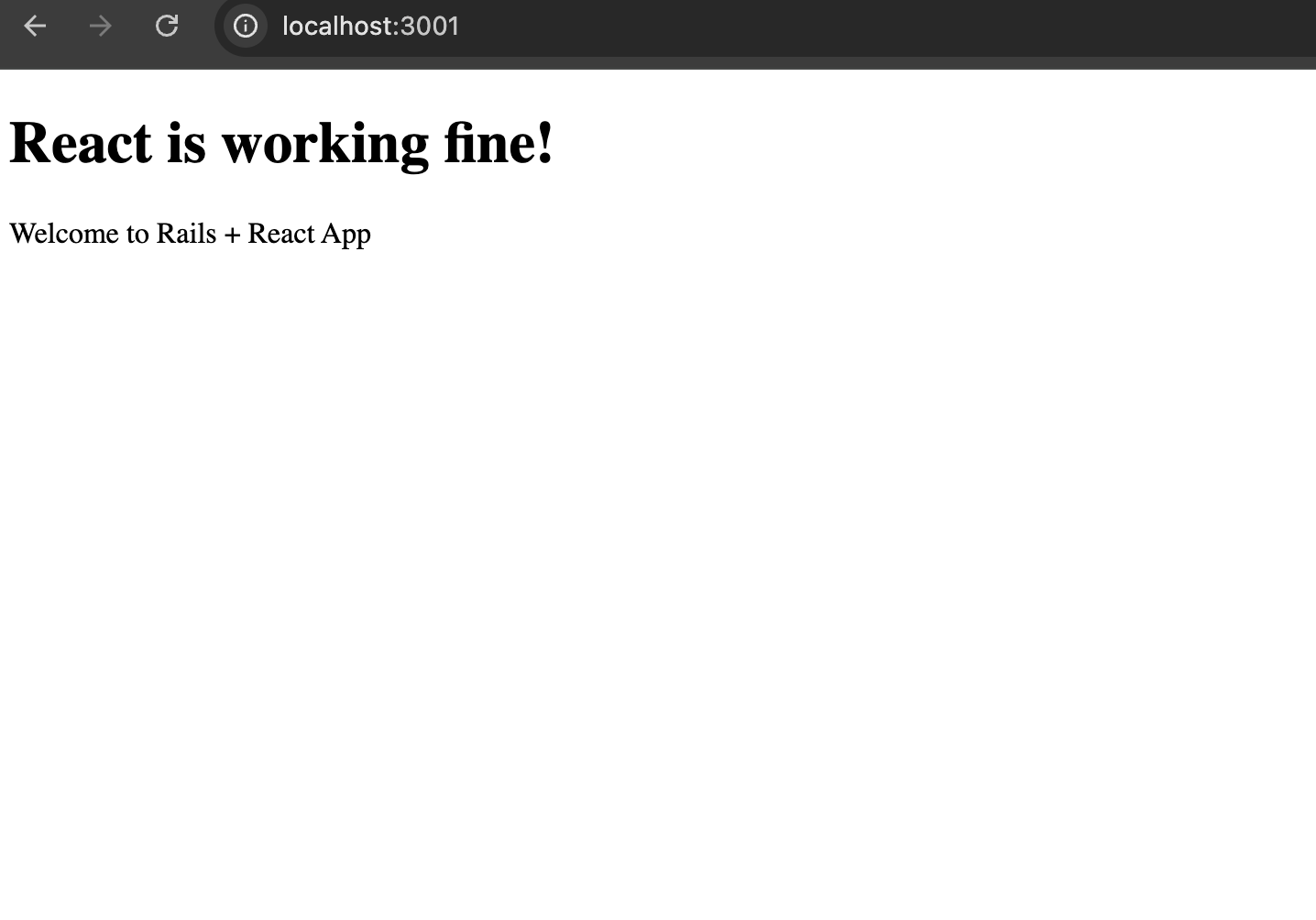
Our app/javascript/components/App.jsx file:

import React from 'react';

function App() {
  return (
    <div>
      <h1>React is working fine!</h1>
      <p>Welcome to Rails + React App</p>
    </div>
  );
}

export default App;

Let’s examine this React component step by step:

Line 1: Import React

import React from 'react';
  • import – ES6 module syntax to bring in external code
  • React – The main React library
  • from 'react' – Importing from the npm package named “react”
  • Why needed? Even though we use --jsx=automatic, we still import React for any hooks or React features we might use.

Function Component: Line 3-9

A React function component is a simple JavaScript function that serves as a building block for user interfaces in React applications. These components are designed to be reusable and self-contained, encapsulating a specific part of the UI and its associated logic.

function App() {
  return (
    <div>
      <h1>React is working fine!</h1>
      <p>Welcome to Rails + React App</p>
    </div>
  );
}

๐Ÿ” Breaking this down:

Line 3: Component Declaration

function App() {
  • function App() – This is a React Function Component
  • Component naming – Must start with capital letter (App, not app)
  • What it is – A JavaScript function that returns JSX (user interface)

Line 4-8: JSX Return

return (
  <div>
    <h1>React is working fine!</h1>
    <p>Welcome to Rails + React App</p>
  </div>
);
  • return – Every React component must return something
  • JSX – Looks like HTML, but it’s actually JavaScript
  • <div> – Must have one parent element (React Fragment rule)
  • <h1> & <p> – Regular HTML elements, but processed by React

Line 11: Export

export default App;
  • export default – ES6 syntax to make this component available to other files
  • App – The component name we’re exporting
  • Why needed? So application.js can import and use this component

๐Ÿ“„ File 2:

Our app/javascript/application.js file:

// Entry point for the build script in your package.json
import React from 'react';
import { createRoot } from 'react-dom/client';
import App from './components/App';

document.addEventListener('DOMContentLoaded', () => {
  const container = document.getElementById('react-root');

  if(container) {
    const root = createRoot(container);
    root.render(<App />);
  }
});

This is the entry point that connects React to your Rails app:

    Imports: Line 2-4

    import React from 'react';
    import { createRoot } from 'react-dom/client';
    import App from './components/App';
    

    ๐Ÿ” Breaking down each import:

    Line 2:

    import React from 'react';
    
    • Same as before – importing the React library

    Line 3:

    import { createRoot } from 'react-dom/client';
    
    • { createRoot }Named import (notice the curly braces)
    • react-dom/client – ReactDOM library for browser/DOM manipulation
    • createRoot – New React 18+ API for rendering components to DOM

    Line 4:

    import App from './components/App';
    
    • AppDefault import (no curly braces)
    • ./components/App – Relative path to our App component
    • Note: We don’t need .jsx extension, esbuild figures it out

    DOM Integration: Line 6-12

    document.addEventListener('DOMContentLoaded', () => {
      const container = document.getElementById('react-root');
    
      if(container) {
        const root = createRoot(container);
        root.render(<App />);
      }
    });
    

    ๐Ÿ” Step by step breakdown:

    Line 6:

    document.addEventListener('DOMContentLoaded', () => {
    
    • document.addEventListener – Standard browser API
    • 'DOMContentLoaded' – Wait until HTML is fully loaded
    • () => { – Arrow function (ES6 syntax)
    • Why needed? Ensures the HTML exists before React tries to find elements

    Line 7:

    const container = document.getElementById('react-root');
    
    • const container – Create a variable to hold the DOM element
    • document.getElementById('react-root') – Find HTML element with id="react-root"
    • Where is it? In your Rails view file: app/views/home/index.html.erb

    Line 9:

    if(container) {
    
    • Safety check – Only proceed if the element exists
    • Prevents errors – If someone visits a page without react-root element

    Line 10-11:

    const root = createRoot(container);
    root.render(<App />);
    
    • createRoot(container) – Create a React “root” at the DOM element
    • root.render(<App />) – Render our App component inside the container
    • <App /> – JSX syntax for using our component (self-closing tag)

    ๐ŸŽฏ Key React Concepts You Just Learned:

    1. Components

    • Functions that return JSX
    • Must start with capital letter
    • Reusable pieces of UI

    2. JSX

    • Looks like HTML, actually JavaScript
    • Must return single parent element
    • Processed by esbuild into regular JavaScript

    3. Import/Export

    • Default exports: export default App โ†’ import App from './App'
    • Named exports: export { createRoot } โ†’ import { createRoot } from 'package'

    4. React DOM

    • createRoot() – Modern way to mount React apps (React 18+)
    • render() – Display components in the browser

    5. Rails Integration

    • Rails serves the HTML page
    • React takes over the #react-root element
    • esbuild bundles everything together

    ๐Ÿš€ This pattern is the foundation of every React app! We create components, import them, and render them to the DOM.


    ๐Ÿ“š Step-by-Step React Learning with Todo List

    Now let’s build a Todo List app step by step. I’ll explain each React concept thoroughly as we go. Here’s our learning roadmap:

    Step 1: Understanding JSX and Basic Component Structure

    First, let’s update our App.jsx to create the basic structure of our Todo app:

    import React from 'react';
    
    function App() {
      return (
        <div className="todo-app">
          <h1>My Todo List</h1>
          <p>Let's learn React by building a todo app!</p>
    
          {/* This is a JSX comment */}
          <div className="todo-container">
            <h2>Add a new todo</h2>
            <input type="text" placeholder="Enter a todo..." />
            <button>Add Todo</button>
    
            <h2>My Todos</h2>
            <ul>
              <li>Learn React basics</li>
              <li>Build a todo app</li>
              <li>Master React hooks</li>
            </ul>
          </div>
        </div>
      );
    }
    
    export default App;
    

    ๐ŸŽฏ Key Concepts Explained:

    JSX (JavaScript XML):

    • JSX lets you write HTML-like syntax directly in JavaScript
    • It’s a syntax extension for JavaScript, not actual HTML
    • JSX gets compiled to JavaScript function calls
    • You can use {} to embed JavaScript expressions inside JSX

    Important JSX Rules:

    • Use className instead of class (because class is a reserved word in JavaScript)
    • You can use single quotes for className values in JSX. Both work perfectly fine:
    // Both of these are valid:
    <div className='todo-app'>    // Single quotes โœ…
    <div className="todo-app">    // Double quotes โœ…
    

    Quote Usage in JSX/JavaScript:

    Single quotes vs Double quotes:

    • JavaScript treats them identically
    • It’s mostly a matter of personal/team preference
    • The key is to be consistent throughout your project

    Common conventions:

    // Option 1: Single quotes for JSX attributes
    <div className='todo-app'>
      <input type='text' placeholder='Enter todo...' />
    </div>
    
    // Option 2: Double quotes for JSX attributes  
    <div className="todo-app">
      <input type="text" placeholder="Enter todo..." />
    </div>
    
    // Option 3: Mixed (but stay consistent within each context)
    const message = 'Hello World';  // Single for JS strings
    <div className="todo-app">      // Double for JSX attributes
    

    When you MUST use specific quotes:

    // When the string contains the same quote type
    <div className="It's a great day">        // Double quotes needed
    <div className='He said "Hello"'>        // Single quotes needed
    
    // Or use escape characters
    <div className='It\'s a great day'>       // Escaping single quote
    <div className="He said \"Hello\"">      // Escaping double quote
    

    ๐Ÿ’ก Tip: Many teams use tools like Prettier or ESLint to automatically format and enforce consistent quote usage across the entire project.

    • All tags must be closed (self-closing tags need / at the end)
    • JSX comments use {/* */} syntax
    • Return a single parent element (or use React Fragment <>...</>)

    Try updating our App.jsx with this code and see it in your browser!


    Step 2: Introduction to State with useState

    Now let’s add state to make our app interactive. State is data that can change over time.

    import React, { useState } from 'react';
    
    function App() {
      // useState Hook - creates state variable and setter function
      const [todos, setTodos] = useState([
        { id: 1, text: 'Learn React basics', completed: false },
        { id: 2, text: 'Build a todo app', completed: false },
        { id: 3, text: 'Master React hooks', completed: true }
      ]);
    
      const [inputValue, setInputValue] = useState('');
    
      return (
        <div className="todo-app">
          <h1>My Todo List</h1>
    
          <div className="todo-container">
            <h2>Add a new todo</h2>
            <input 
              type="text" 
              placeholder="Enter a todo..." 
              value={inputValue}
              onChange={(e) => setInputValue(e.target.value)}
            />
            <button>Add Todo</button>
    
            <h2>My Todos ({todos.length})</h2>
            <ul>
              {todos.map(todo => (
                <li key={todo.id}>
                  {todo.text} {todo.completed ? 'โœ…' : 'โณ'}
                </li>
              ))}
            </ul>
          </div>
        </div>
      );
    }
    
    export default App;
    

    ๐ŸŽฏ Key Concepts Explained:

    useState Hook:

    • useState is a React Hook that lets you add state to functional components
    • It returns an array with two elements: [currentValue, setterFunction]
    • const [todos, setTodos] = useState([]) creates a state variable todos and a function setTodos to update it
    • The initial value is passed as an argument to useState

    Controlled Components:

    • The input field is now “controlled” by React state
    • value={inputValue} makes the input show what’s in state
    • onChange={(e) => setInputValue(e.target.value)} updates state when user types

    Array.map() for Rendering Lists:

    • todos.map() transforms each todo into a JSX element
    • Each list item needs a unique key prop for React’s optimization
    • {todo.text} embeds the todo text using JSX expressions

    Try this code and notice how the input field now responds to typing!


    Step 3: Event Handling and Adding Todos

    Let’s make the “Add Todo” button work:

    import React, { useState } from 'react';
    
    function App() {
      const [todos, setTodos] = useState([
        { id: 1, text: 'Learn React basics', completed: false },
        { id: 2, text: 'Build a todo app', completed: false },
        { id: 3, text: 'Master React hooks', completed: true }
      ]);
    
      const [inputValue, setInputValue] = useState('');
    
      // Function to add a new todo
      const addTodo = () => {
        if (inputValue.trim() !== '') {
          const newTodo = {
            id: Date.now(), // Simple ID generation
            text: inputValue,
            completed: false
          };
    
          setTodos([...todos, newTodo]); // Spread operator to add new todo
          setInputValue(''); // Clear the input field
        }
      };
    
      // Function to handle Enter key press
      const handleKeyPress = (e) => {
        if (e.key === 'Enter') {
          addTodo();
        }
      };
    
      return (
        <div className="todo-app">
          <h1>My Todo List</h1>
    
          <div className="todo-container">
            <h2>Add a new todo</h2>
            <input 
              type="text" 
              placeholder="Enter a todo..." 
              value={inputValue}
              onChange={(e) => setInputValue(e.target.value)}
              onKeyPress={handleKeyPress}
            />
            <button onClick={addTodo}>Add Todo</button>
    
            <h2>My Todos ({todos.length})</h2>
            <ul>
              {todos.map(todo => (
                <li key={todo.id}>
                  {todo.text} {todo.completed ? 'โœ…' : 'โณ'}
                </li>
              ))}
            </ul>
          </div>
        </div>
      );
    }
    
    export default App;
    

    ๐ŸŽฏ Key Concepts Explained:

    Event Handlers:

    • onClick={addTodo} – function runs when button is clicked
    • onKeyPress={handleKeyPress} – function runs when key is pressed
    • Event handlers receive an event object (e) with information about the event

    State Updates:

    • setTodos([...todos, newTodo]) – creates a new array with all existing todos plus the new one
    • Important: Always create new arrays/objects instead of mutating existing ones
    • React compares old and new state to determine if re-render is needed

    Spread Operator (...):

    • ...todos spreads out all elements of the todos array
    • This is the React way to add items to an array in state

    Try adding new todos now!

    ๐ŸŽฏ Function Syntax Options in JavaScript:

    const addTodo = () => {} is a function syntax – specifically an arrow function. Let me explain why it’s declared as const and the different ways to write functions in JavaScript.

    1. Function Declaration (Traditional)
    function addTodo() {
      // function body
    }
    
    2. Function Expression with Arrow Function
    const addTodo = () => {
      // function body
    };
    
    3. Function Expression (Traditional)
    const addTodo = function() {
      // function body
    };
    

    ๐Ÿค” Why use const for functions?

    Arrow functions are expressions, not declarations:

    // This is a DECLARATION - creates a function named addTodo
    function addTodo() { }
    
    // This is an EXPRESSION - creates a function and assigns it to a variable
    const addTodo = () => { };
    

    Why const specifically?

    // โŒ Could be reassigned accidentally
    let addTodo = () => { };
    addTodo = "oops"; // Function is now gone!
    
    // โŒ Could be reassigned accidentally  
    var addTodo = () => { };
    addTodo = null; // Function is now gone!
    
    // โœ… Cannot be reassigned - prevents bugs
    const addTodo = () => { };
    addTodo = "something"; // ERROR: Assignment to constant variable
    

    ๐Ÿ“š Key Differences:

    Function Declaration vs Arrow Function:

    // Function Declaration
    function addTodo() {
      console.log("Adding todo");
    }
    
    // Arrow Function (assigned to const)
    const addTodo = () => {
      console.log("Adding todo");
    };
    

    Hoisting Behavior:

    // โœ… This works - function declarations are "hoisted"
    sayHello(); // "Hello!"
    
    function sayHello() {
      console.log("Hello!");
    }
    
    // โŒ This doesn't work - arrow functions are not hoisted
    sayGoodbye(); // Error: Cannot access 'sayGoodbye' before initialization
    
    const sayGoodbye = () => {
      console.log("Goodbye!");
    };
    

    this Binding:

    // Function declaration has its own 'this'
    function regularFunction() {
      console.log(this); // 'this' can change based on how it's called
    }
    
    // Arrow function inherits 'this' from surrounding scope
    const arrowFunction = () => {
      console.log(this); // 'this' is inherited from parent scope
    };
    

    ๐Ÿš€ In React Context:

    In React functional components, we typically use arrow functions with const because:

    1. Prevents accidental reassignment – our function won’t get overwritten
    2. Consistent with modern JavaScript – ES6+ standard
    3. Cleaner syntax – less verbose than traditional function expressions
    4. Better for event handlersthis behavior is more predictable

    All these are equivalent in React:

    // Option 1: Arrow function with const (most common)
    const addTodo = () => {
      if (inputValue.trim() !== '') {
        // ... logic
      }
    };
    
    // Option 2: Traditional function declaration
    function addTodo() {
      if (inputValue.trim() !== '') {
        // ... logic  
      }
    }
    
    // Option 3: Function expression with const
    const addTodo = function() {
      if (inputValue.trim() !== '') {
        // ... logic
      }
    };
    

    ๐Ÿ’ก Why React developers prefer arrow functions:

    1. Shorter syntax for simple functions
    2. Consistent variable declaration (everything uses const)
    3. No hoisting confusion – functions are defined before they’re used
    4. Better with modern tooling – ESLint, Prettier handle them well

    So yes, const addTodo = () => {} is definitely a function! It’s just a modern way to write functions that prevents accidental reassignment and has cleaner syntax.

    ๐ŸŽฏ What is Hoisting?

    Hoisting is a fundamental JavaScript concept that can be confusing at first. Let me explain it clearly with examples.

    Hoisting is JavaScript’s behavior of moving declarations to the top of their scope during the compilation phase, before the code is executed.

    Think of it like JavaScript “hoists” (lifts up) your variable and function declarations to the top of their scope.

    ๐Ÿ“š How Hoisting Works:

    Function Declarations are Hoisted:

    // This works even though we call the function before declaring it!
    sayHello(); // Outputs: "Hello!"
    
    function sayHello() {
      console.log("Hello!");
    }
    

    Behind the scenes, JavaScript treats it like this:

    // JavaScript internally reorganizes it like this:
    function sayHello() {
      console.log("Hello!");
    }
    
    sayHello(); // Now it makes sense!
    

    Variable Declarations (with var) are Hoisted:

    console.log(myVar); // Outputs: undefined (not an error!)
    var myVar = "Hello";
    console.log(myVar); // Outputs: "Hello"
    

    Behind the scenes:

    // JavaScript internally treats it like this:
    var myVar; // Declaration is hoisted to the top
    console.log(myVar); // undefined (declared but not assigned)
    myVar = "Hello"; // Assignment stays in place
    console.log(myVar); // "Hello"
    

    ๐Ÿšซ What is NOT Hoisted:

    let and const variables:

    // โŒ This throws an error!
    console.log(myLet); // ReferenceError: Cannot access 'myLet' before initialization
    let myLet = "Hello";
    
    // โŒ This also throws an error!
    console.log(myConst); // ReferenceError: Cannot access 'myConst' before initialization
    const myConst = "Hello";
    

    Arrow Functions (Function Expressions):

    // โŒ This throws an error!
    sayGoodbye(); // ReferenceError: Cannot access 'sayGoodbye' before initialization
    
    const sayGoodbye = () => {
      console.log("Goodbye!");
    };
    

    Function Expressions:

    // โŒ This throws an error!
    myFunc(); // TypeError: myFunc is not a function
    
    var myFunc = function() {
      console.log("Hello!");
    };
    

    ๐ŸŽญ Visual Examples:

    Example 1: Function Declaration Hoisting

    // What you write:
    console.log("1. Start");
    myFunction(); // This works!
    console.log("3. End");
    
    function myFunction() {
      console.log("2. Inside function");
    }
    
    // Output:
    // 1. Start
    // 2. Inside function  
    // 3. End
    

    Example 2: Variable Hoisting with var

    // What you write:
    console.log("Value is:", myVar); // undefined
    var myVar = 42;
    console.log("Value is:", myVar); // 42
    
    // What JavaScript internally does:
    var myVar; // Hoisted to top
    console.log("Value is:", myVar); // undefined
    myVar = 42; // Assignment stays here
    console.log("Value is:", myVar); // 42
    

    Example 3: Why let and const are different

    // Temporal Dead Zone
    console.log("Before declaration");
    
    // โŒ This area is the "Temporal Dead Zone" for myLet
    console.log(myLet); // ReferenceError!
    
    let myLet = "Hello"; // Declaration and initialization
    console.log(myLet); // "Hello"
    

    ๐ŸŽฏ Practical Implications:

    Why Function Declarations work everywhere:

    // This is valid JavaScript
    function main() {
      helper(); // Can call helper before it's defined
    
      function helper() {
        console.log("Helper function");
      }
    }
    

    Why Arrow Functions must be defined first:

    // โŒ This doesn't work
    const main = () => {
      helper(); // Error! helper is not defined yet
    
      const helper = () => {
        console.log("Helper function");
      };
    };
    
    // โœ… This works
    const main = () => {
      const helper = () => {
        console.log("Helper function");
      };
    
      helper(); // Now it works!
    };
    

    ๐Ÿ’ก Best Practices:

    1. Use const and let instead of var to avoid hoisting confusion
    2. Define functions before using them (even though function declarations are hoisted)
    3. Use arrow functions for consistency and to avoid hoisting surprises
    4. Initialize variables when you declare them

    ๐Ÿ”— Back to Our React Example:

    // This is why we use const for arrow functions
    const App = () => {
      // โœ… Good: Function defined before use
      const addTodo = () => {
        // function logic
      };
    
      // โŒ Bad: Would cause error if we tried to call it here
      // deleteTodo(); // Error!
    
      const deleteTodo = () => {
        // function logic
      };
    
      return (
        <div>
          <button onClick={addTodo}>Add</button>
          <button onClick={deleteTodo}>Delete</button>
        </div>
      );
    };
    

    Hoisting is JavaScript’s way of making function declarations available throughout their scope, but it doesn’t apply to modern variable declarations (let, const) or arrow functions. That’s why we define our functions with const and make sure to declare them before we use them!


    Step 4: Toggling Todo Completion

    Let’s add the ability to mark todos as complete/incomplete:

    import React, { useState } from 'react';
    
    function App() {
      const [todos, setTodos] = useState([
        { id: 1, text: 'Learn React basics', completed: false },
        { id: 2, text: 'Build a todo app', completed: false },
        { id: 3, text: 'Master React hooks', completed: true }
      ]);
    
      const [inputValue, setInputValue] = useState('');
    
      const addTodo = () => {
        if (inputValue.trim() !== '') {
          const newTodo = {
            id: Date.now(),
            text: inputValue,
            completed: false
          };
    
          setTodos([...todos, newTodo]);
          setInputValue('');
        }
      };
    
      // Function to toggle todo completion
      const toggleTodo = (id) => {
        setTodos(todos.map(todo => 
          todo.id === id 
            ? { ...todo, completed: !todo.completed } // Toggle completed status
            : todo // Keep todo unchanged
        ));
      };
    
      const handleKeyPress = (e) => {
        if (e.key === 'Enter') {
          addTodo();
        }
      };
    
      return (
        <div className="todo-app">
          <h1>My Todo List</h1>
    
          <div className="todo-container">
            <h2>Add a new todo</h2>
            <input 
              type="text" 
              placeholder="Enter a todo..." 
              value={inputValue}
              onChange={(e) => setInputValue(e.target.value)}
              onKeyPress={handleKeyPress}
            />
            <button onClick={addTodo}>Add Todo</button>
    
            <h2>My Todos ({todos.length})</h2>
            <ul>
              {todos.map(todo => (
                <li key={todo.id}>
                  <span 
                    onClick={() => toggleTodo(todo.id)}
                    style={{ 
                      textDecoration: todo.completed ? 'line-through' : 'none',
                      cursor: 'pointer',
                      color: todo.completed ? '#888' : '#000'
                    }}
                  >
                    {todo.text}
                  </span>
                  {todo.completed ? ' โœ…' : ' โณ'}
                </li>
              ))}
            </ul>
          </div>
        </div>
      );
    }
    
    export default App;
    

    ๐ŸŽฏ Key Concepts Explained:

    Array.map() for Updates:

    • todos.map() creates a new array where each todo is either updated or kept the same
    • todo.id === id ? { ...todo, completed: !todo.completed } : todo
    • This pattern is very common in React for updating items in arrays

    Conditional Rendering:

    • todo.completed ? 'โœ…' : 'โณ' – ternary operator for conditional display
    • textDecoration: todo.completed ? 'line-through' : 'none' – conditional styling

    Arrow Functions in JSX:

    • onClick={() => toggleTodo(todo.id)} – arrow function to pass arguments to event handlers
    • Without the arrow function, toggleTodo(todo.id) would execute immediately

    Now you can click on todos to toggle their completion status!


    ๐Ÿค” What we’ve learned so far:

    1. โœ… JSX syntax and rules
    2. โœ… useState hook for state management
    3. โœ… Event handling (onClick, onChange, onKeyPress)
    4. โœ… Controlled components
    5. โœ… Array mapping for rendering lists
    6. โœ… Conditional rendering
    7. โœ… State updates with spread operator

    Next Steps: In the following steps, we’ll cover:

    • Deleting todos
    • Component composition (breaking into smaller components)
    • Props passing
    • Filtering todos
    • More advanced state management

    Let’s see in Part 4. Happy React Development! ๐Ÿš€

    Guide: Integrating React.js โš›๏ธ into a Railsย 8 Application โ€“ Partย 2: Install React | Add esbuild, Jsx | Integrate React View

    Throw back:

    rails new design_studio_react --database=postgresql -j esbuild --skip-hotwire
    

    Here’s what our Rails app looks like after skipping Hotwire with the --skip-hotwire flag:

    โœ… Current JavaScript/Node.js Setup (Clean & Minimal)

    ๐Ÿ“ฆ Package Management:

    • package.json – Clean setup with only esbuild script
    • .node-version – Node.js version 24.1.0
    • No dependencies – Ready for React installation

    ๐Ÿ“ JavaScript File Structure (Ultra-Clean):

    app/javascript/
    โ””โ”€โ”€ application.js          # Empty entry point (2 lines total!)
    

    app/javascript/application.js content:

    // Entry point for the build script in your package.json
    

    ๐Ÿšซ What Got Successfully Removed:

    • โŒ No Turbo/Stimulus imports in application.js
    • โŒ No controllers/ directory at all
    • โŒ No Hotwire gems in Gemfile (only jsbundling-rails remains)
    • โŒ No @hotwired/turbo-rails or @hotwired/stimulus dependencies

    โš™๏ธ Configuration Files (Minimal – Only 4):

    1. package.json – esbuild build script only
    2. .node-version – Node.js version pinning
    3. Procfile.dev – Development processes (js: yarn build --watch)
    4. app/javascript/application.js – Empty entry point

    ๐Ÿ”ง esbuild Configuration:

    {
      "scripts": {
        "build": "esbuild app/javascript/*.* --bundle --sourcemap --format=esm --outdir=app/assets/builds --public-path=/assets"
      }
    }
    

    ๐Ÿ“‚ Build Output:

    • app/assets/builds/ – Contains only .keep file (empty, ready for bundles)

    ๐ŸŽฏ HTML Integration:

    <!-- Still includes the JavaScript module correctly -->
    <%= javascript_include_tag "application", "data-turbo-track": "reload", type: "module" %>
    

    (Note: data-turbo-track is just an HTML attribute for cache busting, not the Turbo library)

    # create db
    โœ— rails db:migrate
    
    # run react-rails-app in port 3001
    โœ— rails s -p 3001
    

    ๐Ÿš€ Next Steps: Install & Setup React

    Step 1: Install react, react-dom

    Your app is now perfectly clean for React! Just run:

    brew install yarn
    yarn add react react-dom # check node_modules/ folder for what is installed
    yarn add --dev @types/react @types/react-dom  # Optional: for TypeScript support, check node_modules/@types folder
    

    Status: โœ… Minimal JavaScript foundation – No Hotwire bloat, perfect React starting point!

    Now that we have a clean Rails app with esbuild setup, here’s our step-by-step roadmap to get React working:

    Step 2: Create Your First React Component

    Create a simple React component to test the setup:

    mkdir app/javascript/components
    

    Then create app/javascript/components/App.jsx:

    import React from 'react';
    
    function App() {
      return (
        <div>
          <h1>React is Working!</h1>
          <p>Welcome to your Rails + React app</p>
        </div>
      );
    }
    
    export default App;
    

    Step 3: Update JavaScript Entry Point

    Modify app/javascript/application.js to render React:

    // Entry point for the build script in your package.json
    import React from 'react';
    import { createRoot } from 'react-dom/client';
    import App from './components/App';
    
    document.addEventListener('DOMContentLoaded', () => {
      const container = document.getElementById('react-root');
      if (container) {
        const root = createRoot(container);
        root.render(<App />);
      }
    });
    

    Step 4: Create a Controller & Route

    Generate a home controller:

    rails generate controller Home index
    

    Step 5: Add React Root to View

    Update app/views/home/index.html.erb:

    <div id="react-root"></div>
    

    Step 6: Set Root Route

    Update config/routes.rb:

    Rails.application.routes.draw do
      root "home#index"
      # ... other routes
    end
    

    Step 7: Start Development

    # update Procfile.dev assign port 3001
    web: env RUBY_DEBUG_OPEN=true bin/rails server -p 3001
    
    # run our rails-react app by
    
    โœ— bin/dev
    21:15:27 web.1  | started with pid 12619
    21:15:27 js.1   | started with pid 12620
    21:15:27 js.1   | yarn run v1.22.22
    21:15:27 js.1   | $ esbuild app/javascript/*.* --bundle --sourcemap --format=esm --outdir=app/assets/builds --public-path=/assets --watch
    21:15:27 js.1   | /bin/sh: esbuild: command not found
    21:15:27 js.1   | error Command failed with exit code 127.
    21:15:27 js.1   | info Visit https://yarnpkg.com/en/docs/cli/run for documentation about this command.
    21:15:27 web.1  | => Booting Puma
    ..........
    

    ๐ŸŽฏ What This Gives Us:

    • โœ… React components in app/javascript/components/
    • โœ… esbuild automatically bundles JSX
    • โœ… Hot reloading with yarn build --watch
    • โœ… Rails serves your React app

    ๐Ÿšจ Error Analysis:

    1. Rails serverย started fineย โœ… (port 3001)

    ๐Ÿ”ง Solution: Install JavaScript Dependencies

    You need to install esbuild and other JavaScript dependencies first:

    yarn install
    

    ๐Ÿ“‹ Files yarn install Checks:

    1. Primary: package.json

    {
      "name": "app",
      "private": true,
      "scripts": {
        "build": "esbuild app/javascript/*.* --bundle --sourcemap --format=esm --outdir=app/assets/builds --public-path=/assets"
      },
      "dependencies": {
        "react": "^19.1.0",           # โœ… Already added
        "react-dom": "^19.1.0"       # โœ… Already added  
      },
      "devDependencies": {
        "@types/react": "^19.1.8",      # โœ… Already added
        "@types/react-dom": "^19.1.6"   # โœ… Already added
      }
    }
    

    2. Lockfile: yarn.lock

    • Ensures exact versions for reproducible installs
    • Contains resolved URLs and integrity hashes

    ๐Ÿšจ The Problem: Missing esbuild!

    Our package.json calls esbuild in the build script, but esbuild is not listed as a dependency anywhere!

    Rails should have added it, but didn’t. We need to add esbuild:

    yarn add --dev esbuild
    

    ๐Ÿ”ง What yarn install does:

    1. Reads package.json for dependency list
    2. Reads yarn.lock for exact versions (if exists)
    3. Downloads packages to node_modules/
    4. Updates yarn.lock with new resolutions

    Current issue: Our build script expects esbuild command, but it’s not installed in node_modules/.bin/esbuild

    Solution: Add esbuild as a dev dependency!

    Solved~ and start servers: Error Again!

    x bin/dev
    
    * Listening on http://[::1]:3001
    22:54:43 web.1  | Use Ctrl-C to stop
    22:54:44 js.1   | โœ˜ [ERROR] The JSX syntax extension is not currently enabled
    22:54:44 js.1   |
    22:54:44 js.1   |     app/javascript/application.js:11:16:
    22:54:44 js.1   |       11 โ”‚     root.render(<App />);
    22:54:44 js.1   |          โ•ต                 ^
    22:54:44 js.1   |
    22:54:44 js.1   |   The esbuild loader for this file is currently set to "js" but it must be set to "jsx" to be able to parse JSX syntax. You can use "--loader:.js=jsx" to do that.
    22:54:44 js.1   |
    22:54:44 js.1   | 1 error
    22:54:44 js.1   | [watch] build finished, watching for changes..
    

    This error occurs because esbuild doesn’t know how to handle JSX syntax! The <App /> is JSX, but esbuild needs to be configured to transform it.

    ๐Ÿšจ Problem: esbuild can’t process JSX syntax

    Your application.js contains JSX (<App />), but esbuild isn’t configured to transform JSX!

    JSX (JavaScript XML) is a syntax extension for JavaScript, commonly used with React, that allows you to write HTML-like code within JavaScript files.

    ๐Ÿ”ง Solution: Configure esbuild for JSX

    Update your package.json build script to handle JSX:

    # add this to build
    --jsx=automatic --loader:.js=jsx 
    

    โœ… Fixed! Added JSX support:

    What I added:

    • --jsx=automatic – Enables React’s automatic JSX runtime
    • --loader:.js=jsx – Treats .js files as JSX files

    ๐Ÿ“ What this means:

    • โœ… esbuild can now process <App /> syntax
    • โœ… You don’t need to import React in every JSX file
    • โœ… Your .js files can contain JSX
    bin/dev
    

    Whola!!

    Let’s see in Part 3. Happy React configuration! ๐Ÿš€

    Guide: Integrating React.js โš›๏ธ into a Railsย 8 Application | Node.js | ESBuild | Virtual DOM- Part 1

    1. Introduction and Motivation

    Why React?

    • Declarative UI: build complex interfaces by composing small, reusable components.
    • Virtual DOM: efficient updates, smoother user experience.
    • Rich ecosystem: hooks, context, testing tools, and libraries like Redux.
    • Easy to learn once you grasp JSX and component lifecycle.

    Why use React in Rails?

    • Leverage Rails’ backend power (ActiveRecord, routing, authentication) with React’s frontend flexibility.
    • Build single-page-app-like interactions within a Rails monolith or progressively enhance ERB views.

    2. Prerequisites

    • Ruby 3.4.x installed (recommend using rbenv or RVM or Mise).
    • Rails 8.x (we’ll install below).
    • Node.js (>= 16) and npm or Yarn.
    • Code editor (VS Code, RubyMine, etc.).

    Why Node.js is Required for React

    Reactโ€™s ecosystem relies on a JavaScript runtime and package manager:

    • Build tools (ESBuild, Webpack, Babel) run as Node.js scripts to transpile JSX/ES6 and bundle assets.
    • npm/Yarn fetch and manage React and its dependencies from the npm registry.
    • Script execution: Rails generators and custom npm scripts (e.g. rails javascript:install:react, npm run build) need Node.js to execute.

    Without Node.js, you cannot install packages or run the build pipeline necessary to compile and serve React components.

    What is Node.js?

    Node.js is an open-source, cross-platform JavaScript runtime built on Chrome’s V8 engine. It enables JavaScript to be executed on the server (outside the browser) and provides:

    • Server-side scripting: build web servers, APIs, and backend services entirely in JavaScript.
    • Command-line tools: run scripts for tasks like building, testing, or deploying applications.
    • npm ecosystem: access to hundreds of thousands of packages for virtually any functionality, from utility libraries to full frameworks.
    • Event-driven, non-blocking I/O: efficient handling of concurrent operations, making it suitable for real-time applications.

    Node.js is the backbone that powers Reactโ€™s tooling, package management, and build processes.

    3. Installing Ruby 3.4 and Rails 8

    1. Install Ruby 3.4.0 (example using rbenv):

    # install rbenv and ruby-build if not yet installed
    brew install rbenv ruby-build
    rbenv install 3.4.0
    rbenv global 3.4.0
    ruby -v   # => ruby 3.4.0p0
    

    Check the post for using Mise as version manager: https://railsdrop.com/2025/02/11/installing-and-setup-ruby-3-rails-8-vscode-ide-on-macos-in-2025/

    2. Install Rails 8:

    gem install rails -v "~> 8.0"
    rails -v   # => Rails 8.0.x
    

    4. Generating a New Rails 8 App

    Weโ€™ll scaffold a fresh project using ESBuild for JavaScript bundling, which integrates seamlessly with React.

    rails new design_studio_react \
      --database=postgresql \
      -j esbuild
    cd design_studio_react
    
    • --database=postgresql: sets PostgreSQL as the database adapter.
    • -j esbuild: configures ESBuild for JS bundling (preferred for React in Rails 8).

    4.1 About ESBuild

    ESBuild is a next-generation JavaScript bundler and minifier written in Go. Rails 8 adopted ESBuild by default for JavaScript bundling due to its remarkable speed and modern feature set:

    • Blazing-fast builds: ESBuild performs parallel compilation and leverages Go’s concurrency, often completing bundling in milliseconds even for large codebases.
    • Builtโ€‘in transpilation: it supports JSX and TypeScript out of the box, so you donโ€™t need separate tools like Babel unless you have highly custom transforms.
    • Tree shaking: ESBuild analyzes import/export usage to eliminate dead code, producing smaller bundles.
    • Plugin system: you can extend ESBuild with plugins for asset handling, CSS bundling, or custom file types.
    • Simplicity: configuration is minimalโ€”Rails’ -j esbuild flag generates sensible defaults, and you can tweak options in package.json or a separate esbuild.config.js.

    How Rails Integrates ESBuild

    When you run:

    rails new design_studio_react --database=postgresql -j esbuild
    

    Rails will:

    1. Install the esbuild npm package alongside react dependencies.

    2. Generate build scripts in package.json, e.g.:

    "scripts": { 
    "build": "esbuild app/javascript/*.* --bundle --sourcemap --outdir=app/assets/builds", 
    "build:watch": "esbuild app/javascript/*.* --bundle --sourcemap --watch --outdir=app/assets/builds" 
    }
    

    3. Add a default app/assets/builds output directory and ensure Rails’ asset pipeline picks up the compiled files.

    Customizing ESBuild

    If you need to tweak ESBuild settings:

    Add an esbuild.config.js at your project root:

    const esbuild = require('esbuild')
    
    esbuild.build({
      entryPoints: ['app/javascript/application.js'],
      bundle: true,
      sourcemap: true,
      outdir: 'app/assets/builds',
      loader: { '.js': 'jsx', '.png': 'file' },
      define: { 'process.env.NODE_ENV': '"production"' },
    }).catch(() => process.exit(1))
    

    Update package.json scripts to use this config:

    "scripts": {
      "build": "node esbuild.config.js",
      "build:watch": "node esbuild.config.js --watch"
    }
    

    Why ESBuild Matters for React in Rails

    • Developer experience: near-instant rebuilds let you see JSX changes live without delay.
    • Production readiness: builtโ€‘in minification and tree shaking keep your asset sizes small.
    • Future-proof: the plugin ecosystem grows, and Rails can adopt newer bundlers (like SWC or Vite) with a similar pattern.

    With ESBuild, your React components compile quickly, your development loop tightens, and your production assets stay optimizedโ€”making it the perfect companion for a modern Rails 8 + React stack.

    5. What is Virtual DOM

    The Virtual DOM is one of React’s most important concepts. Let me explain it clearly with examples.

    ๐ŸŽฏ What is the Virtual DOM?

    The Virtual DOM is a JavaScript representation (copy) of the actual DOM that React keeps in memory. It’s a lightweight JavaScript object that describes what the UI should look like.

    ๐Ÿ“š Real DOM vs Virtual DOM

    Real DOM (What the browser uses):
    <!-- This is the actual DOM in the browser -->
    <div id="todo-app">
      <h1>My Todo List</h1>
      <ul>
        <li>React List</li>
        <li>Build a todo app</li>
      </ul>
    </div>
    
    Virtual DOM (React’s JavaScript representation):
    // This is React's Virtual DOM representation
    {
      type: 'div',
      props: {
        id: 'todo-app',
        children: [
          {
            type: 'h1',
            props: {
              children: 'My Todo List'
            }
          },
          {
            type: 'ul',
            props: {
              children: [
                {
                  type: 'li',
                  props: {
                    children: 'React List'
                  }
                },
                {
                  type: 'li',
                  props: {
                    children: 'Build a todo app'
                  }
                }
              ]
            }
          }
        ]
      }
    }
    

    ๐Ÿ”„ How Virtual DOM Works – The Process

    Step 1: Initial Render
    // Your JSX
    const App = () => {
      return (
        <div>
          <h1>My Todo List</h1>
          <ul>
            <li>React List</li>
          </ul>
        </div>
      );
    };
    
    // React creates Virtual DOM
    const virtualDOM = {
      type: 'div',
      props: {
        children: [
          { type: 'h1', props: { children: 'My Todo List' } },
          { 
            type: 'ul', 
            props: { 
              children: [
                { type: 'li', props: { children: 'React List' } }
              ]
            }
          }
        ]
      }
    };
    
    Step 2: State Changes
    // When you add a new todo
    const App = () => {
      const [todos, setTodos] = useState(['React List']);
    
      const addTodo = () => {
        setTodos(['React List', 'Build Todo App']); // State change!
      };
    
      return (
        <div>
          <h1>My Todo List</h1>
          <ul>
            {todos.map(todo => <li key={todo}>{todo}</li>)}
          </ul>
          <button onClick={addTodo}>Add Todo</button>
        </div>
      );
    };
    
    Step 3: New Virtual DOM is Created
    // React creates NEW Virtual DOM
    const newVirtualDOM = {
      type: 'div',
      props: {
        children: [
          { type: 'h1', props: { children: 'My Todo List' } },
          { 
            type: 'ul', 
            props: { 
              children: [
                { type: 'li', props: { children: 'React List' } },
                { type: 'li', props: { children: 'Build Todo App' } } // NEW!
              ]
            }
          },
          { type: 'button', props: { children: 'Add Todo' } }
        ]
      }
    };
    
    Step 4: Diffing Algorithm
    // React compares old vs new Virtual DOM
    const differences = [
      {
        type: 'ADD',
        location: 'ul.children',
        element: { type: 'li', props: { children: 'Build Todo App' } }
      }
    ];
    
    Step 5: Reconciliation (Updating Real DOM)
    // React updates ONLY what changed in the real DOM
    const ul = document.querySelector('ul');
    const newLi = document.createElement('li');
    newLi.textContent = 'Build Todo App';
    ul.appendChild(newLi); // Only this line runs!
    

    ๐Ÿš€ Why Virtual DOM is Fast

    Without Virtual DOM (Traditional approach):
    // Traditional DOM manipulation
    function updateTodoList(todos) {
      const ul = document.querySelector('ul');
      ul.innerHTML = ''; // Clear everything!
    
      todos.forEach(todo => {
        const li = document.createElement('li');
        li.textContent = todo;
        ul.appendChild(li); // Recreate everything!
      });
    }
    
    With Virtual DOM (React approach):
    // React's approach
    function updateTodoList(oldTodos, newTodos) {
      const differences = findDifferences(oldTodos, newTodos);
    
      differences.forEach(diff => {
        if (diff.type === 'ADD') {
          // Only add the new item
          const li = document.createElement('li');
          li.textContent = diff.todo;
          ul.appendChild(li);
        }
      });
    }
    

    ๐ŸŽญ Real Example with Our Todo App

    Let’s trace through what happens when you add a todo:

    Before Adding Todo:
    // Current state
    const [todos, setTodos] = useState([
      { id: 1, text: 'React List', completed: false },
      { id: 2, text: 'Build Todo App', completed: false }
    ]);
    
    // Virtual DOM representation
    {
      type: 'ul',
      props: {
        children: [
          { type: 'li', key: 1, props: { children: 'React List โณ' } },
          { type: 'li', key: 2, props: { children: 'Build Todo App โณ' } }
        ]
      }
    }
    
    After Adding Todo:
    // New state
    const [todos, setTodos] = useState([
      { id: 1, text: 'React List', completed: false },
      { id: 2, text: 'Build Todo App', completed: false },
      { id: 3, text: 'Master React Hooks', completed: false } // NEW!
    ]);
    
    // New Virtual DOM
    {
      type: 'ul',
      props: {
        children: [
          { type: 'li', key: 1, props: { children: 'React List โณ' } },
          { type: 'li', key: 2, props: { children: 'Build Todo App โณ' } },
          { type: 'li', key: 3, props: { children: 'Master React Hooks โณ' } } // NEW!
        ]
      }
    }
    
    React’s Diffing Process:
    // React compares and finds:
    const changes = [
      {
        type: 'INSERT',
        location: 'ul',
        element: { type: 'li', key: 3, props: { children: 'Master React Hooks โณ' } }
      }
    ];
    
    // React updates ONLY what changed:
    const ul = document.querySelector('ul');
    const newLi = document.createElement('li');
    newLi.textContent = 'Master React Hooks โณ';
    ul.appendChild(newLi); // Only this operation!
    

    ๐ŸŽฏ Key Benefits of Virtual DOM

    1. Performance:
    // Without Virtual DOM: Updates entire list
    document.querySelector('ul').innerHTML = generateEntireList(todos);
    
    // With Virtual DOM: Updates only what changed
    document.querySelector('ul').appendChild(newTodoElement);
    
    2. Predictability:
    // You write declarative code
    const TodoList = ({ todos }) => (
      <ul>
        {todos.map(todo => <li key={todo.id}>{todo.text}</li>)}
      </ul>
    );
    
    // React handles the imperative updates
    // You don't need to manually add/remove DOM elements
    
    3. Batching:
    // Multiple state updates in one event
    const handleButtonClick = () => {
      setTodos([...todos, newTodo]);     // Change 1
      setInputValue('');                 // Change 2
      setCount(count + 1);              // Change 3
    };
    
    // React batches these into one DOM update!
    

    ๐Ÿ”ง Virtual DOM in Action – Debug Example

    You can actually see the Virtual DOM in action:

    import React, { useState } from 'react';
    
    const App = () => {
      const [todos, setTodos] = useState(['React List']);
    
      const addTodo = () => {
        console.log('Before update:', todos);
        setTodos([...todos, 'New Todo']);
        console.log('After update:', todos); // Still old value!
      };
    
      console.log('Rendering with todos:', todos);
    
      return (
        <div>
          <ul>
            {todos.map((todo, index) => (
              <li key={index}>{todo}</li>
            ))}
          </ul>
          <button onClick={addTodo}>Add Todo</button>
        </div>
      );
    };
    

    ๐ŸŽญ Common Misconceptions

    โŒ “Virtual DOM is always faster”
    // For simple apps, Virtual DOM has overhead
    // Direct DOM manipulation can be faster for simple operations
    document.getElementById('counter').textContent = count;
    
    โŒ “Virtual DOM prevents all DOM operations”
    // React still manipulates the real DOM
    // Virtual DOM just makes it smarter about WHEN and HOW
    
    โœ… “Virtual DOM optimizes complex updates”
    // When you have many components and complex state changes
    // Virtual DOM's diffing algorithm is much more efficient
    

    ๐Ÿง  Does React show Virtual DOM to the user?

    No. The user only ever sees the real DOM.
    The Virtual DOM (VDOM) is never shown directly. Itโ€™s just an internal tool used by React to optimize how and when the real DOM gets updated.

    ๐Ÿงฉ What is Virtual DOM exactly?

    • A JavaScript-based, lightweight copy of the real DOM.
    • Stored in memory.
    • React uses it to figure out what changed after state/props updates.

    ๐Ÿ‘€ What the user sees:

    • The real, visible HTML rendered to the browser โ€” built from React components.
    • This is called the Real DOM.

    ๐Ÿ” So why use Virtual DOM at all?

    โœ… Because manipulating the real DOM is slow.

    React uses VDOM to:

    1. Build a new virtual DOM after every change.
    2. Compare (diff) it with the previous one.
    3. Figure out the minimum real DOM updates required.
    4. Apply only those changes to the real DOM.

    This process is called reconciliation.

    ๐Ÿ–ผ๏ธ Visual Analogy

    Imagine the Virtual DOM as a sketchpad.
    React draws the new state on it, compares it with the old sketch, and only updates what actually changed in the real-world display (real DOM).

    โœ… TL;DR

    QuestionAnswer
    Does React show the virtual DOM to user?โŒ No. Only the real DOM is ever visible to the user.
    What is virtual DOM used for?๐Ÿง  It’s used internally to calculate DOM changes efficiently.
    Is real DOM updated directly?โœ… Yes, but only the minimal parts React determines from the VDOM diff.

    ๐Ÿงช Example Scenario

    ๐Ÿ‘ค The user is viewing a React app with a list of items and a button:

    <ul>
      <li>Item 1</li>
      <li>Item 2</li>
      ...
      <li>Item 10</li>
    </ul>
    <button>Read More</button>


    When the user clicks “Read More”, the app adds 10 more items to the list.

    ๐Ÿง  Step-by-Step: What Happens Behind the Scenes

    โœ… 1. User Clicks “Read More” Button

    <button onClick={loadMore}>Read More</button>


    This triggers a React state update, e.g.:

    function loadMore() {
      setItems([...items, ...next10Items]); // updates state
    }


    ๐Ÿ” State change โ†’ React starts re-rendering

    ๐Ÿ“ฆ 2. React Creates a New Virtual DOM

    • React re-runs the component’s render function.
    • This generates a new Virtual DOM tree (just a JavaScript object structure).

    Example of the new VDOM:

    {
      type: "ul",
      children: [
        { type: "li", content: "Item 1" },
        ...
        { type: "li", content: "Item 20" } // 10 new items
      ]
    }


    ๐Ÿงฎ 3. React Diffs New Virtual DOM with Old One

    • Compares previous VDOM (10 <li> items) vs new VDOM (20 <li> items).
    • Finds that 10 new <li> nodes were added.

    This is called the reconciliation process.

    โš™๏ธ 4. React Updates the Real DOM

    • React tells the browser:
      โ€œPlease insert 10 new <li> elements inside the <ul>.โ€

    โœ… Only these 10 DOM operations happen.
    โŒ React does not recreate the entire <ul> or all 20 items.

    ๐Ÿ–ผ๏ธ What the User Sees

    On the screen (the real DOM):

    <ul>
      <li>Item 1</li>
      ...
      <li>Item 20</li>
    </ul>


    The user never sees the Virtual DOM โ€” they only see the real DOM updates that React decides are necessary.

    ๐Ÿง  Summary: Virtual DOM vs Real DOM

    StepVirtual DOMReal DOM
    Before click10 <li> nodes in memory10 items visible on screen
    On clickNew VDOM generated with 20 <li> nodesReact calculates changes
    DiffCompares new vs old VDOMDetermines: โ€œAdd 10 itemsโ€
    CommitNo UI shown from VDOMOnly those 10 new items added to browser DOM

    โœ… Key Point

    ๐Ÿง  The Virtual DOM is a tool for React, not something the user sees.
    ๐Ÿ‘๏ธ The user only sees the final, optimized changes in the real DOM.


    ๐ŸŽฏ Summary

    Virtual DOM is React’s:

    1. JavaScript representation of the real DOM
    2. Diffing algorithm that compares old vs new Virtual DOM
    3. Reconciliation process that updates only what changed
    4. Performance optimization for complex applications
    5. Abstraction layer that lets you write declarative code

    Think of it as React’s smart assistant that:

    • Remembers what your UI looked like before
    • Compares it with what it should look like now
    • Makes only the necessary changes to the real DOM

    This is why you can write simple, declarative code like {todos.map(todo => <li>{todo}</li>)} and React handles all the complex DOM updates efficiently!


    ๐Ÿ”„ After the Virtual DOM Diff, How React Updates the Real DOM

    ๐Ÿง  Step-by-Step:

    1. React creates a diff between the new and previous virtual DOM trees.
    2. React then creates a list of โ€œinstructionsโ€ called the update queue.
      • Examples:
        • “Insert <li>Item 11</li> at position 10″
        • “Remove <div> at index 3″
        • “Change text of button to ‘Read Less'”
    3. These changes are passed to React’s reconciliation engine.
    4. React uses the browserโ€™s DOM APIs (document.createElement, appendChild, removeChild, etc.) to apply only the minimal changes.

    โœ… So instead of doing:

    document.body.innerHTML = newHTML; // inefficient, replaces all


    React does:

    const newEl = document.createElement("li");
    newEl.textContent = "Item 11";
    ul.appendChild(newEl); // just this


    โ“ Why Didn’t Browsers Do This Earlier?

    Excellent historical question. The short answer is: Browsers give us the tools, but React gave us the strategy.

    โš ๏ธ Why browsers didn’t do it automatically:

    ReasonExplanation
    ๐Ÿงฑ Low-level APIsThe browser exposes DOM APIs (appendChild, setAttribute), but theyโ€™re imperative โ€” devs must write the logic.
    ๐Ÿคฏ ComplexityManaging DOM efficiently across many updates (nested, reordered, conditional elements) is hard and bug-prone manually.
    ๐Ÿ” Manual state syncingBefore React, developers had to manually keep UI in sync with state. That logic got complex and messy fast.
    ๐Ÿ“ฆ No built-in abstractionBrowsers donโ€™t offer a built-in “virtual diff engine” or abstraction like Reactโ€™s VDOM.

    ๐Ÿค– What React Added That Browsers Don’t

    FeatureBrowser DOMReact (with VDOM)
    Efficient diffingโŒ Noโœ… Yes (reconciliation)
    Declarative UIโŒ Noโœ… Yes (return <UI />)
    Component abstractionโŒ Noโœ… Yes (function/class components)
    State-driven renderingโŒ Manualโœ… Built-in
    Minimal updatesโŒ Up to youโœ… Automatic via VDOM

    โœ… TL;DR

    • React calculates exactly what changed via the virtual DOM diffing.
    • It then uses native DOM APIs to update only what’s necessary in the real DOM.
    • Browsers give you low-level control, but not an optimized strategy for updating UI based on state โ€” React filled that gap beautifully.

    Now Let’s break down how a React app starts after you run:

    npx create-react-app my-app
    cd my-app
    npm start


    What actually happens behind the scenes? Let’s unpack it step-by-step ๐Ÿ‘‡

    โš™๏ธ Step 1: npx create-react-app โ€” What It Does

    This command:

    • Downloads and runs the latest version of the create-react-app tool (CRA).
    • Sets up a project with:
      • A preconfigured Webpack + Babel build system
      • Development server
      • Scripts and dependencies
    • Installs React, ReactDOM, and a bunch of tools inside node_modules.

    Key folders/files created:

    my-app/
    โ”œโ”€โ”€ node_modules/
    โ”œโ”€โ”€ public/
    โ”œโ”€โ”€ src/
    โ”‚   โ””โ”€โ”€ index.js       ๐Ÿ‘ˆ main entry point
    โ”œโ”€โ”€ package.json


    Step 2: npm start โ€” How the App Runs

    When you run:

    npm start


    Itโ€™s actually running this line from package.json:

    "scripts": {
      "start": "react-scripts start"
    }


    So it calls:

    react-scripts start


    ๐Ÿง  What is react-scripts?

    react-scripts is a package from Facebook that:

    • Runs a development server using Webpack Dev Server
    • Compiles JS/JSX using Babel
    • Watches your files for changes (HMR)
    • Starts a browser window at http://localhost:3000

    It configures:

    • Webpack
    • Babel
    • ESLint
    • PostCSS
    • Source maps
      … all behind the scenes, so you donโ€™t have to set up any configs manually.

    ๐Ÿ“ฆ Libraries Involved

    Tool / LibraryPurpose
    ReactCore UI library (react)
    ReactDOMRenders React into actual DOM (react-dom)
    WebpackBundles your JS, CSS, images, etc.
    BabelConverts modern JS/JSX to browser-friendly JS
    Webpack Dev ServerStarts dev server with live reloading
    react-scriptsRuns all the above with pre-made configs

    ๐Ÿ—๏ธ Step 3: Entry Point โ€” src/index.js

    The app starts here:

    // src/index.js
    import React from 'react';
    import ReactDOM from 'react-dom/client';
    import App from './App';
    
    const root = ReactDOM.createRoot(document.getElementById('root'));
    root.render(<App />);
    
    
    • ReactDOM.createRoot(...) finds the <div id="root"> in public/index.html.
    • Then renders the <App /> component into it.
    • The DOM inside the browser updates โ€” and the user sees the UI.

    โœ… TL;DR

    StepWhat Happens
    npx create-react-appSets up a full React project with build tools
    npm startCalls react-scripts start, which runs Webpack dev server
    react-scriptsHandles build, hot reload, and environment setup
    index.jsLoads React and renders your <App /> to the browser DOM
    Browser OutputYou see your live React app at localhost:3000

    6. Installing and Configuring React

    Rails 8 provides a generator to bootstrap React + ESBuild.

    1. Run the React installer:
      rails javascript:install:react
      This will:
      • Install react and react-dom via npm.
      • Create an example app/javascript/components/HelloReact.jsx component.
      • Configure ESBuild to transpile JSX.
    2. Verify your application layout:
      In app/views/layouts/application.html.erb, ensure you have:
      <%= javascript_include_tag "application", type: "module", defer: true %>
    3. Mount the React component:
      Replace (or add) a div placeholder in an ERB view, e.g. app/views/home/index.html.erb:<div id="hello-react" data-props="{}"></div>
    4. Initialize mount point
      In app/javascript/application.js:
    import "./components"
    

    In app/javascript/components/index.js:

    import React from "react"
    import { createRoot } from "react-dom/client"
    import HelloReact from "./HelloReact"
    
    document.addEventListener("DOMContentLoaded", () => {
      const container = document.getElementById("hello-react")
      if (container) {
        const root = createRoot(container)
        const props = JSON.parse(container.dataset.props || "{}")
        root.render(<HelloReact {...props} />)
      }
    })
    

    Your React component will now render within the Rails view!

    See you in Part 2 … ๐Ÿš€

    Understanding the Difference Between e.target and e.currentTarget in React

    Introduction:

    When working with React and handling events, it’s crucial to understand the difference between e.target and e.currentTarget. While they may seem similar at first glance, they have distinct roles and behaviors. In this blog post, we’ll delve into the details of these event properties and explore when to use each one.

    1. e.target: The Originating Element
      e.target refers to the element that triggered the event or where the event originated from. It represents the specific DOM element that the user interacted with, such as clicking a button or typing in an input field. It provides direct access to properties and attributes of that element.
    2. e.currentTarget: The Bound Element
      On the other hand, e.currentTarget refers to the element to which the event handler is attached. It remains constant, regardless of which element triggered the event. In most cases, e.currentTarget and e.target are the same element, especially when you attach the event handler directly to the target element.
    3. Differences in Markup Structure
      One important distinction arises when your markup structure involves nested elements or event delegation. If the event handler is attached to a parent element and an event occurs within one of its child elements, e.target will point to the specific child element, while e.currentTarget will reference the parent element. This behavior is particularly useful when you want to handle events for multiple elements within a container and need to determine which child element triggered the event.
    4. Practical Use Cases
      4.1 Individual Element Control:
      When you have multiple input elements, such as multiple text fields or checkboxes, and want to handle their changes individually, you should typically use e.target.value to access the specific value of the element that triggered the event. This ensures that you’re updating the correct state or performing the appropriate actions for that particular element.
      4.2 Event Delegation:
      In scenarios where you use event delegation, attaching a single event handler to a parent element to handle events from its child elements, e.currentTarget.value can be useful. It allows you to access the value of the parent element, which can be helpful when you want to track changes or perform actions based on the parent element’s state.
    Conclusion:

    Understanding the nuances between e.target and e.currentTarget in React is crucial for properly handling events and accessing the relevant elements and their properties. By grasping these differences, you can write more effective event handlers and ensure your application responds accurately to user interactions. Remember that e.target refers to the element where the event originated, while e.currentTarget represents the element to which the event handler is bound. Utilize this knowledge to build robust and interactive React applications.

    Hopefully, this blog post clarifies the distinction between e.target and e.currentTarget in React and helps you write better event handling code.