Rails MemCacheStore and dalli gem

We can use a memcached server for centralized caching in our application. This server is handling all caching mechanisms. Rails is using the gem memcache-client by default. But here I am using the dalli gem. Because it is better than memcache-client, but one thing to say is I am not experienced this. By reading documents, I have concluded that. You just go through this dalli gem link, https://github.com/mperham/dalli. This is a super caching mechanism by Rails in production environments. The Only thing we need to do is

  1. Say you want caching in your application, by adding the following in your environments, add the following in your production.rb file, if you are running in production mode and you are using production.rb file as your environment configuration file.
  2. config.action_controller.perform_caching = true
  3. Just install dalli gem
  4. Add the following in your gem file and do bundle install

    $ gem 'dalli', '2.0.2'
    $ bundle install
    
  5. Install memcached server
  6. $ sudo apt-get install memcached
  7. Start the memcached server if not started
  8. $ sudo /etc/init.d/memcached start
  9. Configure in your environments, add the following in your production.rb file
  10. config.cache_store = :dalli_store, 'YOUR_PRODUCTION_PUBLIC_DNS:11211',
        { :namespace => "app-YOUR_HOST", :expires_in => 1.day, :compress => true }
    

    Here ‘YOUR_PRODUCTION_PUBLIC_DNS:11211’ is saying where your memcached server is running. Public DNS and the port number of the memcached server.

Take the rails console and experiment something like the following to know the MemCacheStore cache mechanism is working. If you are in localhost then do

ruby-1.9.2-p290 :003 > cache = Dalli::Client.new('localhost:11211')
 => #0}, @ring=nil> 
ruby-1.9.2-p290 :004 > cache.set('testing', 1234)
 => true
ruby-1.9.2-p290 :006 > cache.get('testing')
 => 1234

Now you are ready to go

Read Files From Amazon s3 with Expiry

Suppose you have a need that is to download a file from amazon s3, that stored in http://s3.amazonaws.com//file.doc, if it is not accessable to public you will not get.

You can get an idea about Authenticated read by reading the following
(Reference: http://www.bucketexplorer.com/documentation/amazon-s3–access-control-list-details.html)

ACL and its Workings

Amazon S3 allows users to store their objects in Buckets. All Buckets and Objects are associated with Access control policies. ACL is a mechanism which decides who can access what. ACL is the set of permissions of read,write and update on Object as well as Bucket on the basis of these ACLs user can perform operation of upload new files, delete existing objects.

Bucket ACLs are completely independent of Object ACLs. It means that ACLs set on a bucket can be different of ACLs set on any object, contained in bucket.

Types of ACL provided by Amazon S3:

With reference to Bucket:

  • Read: Authorized user can list the file names, their size and last modified date from a bucket.
  • Write: Authorized user can upload new files in your bucket. They can also delete files on which they don’t have permission. Someone with write permission on a bucket can delete files even if they don’t have read permission to those files.
  • Read ACP: Authorized users can check ACL of a bucket.
  • Write ACP: Authorized user can update ACL of the bucket.

With reference to Object:

  • Read: Authorized user can download the file.
  • Write: Authorized user can replace the file or delete it.
  • Read ACP: Authorized user can list ACL of that file.
  • Write ACP: Authorized user can modify the ACL of the file.

Who can Access and How?

Amazon grants permission to four types of users:

  1. Owner (Account Holder): Person who holds Amazon s3 Account is also known as owner of the service. By default owner has full permission. Owner can create access and delete objects. She can also view and modify ACLs of each and every Bucket and its object(s).
  2. Amazon S3 Users (by Adding Amazon.com email address or Canonical Id)
    If owner wants to share or allow another AmazonS3 user to access her bucket, then owner should know the email address of the invitee, email address only works if invitee has registered her Amazon s3 account with that email address.
  3. Authenticated User (Sharing globally with all Amazon s3 Users)
    Anyone with a valid S3 account is a member of “Authenticated Users” group.If Owner wants to share her bucket globally with all Amazon’s s3 users then she can give read permission to authenticated user see the objects and can give write permission to update existing and upload new objects.
  4. Non Authenticated Users (All Users)
    If owner wants to make public her bucket and objects with all internet users, then she needs to give the appropriate permissions to ALL USERS. Now any user will be able to access the object provided name of the bucket.

Amazon s3 Request Url without expiry

So if you want private files from Amazon s3 access by, giving the correct url by giving the access key id and secret access key.

Eg:http://s3.amazonaws.com//file.docAWSAccessKeyId=EOKJGAKIAIHHMD3HP5OLLME5N4A&Signature=0ipwRz3sss6xnfAbebtigAGNOysdfdf1sDpKCl0%3D
 

Expire the Amazon s3 Request Url

If anyone access this url they can get the files. So here comes the use of expiring a request url. Create a url with access key id and secret access key and expires this after some seconds say 10 seconds.

Eg: http://s3.amazonaws.com//file.doc?AWSAccessKeyId=EOKJGAKIAIHHMD3HP5OLLME5N4A&Expires=1325481379&Signature=0ipwRz3sss6xnfAbebtigAGNOysdfdf1sDpKCl0%3D 

Ruby gem aws-s3 and the Class AWS::S3::Base

aws-s3 is a Ruby library for Amazon’s Simple Storage service’s (S3) REST API. AWS::S3::Base is the abstract super class of all classes who make requests against S3.

Establishing a connection with the Base class is the entry point to using the library:

  AWS::S3::Base.establish_connection!(:access_key_id => '...', :secret_access_key => '...')
The :access_key_id and:secret_access_key are the two required connection options.

Install Rails 3.1 ,Ruby, Mysql, Thinking Sphinx using RVM in Fedora 15

Download the fedora live CD from fedora website


Download Fedora live CD from Fedora Project Website. Install it in your machine.
After the installation goto Applications and search for ‘install to hard disk’ option. Install by chosing the custom option.
* When you try to install using yum and got an error like ‘your username is not in the sudoers file. This incident will be reported’ Then

Edit the sudoers file
To edit it, use the command

gedit /etc/sudoers then if it again shows ‘can’t open the file. You do not have the permissions necessary to open the file’ then

Log in as root (terminal) and type the following:

To get into root type $ su –
password:

then add your username to sudoers file:

$ echo ‘prescience-toshiba ALL=(ALL) ALL’ >> /etc/sudoers

Install RVM and Rails

First Install curl


$ sudo yum install curl

Install git


$ sudo yum install git-core

Install gcc


$ sudo yum install gcc

Install the following dependancies


$ sudo yum install readline-devel.i686
$ sudo yum install zlib
$ sudo yum install sqlite-devel
$ sudo yum install ruby-devel

Then Install RVM


$ bash < <(curl -s https://raw.github.com/wayneeseguin/rvm/master/binscripts/rvm-installer )

Add the following line to your .bash_profile file

[[ -s "/home/prescience-toshiba/.rvm/scripts/rvm" ]] && source "/home/prescience-toshiba/.rvm/scripts/rvm" # This loads RVM into a shell session

replace 'prescience-toshiba' with your username

For ruby 1.9.2 we want the packages it lists under the MRI & ree section. Let’s install those now.

$ sudo yum install bison openssl curl git-core libssl-dev vim libxml2-dev git-core subversion autoconf

Then type
$ rvm list known

Then install ruby 1.9.2


$ rvm install 1.9.2

Type
$ rvm list rubies

You can see ruby versions.

To list default ruby

$ rvm list default

You can change it by
$ rvm –default ruby-1.9.2-p290

Create Gemsets


$ rvm gemset create rails31
$ rvm gemset create rails31rc

$ rvm list gemsets

As a best practice, remember to always use one gemset per project*.
Installing Rails

Select the gemset for Rails 3.1
$ rvm use 1.9.2-p290@rails31rc

for default $ rvm use ruby-1.9.2-p290@rails31rc –default

Installing Rails 3.1


$ gem install rails -v “>=3.1.0.rc4”

If you get an error like

ERROR: Loading command: install (LoadError)
no such file to load — zlib
ERROR: While executing gem … (NameError)
uninitialized constant Gem::Commands::InstallCommand

then install zlib

$ rvm pkg install zlib

then

$ rvm remove 1.9.2
$ rvm install 1.9.2

If the error shows again do

$ sudo yum install zlib zlib-devel

then again do the following

$ rvm remove 1.9.2
$ rvm install 1.9.2

Install Mysql


$ sudo yum -y install mysql-server

See Mysql is running or not
$ sudo netstat -tap | grep mysql
If Yes then you can see like

tcp        0      0 localhost:mysql         *:*                     LISTEN      2556/mysqld

Also install mysql-devel
$ sudo yum install mysql-devel

Start Mysql

$ sudo /etc/rc.d/init.d/mysqld start
PLEASE REMEMBER TO SET A PASSWORD FOR THE MySQL root USER !
To do so, start the server, then issue the following command:

$ sudo /usr/bin/mysqladmin -u root password ‘new-password’

$ mysql -u root -p
password:

mysql>

Possible errors while doing bundle install and its solutions


1)
checking for rb_thread_blocking_region()… yes
checking for mysql.h… no
checking for mysql/mysql.h… no

—–
mysql.h is missing. please check your installation of mysql and try again.

Install mysql-dev
$ sudo yum install mysql-devel

2)
Installing nokogiri (1.5.0) with native extensions
Gem::Installer::ExtensionBuildError: ERROR: Failed to build gem native extension.

/home/prescience-toshiba/.rvm/rubies/ruby-1.9.2-p290/bin/ruby extconf.rb
checking for libxml/parser.h… no
—–
libxml2 is missing. please visit http://nokogiri.org/tutorials/installing_nokogiri.html for help with installing dependencies.
—–
*** extconf.rb failed ***
Install the following

$ sudo yum install libxml2-devel libxslt-devel

UPDATE: In Rails 4.2.5 (Ubuntu 14.04), I got the following similar error

Fetching: nokogiri-1.6.7.2.gem (100%)                                                           
Building native extensions.  This could take a while...                                         
ERROR:  Error installing rails:                                                                 
        ERROR: Failed to build gem native extension.                                            
                                                                                                
    current directory: /home/vagrant/.rvm/gems/ruby-2.3.0/gems/nokogiri-1.6.7.2/ext/nokogiri    
/home/vagrant/.rvm/rubies/ruby-2.3.0/bin/ruby -r ./siteconf20160311-22083-xt47t1.rb extconf.rb  
checking if the C compiler accepts ... *** extconf.rb failed ***                                
Could not create Makefile due to some reason, probably lack of necessary                        

Solving this install the following package
$ sudo apt-get install libgmp-dev
3)
Installing therubyracer (0.9.8) with native extensions
Gem::Installer::ExtensionBuildError: ERROR: Failed to build gem native extension.

/home/prescience-toshiba/.rvm/rubies/ruby-1.9.2-p290/bin/ruby extconf.rb
creating Makefile

make
g++ -I. -I/home/prescience-toshiba/.rvm/gems/ruby-1.9.2-p290@rails31rc/gems/libv8-3.3.10.2-x86-linux/lib/libv8/v8/include -I/home/prescience-toshiba/.rvm/rubies/ruby-1.9.2-p290/include/ruby-1.9.1/i686-linux -I/home/prescience-toshiba/.rvm/rubies/ruby-1.9.2-p290/include/ruby-1.9.1/ruby/backward -I/home/prescience-toshiba/.rvm/rubies/ruby-1.9.2-p290/include/ruby-1.9.1 -I. -D_FILE_OFFSET_BITS=64 -Wall -g -rdynamic -fPIC -O3 -ggdb -Wextra -Wno-unused-parameter -Wno-parentheses -Wpointer-arith -Wwrite-strings -Wno-missing-field-initializers -Wno-long-long -fPIC -o v8_date.o -c v8_date.cpp
make: g++: Command not found
make: *** [v8_date.o] Error 127

Install package ‘gcc-c++’ to provide command ‘c++’? [N/y]

$ sudo yum install gcc-c++

Possible errors while using rake command and its solutions


1)
/home/prescience-toshiba/.rvm/gems/ruby-1.9.2-p290@rails31rc/gems/rack-1.3.4/lib/rack/backports/uri/common_192.rb:53: warning: already initialized constant WFKV_
rake aborted!
no such file to load — openssl

2) If you get sprockets error like undefined method static_root
then upgrde your rails to 3.1.0.rc08

3) Started GET “/” for 127.0.0.1 at 2011-10-18 17:47:18 +0530 Mysql2::Error (Can’t connect to local MySQL server through socket ‘/var/run/mysqld/mysqld.sock’ (2)):

Then make sure that your system have /var/run/mysqld/mysqld.sock file exists. do $ ll /var/run/mysqld/mysqld.sock This will show the details. In my system the mysql.sock is in ‘/var/lib/mysql/mysql.sock’ So create a link to /var/run/mysqld/mysqld.sock from /var/lib/mysql/mysql.sock $ sudo ln -s /var/lib/mysql/mysql.sock /var/run/mysqld/mysqld.sock

$ sudo yum groupinstall development-tools development-libs
$ rvm remove 1.9.2
$ rvm cleanup all
$ rvm install 1.9.2
$ rvm use 1.9.2 –default

Install sphinx


let’s first search for the package

$ yum search sphinx

$ wget http://sphinxsearch.com/files/sphinx-0.9.9.tar.gz

$ ./configure
$ make
$ sudo make install

If shows Error like:

ERROR: cannot find MySQL include files.

Check that you do have MySQL include files installed.
The package name is typically 'mysql-devel'.

If include files are installed on your system, but you are still getting
this message, you should do one of the following:

Then You need to install mysql-devel in fedora
$ sudo apt-get install mysql-devel
OR in Ubuntu
$ $ sudo aptitude install libmysqlclient15-dev

Type
$ search
to see sphinx is installed

how to start mysql at boot time


$ cd /etc/rc.d/rc3.d
$ ln -s /etc/init.d/mysql S98mysql

How does it work? /etc/rc.d/init.d contains scripts to start and stop services on your computer. By creating a symlink to mysql startup script in /etc/rc.d/rc3.d you’re telling your system to run it during runlevel 3 startup, which is your regular login. You can also start and stop your services manually using files in /etc/init.d directly, for example:

$ /etc/init.d/mysql start
$ /etc/init.d/mysql stop

Installing rails 3.1 and ruby 1.9.2-p180 using rvm and unicorn setup

Install rvm

Open your .bashrc file.
And replace the following line
[ -z “$PS1” ] && return
with
if [[ -n “$PS1” ]]; then
Now add this to the last line of the file
if [[ -s $HOME/.rvm/scripts/rvm ]] ; then source $HOME/.rvm/scripts/rvm ; fi

fi
This loads RVM into a shell session.

If already have rvm then
Update rvm

$ rvm get latest

if this shows error like ‘downloaded does not match it’s md5 checksum’

then run

$ rvm get head
$ rvm reload
$ rvm get latest

For ruby 1.9.2 we want the packages it lists under the MRI & ree section. Let’s install those now.

$ sudo aptitude install build-essential bison openssl libreadline5 libreadline-dev curl git-core zlib1g zlib1g-dev libssl-dev vim libsqlite3-0 libsqlite3-dev sqlite3 libreadline-dev libxml2-dev git-core subversion autoconf

Setting up Ruby

Do rvm list known to know all ‘Ruby implementation made available through RVM’

$ rvm list known

Then install latest stable release of ruby

$ rvm install 1.9.2

You can see the ruby versions installed and currently using ruby version by

$ rvm list rubies

To list default ruby

$ rvm list default

You can change it by

$ rvm use ruby-1.9.2-p180

for default : rvm –default 1.9.2-p180

Using Gemsets

Install rails stable release and then rails 3.1
Start by creating our gemsets

$ rvm gemset create rails307 rails31

See available gem sets by

$ rvm gemset list

If any confusion with rails31 gemset delete it

$ rvm gemset delete rails31

And create rails31rc

$ rvm gemset create rails31rc

As a best practice, remember to always use one gemset per project*.

Installing Rails

Now we have multiple gem set installed. Now set the different gem set for ruby versions.

$ rvm use 1.9.2-p180@rails307

Install Rails 3.0.7

$ gem install rails [-v 3.0.7] [–no-rdoc]

Select the gemset for Rails 3.1

$ rvm use 1.9.2-p180@rails31rc

for default $ rvm use 1.9.2-p180@rails31rc –default

Install Rails 3.1

$ gem install rails -v “>=3.1.0rc”

if not found

$ gem install rails -v “>=3.1.0.rc4”

rvmrc file

Switching from one project to another, from a client to a personal project, from testing the release candidate to developing using the latest stable version, always having to manually switch from using a gemset to another can impact productivity. The project .rvmrc files can increase the development speed by setting up our project’s ruby environment when we switch to the project root directory.

The rule of thumb here is to use a .rvmrc file for each project, for both development and deployment.*

.rvmrc file :

rvm –rvmrc use 1.9.2-p180@rails31rc

if you go to your app folder ‘$ cd myapp’ then you can see like


There are three types of .rvmrc files
1) system : on /etc/rvmrc
2) user : $HOME/.rvmrc
3) Project : .rvmrc

Create a new rails App

$ rails new myapp

with mysql as database

$ rails new myapp -d mysql
$ rails server -p4000

If u get error like

“”” home/user/.rvm/gems/ruby-1.9.2-p180@rails31rc4/gems/execjs-1.1.2/lib/
execjs/runtimes.rb:43:in `autodetect’: Could not find a JavaScript
runtime. See https://github.com/sstephenson/execjs for a list of
available runtimes. (ExecJS::RuntimeUnavailable) “””

Then you need a javascript engine to run your code…

try installing rubyracer (Embeds the V8 Javascript interpreter into Ruby.)

in your Gemfile add

gem ‘therubyracer’
and do bundle install

Unicorn Installation

$ rvm use default # Just to make sure
$ gem install unicorn

Start unicorn server

$ unicorn_rails

Install Rails 3 on Ubuntu 10.04 Lucid Lynx Using RVM with Mysql and sphinx

First install ‘curl’ and ‘git’

  • step 1: install curl
    $ sudo apt-get install curl
  • step 2: install git
    $ sudo apt-get install git-core
  • Then install RVM

  • step 3: install rvm
    $ bash < <( curl http://rvm.beginrescueend.com/releases/rvm-install-head )
  • step 4: edit .bashrc file to load rvm into the shell session
    $ gedit .bashrc
    Add the following line to the end of the file:
    if [[ -s “$HOME/.rvm/scripts/rvm” ]] ; then source “$HOME/.rvm/scripts/rvm” ; fi
  • step 5 : restart linux
    $ sudo reboot
  • step 6 : type
    $ rvm notes
    In the notes RVM tells you what packages you’re gonna need to install for various flavors of Ruby. Since we’re going with 1.9.2 we want the packages it lists under the MRI & ree section. Let’s install those now.
    $ sudo aptitude install build-essential bison openssl libreadline5 libreadline-dev curl git-core zlib1g zlib1g-dev libssl-dev vim libsqlite3-0 libsqlite3-dev sqlite3 libreadline-dev libxml2-dev git-core subversion autoconf
  • Install Ruby 1.9.2

  • step 7 : install ruby 1.9.2 through rvm
    $ rvm list known
    $ rvm install 1.9.2-head
    for 64bit:
    $ rvm install 1.9.2
  • step 8 : make ruby 1.9.2 as default
    $ rvm –default ruby-1.9.2-head
    for 64bit:
    $ rvm –default ruby-1.9.2
    check ruby version
    $ ruby -v
  • Install Rails 3

  • step 9 : Install rails 3
    $ gem install i18n tzinfo builder memcache-client rack rack-test rack-mount erubis mail text-format thor bundler
    $ gem install rails –pre
  • Select your database

  • step 10 : Install database
    For Sqlite3
    $ sudo apt-get install sqlite3 libsqlite3-dev
    $ gem install sqlite3-ruby
    (OR)
    $ sudo apt-get update
    For Mysql goto synaptic package manager and type
    mysql-server, mysql-client and install and set password.
    Install mysql client libraries :
    $ sudo aptitude install libmysqlclient16-dev
    or
    $ sudo apt-get install libmysql-ruby libmysqlclient-dev
  • Install Sphinx

  • If you want sphinx, install Sphinx
    $ wget http://sphinxsearch.com/downloads/sphinx-0.9.8.1.tar.gz
    $ tar xzvf sphinx-0.9.8.1.tar.gz
    $ cd sphinx-0.9.8.1/
    $ ./configure
    $ make
    $ sudo make install
  • To know about sphinx type
    $ search

If you are getting error when starting sphinx make sure that the ‘indexer’,’searchd’,’search’ is under /usr/local/bin or under where sphinx specifies.
You are now ready to go…

HTML parsing using gem Nokogiri in Rails

parsing html is easy using Nokogiri, to do follow the steps

    Step 1 : Open the terminal and go to your rails application folder.

  • $ cd yourRailsApp
    add  the following line to your Gemfile
    gem  ‘nokogiri’
    First install the dependencies

    $  sudo apt-get install libxml2 libxml2-dev libxslt1-dev
    

    For Fedora do

    $ sudo yum install libxml2-devel libxslt-devel
    

    For CentOS:

    $ sudo yum install -y gcc ruby-devel libxml2 libxml2-devel libxslt libxslt-devel
    

    do bundle install
    /yourRailsApp $ bundle install
    Your nokogiri installation is completed. Parsing HTML documents look like
    doc = Nokogiri::HTML(html_document) and parsing XML documents look like
    doc = Nokogiri::XML(xml_document)
    Nokogiri converts HTML and XML documents into a tree data structure. Nokogiri extracts data using this tree. Xpath and CSS are small languages used for tree traversal. Xpath is a language that was written to traverse an XML tree struture, but we can use it with HTML tree as well.

  • Lets try an example take the folowing html code

    Step 2 : In views/form.erb add

  • Add a text field in your form
    <%= text_field_tag(“my[url]”, @user.url) %> and enter the sample code in this text field.
  • Step 3 : In controller add

  • @user.url = params[“my”][“url”]
    call the function
    @user.get_value_from_url
    write the function in the model
    def get_value_from_url
    node = Nokogiri::XML(self.url)
    node.xpath(‘//param[@name=”pic”]’).each do |node|
    @result = node.attribute(“value”).to_s
    end
    @result
    end

Then you get the value : “http://www.my_site.com/v/xedFamzsaaxo7hc0?fs=1&amp;hl=en_US&#8221; in the result. Look its so easy to use nokogiri. Its Wonderful !!

You can also view Aaron Patterson’s (creator of Nokogiri) blog from here.

PDF Generation with Wicked pdf in Rails

I am using ruby 1.9.2 and rails 3. I think Wicked pdf is better than other rails pdf generation plugins. To start with wicked follow the steps :

    Step 1: Open the terminal and go to your rails application folder.

  • $ cd /home/MyApp
    Install wkhtmltopdf first .Open gem file, and add the line
    gem ‘wkhtmltopdf’
    $ bundle install
    Wicked pdf is using the wkhtmltopdf to create a pdf document from a rails html template.
    With wicked pdf we can, 

    1. Define documents structure through a simple html document.
    2. Theme them through CSS
    3. Just Download the static complied version from wkhtmltopdf home page. Extract it and place it under /usr/local/bin.
      Note : If your system is 64-bit download the 64Bit version. Else you get error, Something like ‘Exec Error’,’Executable format error’, etc.

    Step 2: Install wicked pdf plugin

  • $ rails plugin install git://github.com/mileszs/wicked_pdf.git
    now a configuration file is needed, we can use plugins generator script for it . But in rails 3 it will not work. Just copy the wicked_pdf.rb to initializers.
    $ cp vendor/plugins/wicked_pdf/lib/wicked_pdf.rb config/initializers
    and add the following to the config/initializers/wicked_pdf.rb
    WICKED_PDF = {
    :exe_path => ‘/usr/local/bin’
    }

    Step 3:Add pdf instructions to your controller.

  • In my rails app I created an action index_pdf. Under the action put the following line.
    def index_pdf
    render :pdf => “my_pdf”,:layout => false,:template => ‘/users/index_pdf’,:footer => {:center =>
    “Center”, :left => “Left”, :right => “Right”}
    end
    The render :pdf call has a lot of options. you can use these.

    Step 4: Create a view file in app/view/index_pdf.erb

  • Put the link in your app, in your home page or somewhere.
    <%= link_to ‘Create PDF document’, index_pdf_path(@user, :format => :pdf) %>
    the index_pdf_path is the path I mentioned in the route.rb file,
    match “/download_pdf(.:format)” => “users#index_pdf”, :method => :get, :as=>:index_pdf
    When all are set click the link to download the pdf.
  • Include image in Wicked pdf

    write a function in application helper to take your images in wicked pdf.
    def pdf_image_tag(image, options = {})
    options[:src] = File.expand_path(RAILS_ROOT) + ‘/public/images’ + image
    tag(:img, options)
    end
    Add your image in public/images.
    Write the following code in view  <%= pdf_image_tag(‘photo.png’, :style=>”margin:0px;padding:0px”,

    :width=>”160″, :height=>”160″)%>

Its ‘wicked!!’ isn’t it?

Storing a simple student database in Rails

Set up Ruby on Rails from http://rubyonrails.org/download. Make a directory ‘my_rails’ in your home folder for rails applications.
$ cd my_rails

create your application as following
$ rails new student_db
$ cd student_db
For including gems, you need to update the Gemfile, that resides in your application folder. Open the ‘Gemfile’ and update.

Gemfile :
source ‘http://rubygems.org&#8217;
gem ‘rails’, ‘3.0.0’
gem ‘sqlite3-ruby’, ‘1.2.5’, :require => ‘sqlite3’

Specify the version number for sqlite3.    This is for avoiding confusion while installing the gems.

Install gems
$ bundle install

Now you are ready to generate the student model. Use scaffold generator.

Student data model

Note : Rails developers dislike scaffold. Because it itself generates code. So don’t use it. This is only for referring the application.
$ rails generate scaffold Student first_name:string last_name:string roll_no:integer total_mark:integer

Migrate the database using rake.

$ rake db:migrate

Now run the server.

$ rails s

open the browser and go to http://localhost:3000/student

To see this application visit,
Student_data_base

Deploying Rails application in Heroku

Sign up using e-mail and a password.
http://heroku.com/
Then Heroku asks to check our mail and continue. Install git. Then Install heroku gem.

$ gem install heroku
Create SSH keys and tell Heroku the public key by
$ heroku keys:add
Create a new application in Heroku
$ heroku create
Then Heroku creates a random sub domain for our application. We can change it as we like. Then deploy the app to Heroku by
$ git push heroku master
Now we can visit our application by using the address.

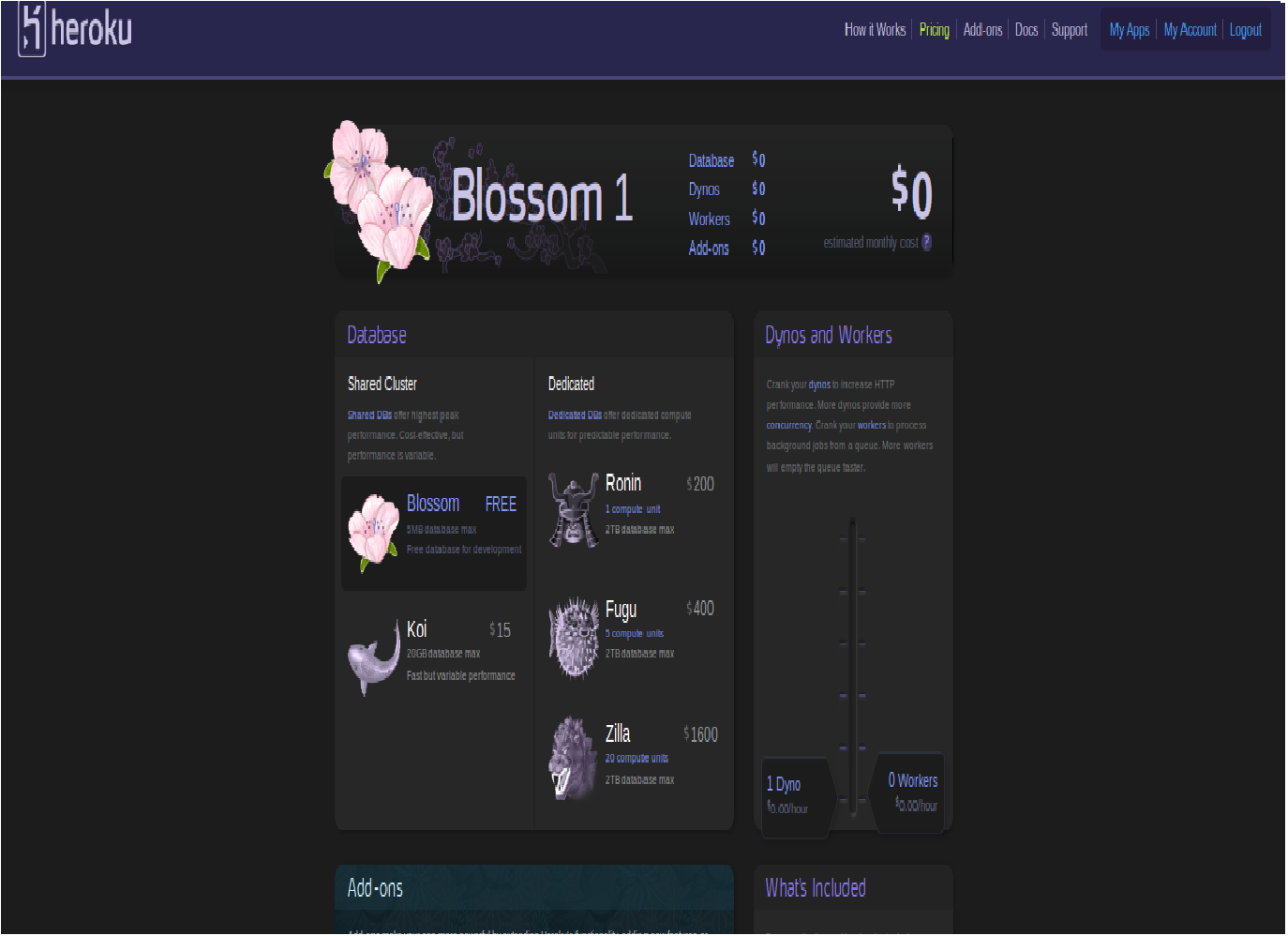
Heroku pricing plans

Heroku provides different plans to deploy the application and for using the database space. Here the plan is Blossom. It is free and can take 5MB database maximum.