Guide: Creating React Native โš›๏ธ App For Our Design Studio Application โ€“ Part 3

Let’s transform our DesignStudioMobileApp from the default template into a proper design studio interface. I’ll create the folder structure and implement all the features that is requested (https://github.com/MIRA-Designs/DesignStudioMobileApp/issues/4).

Step 1: Create Assets Folder Structure ๐Ÿ“

mkdir -p assets/images

๐Ÿ“ Image Location:

Place our design studio image at: assets/images/featured-design.png

๐Ÿ“ Detailed Code Explanation:

1. Import Statements (Lines 8-19)

import React from 'react';
import {
  SafeAreaView,
  ScrollView,
  StatusBar,
  StyleSheet,
  Text,
  View,
  TextInput,
  Image,
  TouchableOpacity,
  useColorScheme,
  Alert,
} from 'react-native';

What Each Import Does:

  • React – Core React library for component creation
  • SafeAreaView – Renders content within safe area (avoids notch/home indicator)
  • ScrollView – Container that allows scrolling when content exceeds screen
  • StatusBar – Controls device status bar appearance
  • StyleSheet – Creates optimized styling objects
  • Text – Displays text (like <span> in HTML)
  • View – Basic container (like <div> in HTML)
  • TextInput – Input field for user text entry
  • Image – Displays images
  • TouchableOpacity – Touchable button with opacity feedback
  • useColorScheme – Hook to detect dark/light mode
  • Alert – Shows native alert dialogs

2. Component State and Handlers (Lines 21-37)

function App() {
  // Hook to detect if device is in dark mode
  const isDarkMode = useColorScheme() === 'dark';

  // Handler function for search input
  const handleSearch = (text: string) => {
    console.log('Search query:', text);
    // You can add search logic here later
  };

  // Handler function for category button press
  const handleCategoryPress = (category: string) => {
    Alert.alert('Category Selected', `You selected: ${category}`);
    // You can add navigation logic here later
  };

Explanation:

  • isDarkMode – Boolean that’s true when device is in dark mode
  • handleSearch – Function called when user types in search bar
  • Parameter: text: string – what user typed
  • Action: Logs to console (you can add real search later)
  • handleCategoryPress – Function called when category button is pressed
  • Parameter: category: string – which category was pressed
  • Action: Shows an alert with selected category

3. Main UI Structure (Lines 39-42)

return (
  <SafeAreaView style={[styles.container, isDarkMode && styles.darkContainer]}>
    <StatusBar barStyle={isDarkMode ? 'light-content' : 'dark-content'} />

Explanation:

  • SafeAreaView – Main container that respects device safe areas
  • style={[styles.container, isDarkMode && styles.darkContainer]}
  • Array of styles: always applies container, adds darkContainer if dark mode
  • StatusBar – Controls status bar text color based on theme

4. Header Section (Lines 45-53)

{/* Header Section with App Title */}
<View style={styles.header}>
  <Text style={[styles.appTitle, isDarkMode && styles.darkText]}>
    ๐ŸŽจ Design Studio
  </Text>
  <Text style={[styles.subtitle, isDarkMode && styles.darkSubtitle]}>
    Discover Amazing Designs
  </Text>
</View>

Explanation:

  • Header container with shadow and background
  • App title with design studio emoji
  • Subtitle with descriptive text
  • Dynamic styling that adapts to dark/light mode

5. Search Bar (Lines 55-63)

{/* Search Bar Section */}
<View style={styles.searchContainer}>
  <TextInput
    style={[styles.searchInput, isDarkMode && styles.darkSearchInput]}
    placeholder="Search for designs..."
    placeholderTextColor={isDarkMode ? '#999' : '#666'}
    onChangeText={handleSearch}
  />
</View>

Explanation:

  • TextInput – The actual search input field
  • placeholder – Text shown when field is empty
  • placeholderTextColor – Color that adapts to theme
  • onChangeText={handleSearch} – Calls function when user types
  • Styling – Rounded corners, shadow, adaptive colors

6. Featured Image Section (Lines 65-85)

{/* Featured Image Section */}
<View style={styles.imageContainer}>
  <Text style={[styles.sectionTitle, isDarkMode && styles.darkText]}>
    Featured Design
  </Text>
  {/* Placeholder for your design studio image */}
  <View style={styles.imagePlaceholder}>
    <Text style={styles.imagePlaceholderText}>
      ๐Ÿ“ท Add your design studio image here
    </Text>
    <Text style={styles.imagePath}>
      Path: assets/images/featured-design.jpg
    </Text>
  </View>
</View>

Explanation:

  • Section title – “Featured Design”
  • Image placeholder – Dashed border box showing where to add image
  • Instructions – Shows exact path where to place your image
  • When you add real image: Replace placeholder with:
  <Image 
    source={require('./assets/images/featured-design.jpg')} 
    style={styles.featuredImage}
    resizeMode="cover"
  />

7. Content Area (Lines 87-95)

{/* Main Content Area */}
<View style={styles.contentContainer}>
  <Text style={[styles.sectionTitle, isDarkMode && styles.darkText]}>
    Browse by Category
  </Text>
  <Text style={[styles.description, isDarkMode && styles.darkSubtitle]}>
    Select a category to explore our design collections
  </Text>
</View>

Explanation:

  • Description section for the category buttons below
  • Instructional text to guide users

8. Bottom Footer with Category Icons (Lines 99-143)

{/* Bottom Footer with Category Icons */}
<View style={[styles.footer, isDarkMode && styles.darkFooter]}>

  <TouchableOpacity 
    style={styles.categoryButton}
    onPress={() => handleCategoryPress('Women')}
  >
    <Text style={styles.categoryIcon}>๐Ÿ‘ฉ</Text>
    <Text style={[styles.categoryText, isDarkMode && styles.darkText]}>Women</Text>
  </TouchableOpacity>

  {/* Similar structure for Men, Kids, Infants... */}
</View>

Explanation:

  • Footer container – Fixed bottom section with shadow
  • Four TouchableOpacity buttons – One for each category
  • Each button contains:
  • Icon – Emoji representing the category (๐Ÿ‘ฉ, ๐Ÿ‘จ, ๐Ÿ‘ถ, ๐Ÿผ)
  • Label – Text showing category name
  • onPress – Calls handleCategoryPress with category name
  • flex: 1 – Each button takes equal space (25% each)

9. Styling Breakdown

Container Styles:

container: {
  flex: 1,                    // Fill entire screen
  backgroundColor: '#f8f9fa', // Light gray background
},
darkContainer: {
  backgroundColor: '#1a1a1a', // Dark background for dark mode
},

Search Input Styles:

searchInput: {
  height: 50,                 // Fixed height
  backgroundColor: '#fff',    // White background
  borderRadius: 25,           // Fully rounded corners
  paddingHorizontal: 20,      // Left/right padding
  fontSize: 16,               // Text size
  borderWidth: 1,             // Thin border
  borderColor: '#e0e0e0',     // Light gray border
  shadowColor: '#000',        // Black shadow
  shadowOffset: { width: 0, height: 1 }, // Shadow position
  shadowOpacity: 0.1,         // Shadow transparency
  shadowRadius: 2,            // Shadow blur
  elevation: 2,               // Android shadow
},

Footer Styles:

footer: {
  flexDirection: 'row',       // Horizontal layout
  backgroundColor: '#fff',    // White background
  paddingVertical: 15,        // Top/bottom padding
  paddingHorizontal: 10,      // Left/right padding
  borderTopWidth: 1,          // Top border
  borderTopColor: '#e0e0e0',  // Border color
  shadowOffset: { width: 0, height: -2 }, // Upward shadow
  elevation: 5,               // Strong Android shadow
},

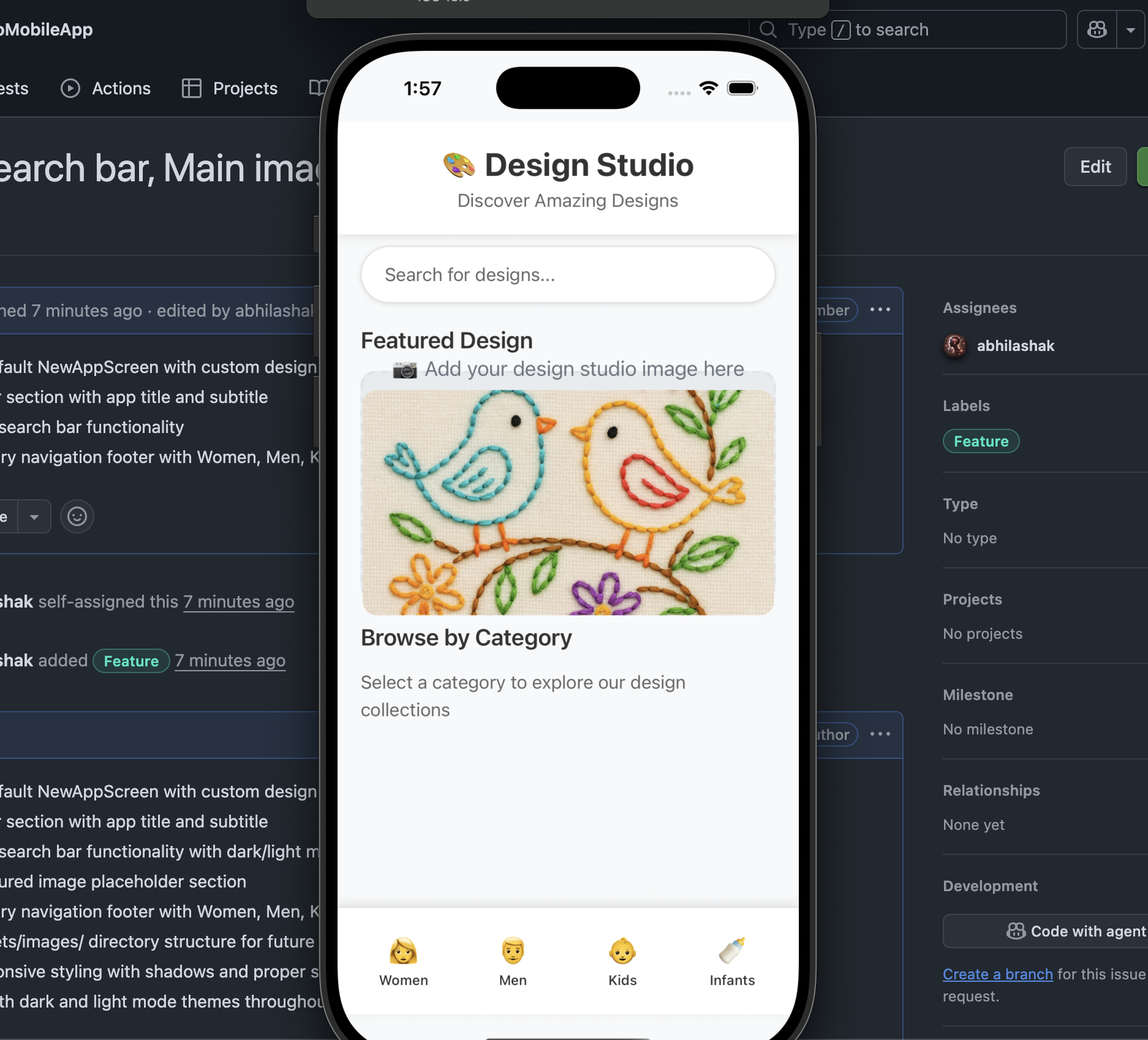
๐Ÿ“ฑ What You’ll See on Screen:

Top to Bottom Layout:

  1. ๐Ÿ“Š Status Bar – Adapts to light/dark mode
  2. ๐ŸŽจ Header – “Design Studio” title with subtitle
  3. ๐Ÿ” Search Bar – Rounded search input
  4. ๐Ÿ“ท Featured Image – Placeholder (will show your image)
  5. ๐Ÿ“ Content – “Browse by Category” section
  6. ๐Ÿ‘ฅ Footer – Four category buttons (Women, Men, Kids, Infants)

Interactive Elements:

  • Search bar – Type to trigger search function
  • Category buttons – Tap to show alert (later: navigation)
  • Scrollable content – Scroll up/down to see all content

Responsive Features:

  • Dark/Light mode – Automatically adapts to device settings
  • Safe areas – Respects device notches and home indicators
  • Shadows – Proper elevation on both iOS and Android

๐ŸŽฏ Next Steps:

  1. Add Your Image: Place your design studio image at assets/images/featured-design.jpg
  2. Replace Placeholder: Uncomment the Image component in the code
  3. Test Categories: Tap the footer buttons to see alerts
  4. Customize: Modify colors, sizes, or add more features

Our design studio app is now ready with a professional interface! ๐ŸŽจ๐Ÿ“ฑโœจ


Let’s see in Part 4..

Happy React Native Development ๐Ÿš€


Guide: Creating React Native โš›๏ธ App For Our Design Studio Application โ€“ Part 2

Let’s now check what is the default code added to our App.tsx file and move on to developing it further.

Check our mobile app here: https://github.com/MIRA-Designs/DesignStudioMobileApp

What We’ve Accomplished:

๐Ÿ“ Current Status:

Location: ~/react/DesignStudioMobileApp
Git Branch: main
Project: React Native app with default template

  1. โœ… Created React Native app with default template
  2. โœ… Renamed app from “DesignStudioApp” to “DesignStudioMobileApp”
  3. โœ… Fixed registration errors in iOS AppDelegate
  4. โœ… Renamed project folder to match app name
  5. โœ… Clean git history with 2 meaningful commits
  6. โœ… App running successfully on iOS simulator

Ready for Next Steps:

Our DesignStudioMobileApp is ready for development!

Pending work options:

  • ๐Ÿงญ Add navigation between screens (React Navigation)
  • ๐ŸŽจ Create custom UI components for design studio features
  • ๐Ÿ“ธ Add camera/image functionality for capturing designs
  • ๐Ÿ’พ Set up state management (Redux/Zustand)
  • ๐ŸŽฏ Build specific features like project gallery, design tools, etc.
  • ๐Ÿ“ฑ Customize the welcome screen and app styling

๐Ÿ”ฅย Why My MacBook Heatsย Up when do react native development:

Our laptop heating up when running npx react-native run-ios is actually very common in React Native development. Here’s why this happens and how to reduce it:

1. Multiple Heavy Processes Running Simultaneously:

  • Metro Bundler – JavaScript bundling and hot reloading
  • Xcode Build System – Compiling iOS native code
  • iOS Simulator – Running a virtual iPhone with full OS
  • Node.js processes – Package management and tooling
  • CocoaPods – iOS dependency management

2. Resource-Intensive Operations:

  • JavaScript compilation and transformation
  • iOS native code compilation (Objective-C/Swift)
  • File watching for hot reload (monitoring thousands of files)
  • Real-time bundling of JavaScript modules

๐Ÿ› ๏ธ Solutions to Reduce Heat & CPU Usage:

Option 1: Optimize Metro Bundler ๐ŸŽฏ

Quick Heat Reduction Tips: ๐Ÿ’ก

1. Use Release Build for Testing (Cooler):

# Instead of debug build (hot)
npx react-native run-ios --configuration Release

2. Reduce Metro File Watching:

# Start Metro with fewer watchers
npx react-native start --max-workers=2

3. Close Unnecessary Apps:

  • Close other heavy applications (browsers with many tabs, etc.)
  • Quit unused developer tools

Option 2: Optimize Metro Configuration โš™๏ธ

Let’s update your Metro config to be more efficient:

Option 3: Alternative Development Strategies ๐ŸŽฏ

A. Use Physical Device Instead of Simulator:

# Connect iPhone via USB, then:
npx react-native run-ios --device

Physical device uses less CPU than simulator

B. Split Development Process:

# Terminal 1: Start Metro (keep running)
npx react-native start

# Terminal 2: Build only when needed
npx react-native run-ios --no-packager

C. Use Flipper Alternative (Lighter):

# Disable Flipper in development
npx react-native run-ios --no-flipper

Option 4: System-Level Optimizations ๐Ÿ–ฅ๏ธ

1. Monitor CPU Usage:

# Check what's using CPU
top -o cpu

# Or use Activity Monitor app

2. Reduce Background Processes:

  • Close unnecessary browser tabs
  • Quit Slack, Discord, etc. during development
  • Close other IDEs/editors

3. Improve Cooling:

  • Use laptop cooling pad
  • Work in cooler environment
  • Ensure laptop vents aren’t blocked

Option 5: Alternative Tools ๐Ÿ› ๏ธ

A. Expo Development Build (Lighter):

# If you want to switch to Expo (much lighter)
npx create-expo-app --template

B. React Native Web for Quick Testing:

# Test on web browser (much lighter)
npm install react-native-web
npx react-native run-web

๐Ÿ“Š Expected CPU Reduction:

MethodCPU ReductionTrade-off
Release Build40-60%Slower debugging
Reduced Workers20-30%Slower builds
Physical Device30-50%Need iPhone/cable
Disable Flipper15-25%Less debugging tools
Web Testing70-80%Not native experience

๐ŸŽฏ Recommended Approach:

For your DesignStudioMobileApp:

  1. Use the optimized Metro config I just created โœ…
  2. Start with release builds for general testing
  3. Switch to debug only when you need debugging
  4. Use physical device if you have an iPhone

Test the optimized setup:

npx react-native start --reset-cache --max-workers=2

Started Metro with the optimized settings.

๐ŸŒก๏ธ This Should Reduce Heat Significantly:

What we just optimized:

  • โœ… Reduced workers from default (~8) to 2
  • โœ… Limited file watching
  • โœ… Optimized bundling process
  • โœ… Reduced concurrent operations

Try running your app now:

npx react-native run-ios --configuration Release

This combination should reduce CPU usage by 30-50% and make your laptop run much cooler! ๐ŸŽ‰

Quick tip: The heating is normal for React Native development, but these optimizations should make it much more manageable. Monitor Activity Monitor to see the CPU reduction! ๐Ÿ“Š


Explain the App.tsx file content

/**
 * Sample React Native App
 * https://github.com/facebook/react-native
 *
 * @format
 */

import { NewAppScreen } from '@react-native/new-app-screen';
import { StatusBar, StyleSheet, useColorScheme, View } from 'react-native';

function App() {
  const isDarkMode = useColorScheme() === 'dark';

  return (
    <View style={styles.container}>
      <StatusBar barStyle={isDarkMode ? 'light-content' : 'dark-content'} />
      <NewAppScreen templateFileName="App.tsx" />
    </View>
  );
}

const styles = StyleSheet.create({
  container: {
    flex: 1,
  },
});

export default App;

Lines 1-6: Comments and Documentation ๐Ÿ“š

/**
 * Sample React Native App
 * https://github.com/facebook/react-native
 *
 * @format
 */
  • Lines 1-5: JSDoc comment block describing the file
  • Line 4: @format tells Prettier to auto-format this file
  • Purpose: Documentation and tooling instructions

Lines 8-9: Import Statements ๐Ÿ“ฆ

import { NewAppScreen } from '@react-native/new-app-screen';
import { StatusBar, StyleSheet, useColorScheme, View } from 'react-native';

Line 8:

  • import { NewAppScreen } – Imports the default welcome screen component
  • from '@react-native/new-app-screen' – From React Native’s built-in new app package
  • Purpose: Gets the pre-built welcome screen with React Native logo and links

Line 9:

  • StatusBar – Controls the phone’s status bar (battery, time, signal)
  • StyleSheet – Creates optimized styles (like CSS)
  • useColorScheme – Hook to detect if device is in dark/light mode
  • View – Basic container component (like <div> in HTML)
  • from 'react-native' – All from the core React Native library

Lines 11-19: Main App Component โš›๏ธ

function App() {
  const isDarkMode = useColorScheme() === 'dark';

  return (
    <View style={styles.container}>
      <StatusBar barStyle={isDarkMode ? 'light-content' : 'dark-content'} />
      <NewAppScreen templateFileName="App.tsx" />
    </View>
  );
}

Line 11:

function App() {
  • Declares the main App component as a function
  • This is the root component of your entire app
  • Alternative: Could also write as const App = () => {

Line 12:

const isDarkMode = useColorScheme() === 'dark';
  • useColorScheme() – React Hook that returns ‘dark’, ‘light’, or null

Line 15:

<View style={styles.container}>
  • <View> – Container component (like <div> in web)
  • style={styles.container} – Applies CSS-like styles defined below
  • Purpose: Wraps all app content in a styled container

Line 16:

<StatusBar barStyle={isDarkMode ? 'light-content' : 'dark-content'} />
  • <StatusBar> – Controls the phone’s top status bar appearance
  • barStyle – Sets color of status bar text/icons
  • isDarkMode ? – Ternary operator (if/else in one line)
  • 'light-content' – White text (for dark backgrounds)
  • 'dark-content' – Dark text (for light backgrounds)
  • Purpose: Makes status bar readable in both dark/light modes

Line 17:

<NewAppScreen templateFileName="App.tsx" />
  • <NewAppScreen> – React Native’s default welcome screen component
  • templateFileName="App.tsx" – Tells the component which file it’s in
  • Purpose: Shows the welcome screen with React Native logo, docs links, etc.

Lines 21-26: Styling ๐ŸŽจ

const styles = StyleSheet.create({
  container: {
    flex: 1,
  },
});

Line 21:

const styles = StyleSheet.create({
  • StyleSheet.create() – Creates optimized style objects
  • Benefits: Performance optimization, validation, auto-completion
  • Alternative: Could use plain objects, but StyleSheet is better

Lines 22-24:

container: {
  flex: 1,
},
  • container – Style name (can be anything you want)
  • flex: 1 – Takes up all available space
  • CSS equivalent: flex: 1 makes the View expand to fill the screen
  • Purpose: Ensures the app content fills the entire screen

Line 28: Export Statement ๐Ÿ“ค

export default App;
  • export default – Makes the App component available to other files
  • Purpose: Allows index.js to import and register this component
  • Required: Without this, React Native can’t find your app component

๐Ÿ”„ How It All Works Together:

Flow of Execution:

  1. Import dependencies โ†’ Get required React Native components
  2. Define App component โ†’ Create the main component function
  3. Detect color scheme โ†’ Check if user prefers dark/light mode
  4. Render UI โ†’ Return JSX that describes the screen
  5. Apply styles โ†’ Style the container to fill screen
  6. Export component โ†’ Make it available to React Native

Visual Structure:

๐Ÿ“ฑ Phone Screen
โ”œโ”€โ”€ ๐Ÿ“Š StatusBar (adapts to dark/light mode)
โ””โ”€โ”€ ๐Ÿ“ฆ View (container that fills screen)
    โ””โ”€โ”€ ๐ŸŽ‰ NewAppScreen (welcome screen with React Native content)

Key Concepts:

ConceptExplanationExample
JSXHTML-like syntax in JavaScript<View> instead of <div>
ComponentsReusable UI pieces<StatusBar>, <View>
PropsData passed to componentsbarStyle="dark-content"
HooksFunctions that add React featuresuseColorScheme()
StylesCSS-like styling for React NativeStyleSheet.create()

React Native vs Web Differences:

Web (HTML/CSS)React NativePurpose
<div><View>Container
CSS filesStyleSheetStyling
Media queriesuseColorScheme()Responsive design
Manual status bar<StatusBar>System UI control

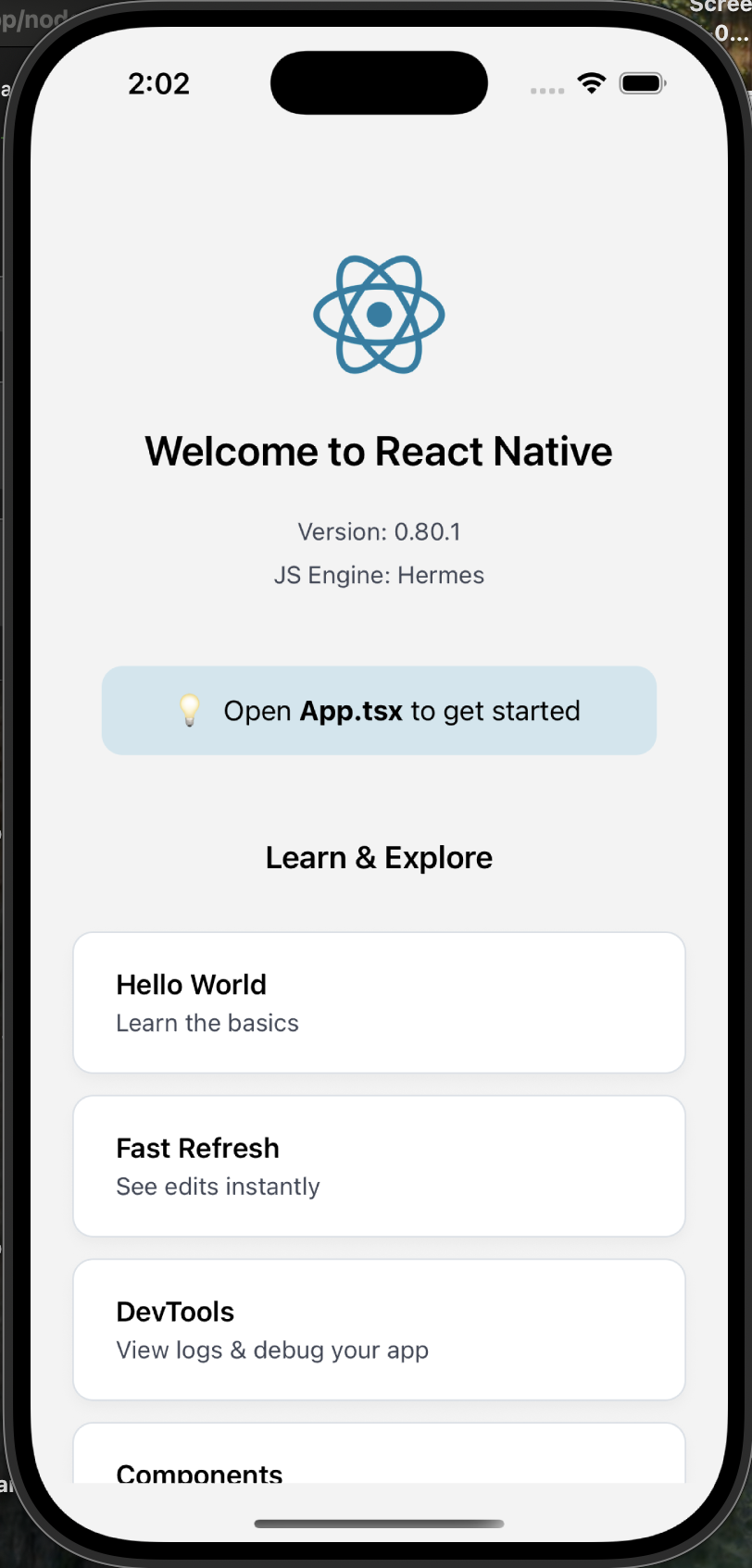
๐ŸŽฏ What You’re Seeing on Screen:

When you run this app, you see:

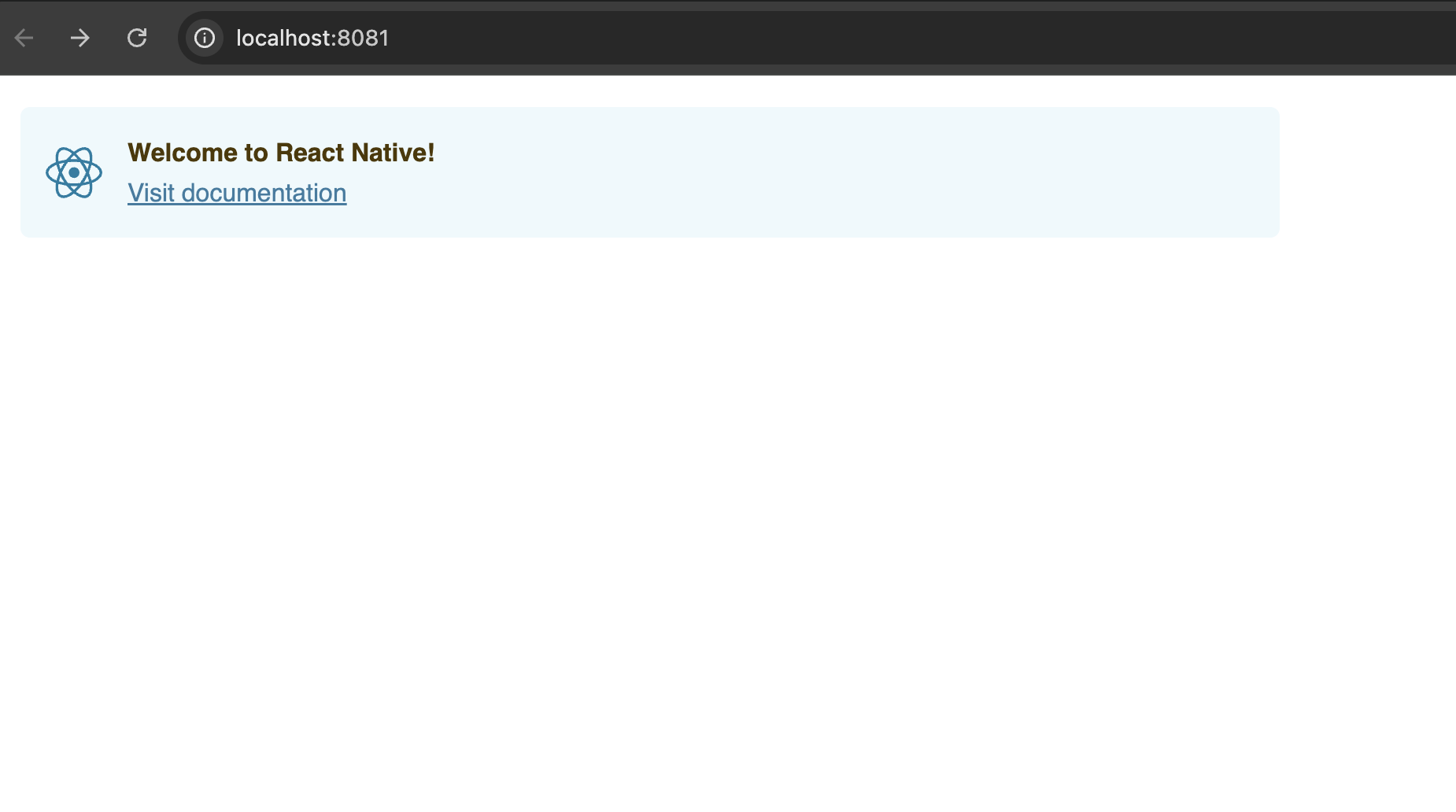
  • โœ… React Native logo
  • โœ… “Welcome to React Native” text
  • โœ… Links to documentation
  • โœ… Step-by-step instructions
  • โœ… Status bar that adapts to your phone’s theme

This is the default template – a starting point for building our DesignStudioMobileApp! ๐Ÿš€


โš›๏ธ Functional vs Class Components in React

TypeIntroduced InSimpler SyntaxSupports HooksUses this?
Functional ComponentReact since beginning, became more powerful in React 16.8โœ… Yesโœ… YesโŒ No
Class ComponentReact 0.13+โŒ VerboseโŒ Old patternโœ… Yes

๐Ÿงฉ 1. Functional Component (Modern)

โœ… What is it?

A JavaScript function that returns JSX.
As of React 16.8, functional components can manage state and side effects using Hooks (useState, useEffect, etc.).

๐Ÿ“ฆ Example:

import React, { useState } from 'react';

function Counter() {
  const [count, setCount] = useState(0); // hook

  return (
    <div>
      <h2>Count: {count}</h2>
      <button onClick={() => setCount(count + 1)}>Increment</button>
    </div>
  );
}

โœ… Clean, short, and modern โ€” preferred in most cases today.

๐Ÿงฑ 2. Class Component (Old-style)

โœ… What is it?

A JavaScript class that extends React.Component, and uses this.state, this.props, and lifecycle methods like componentDidMount.

๐Ÿ“ฆ Example:

import React, { Component } from 'react';

class Counter extends Component {
  constructor(props) {
    super(props);
    this.state = { count: 0 };
  }

  increment = () => this.setState({ count: this.state.count + 1 });

  render() {
    return (
      <div>
        <h2>Count: {this.state.count}</h2>
        <button onClick={this.increment}>Increment</button>
      </div>
    );
  }
}

โš ๏ธ More boilerplate, needs this, not as concise.

๐Ÿค” Why Two Types?

๐Ÿงช Historical Reason:

  • Before React 16.8, only class components could have state or lifecycle methods.
  • Functional components were stateless-only.

๐Ÿ’ก Then came Hooks (React 16.8):

  • Gave functional components full power: state, side effects, refs, context.
  • Made class components mostly obsolete for new code.

๐Ÿง  Which One Should You Use?

โœ… Use Functional Components unless:

  • You’re working with legacy code
  • You’re learning how React evolved
  • A library forces you into class-style APIs (rare now)

โœ… TL;DR

FeatureFunctional ComponentClass Component
SyntaxSimple functionClass with extends Component
State supportโœ… Yes (via Hooks)โœ… Yes
Lifecycle methodsโœ… Yes (via Hooks like useEffect)โœ… Yes (componentDidMount, etc)
this keywordโŒ Noโœ… Yes
Modern React choiceโญ PreferredDeprecated for new apps

Absolutely! Letโ€™s go over the most important React Hooks that turned functional components into full-featured building blocks, just like class components (and even more powerful!).


โš›๏ธ React Hooks โ€” Power Tools for Functional Components

Introduced in React 16.8, Hooks let you:

  • Use state, side effects, context, refs, etc.
  • Without writing a class component

๐Ÿงฐ Essential React Hooks (with Examples)

1๏ธโƒฃ useState โ€” Manage Local Component State ๐Ÿง 

๐Ÿ“Œ When to Use:

To store and update component-level state (like a counter, input field value, toggle, etc.)

โœ… Example:

import { useState } from 'react';

function Counter() {
  const [count, setCount] = useState(0); // initial value = 0

  return (
    <div>
      <h3>Count: {count}</h3>
      <button onClick={() => setCount(count + 1)}>+1</button>
    </div>
  );
}

2๏ธโƒฃ useEffect โ€” Handle Side Effects โณ

๐Ÿ“Œ When to Use:

To run code after render: API calls, timers, subscriptions, etc.
(Just like componentDidMount, componentDidUpdate, componentWillUnmount)

โœ… Example:

import { useEffect, useState } from 'react';

function UserProfile({ userId }) {
  const [user, setUser] = useState(null);

  useEffect(() => {
    fetch(`/api/users/${userId}`)
      .then(res => res.json())
      .then(data => setUser(data));
  }, [userId]); // runs again if userId changes

  return <div>{user ? user.name : 'Loading...'}</div>;
}

The useEffect hook in React takes two parameters:

๐Ÿง  useEffect Syntax

useEffect(effectFunction, dependencyArray)
ParameterTypeRequiredPurpose
effectFunction() => {}โœ… YesCode to run after render (can include async logic)
dependencyArray[] (array)โœ… YesList of values to watch โ€” effect re-runs only if these change

๐Ÿ” Our Example Breakdown

useEffect(() => {
  fetch(`/api/users/${userId}`)
    .then(res => res.json())
    .then(data => setUser(data));
}, [userId]);

1. First Argument: Arrow Function () => { ... }

  • This function runs after the component renders.
  • It performs a side effect (API call).
  • You can also return a function for cleanup (like removing event listeners).

2. Second Argument: Dependency Array [userId]

  • This tells React:
    “Only re-run this effect if userId changes.
  • If userId stays the same between renders โ†’ the effect won’t run again.
  • If omitted โ†’ the effect runs on every render.
useEffect(() => {
  console.log("Runs after every render!");
});

โš ๏ธ This runs after every single re-render, which can be expensive.


3๏ธโƒฃ useContext โ€” Access Context (Global Data) ๐ŸŒ

๐Ÿ“Œ When to Use:

To consume global values like theme, language, authentication, etc., without prop drilling.

โœ… Example:

import { useContext } from 'react';
import { ThemeContext } from './ThemeProvider';

function ThemedButton() {
  const theme = useContext(ThemeContext); // 'dark' or 'light'

  return <button style={{ background: theme === 'dark' ? '#333' : '#eee' }}>Click</button>;
}

4๏ธโƒฃ useRef โ€” Store a Mutable Reference ๐Ÿชž

๐Ÿ“Œ When to Use:

To reference DOM elements or store values without causing re-renders.

โœ… Example:

import { useRef } from 'react';

function InputFocus() {
  const inputRef = useRef();

  return (
    <div>
      <input ref={inputRef} />
      <button onClick={() => inputRef.current.focus()}>Focus</button>
    </div>
  );
}

5๏ธโƒฃ useMemo โ€” Memoize Expensive Computations ๐Ÿงฎ

๐Ÿ“Œ When to Use:

To cache the result of heavy functions, only recomputing when dependencies change.

โœ… Example:

import { useMemo } from 'react';

function ExpensiveList({ items }) {
  const sortedItems = useMemo(() => {
    return [...items].sort(); // costly operation
  }, [items]);

  return <ul>{sortedItems.map(i => <li key={i}>{i}</li>)}</ul>;
}

6๏ธโƒฃ useCallback โ€” Memoize Functions to Avoid Re-Creation ๐ŸŽฏ

๐Ÿ“Œ When to Use:

To prevent unnecessary re-renders when passing callbacks to child components.

โœ… Example:

import { useState, useCallback } from 'react';

function Parent() {
  const [count, setCount] = useState(0);

  const increment = useCallback(() => setCount(c => c + 1), []);

  return <Child onClick={increment} />;
}

(Bonus) useReducer โ€” Complex State Logic โš™๏ธ

๐Ÿ“Œ When to Use:

To manage complex state transitions or when youโ€™d use redux-like reducers.

โœ… Example:

import { useReducer } from 'react';

function reducer(state, action) {
  switch (action.type) {
    case 'inc': return { count: state.count + 1 };
    case 'dec': return { count: state.count - 1 };
    default: return state;
  }
}

function Counter() {
  const [state, dispatch] = useReducer(reducer, { count: 0 });

  return (
    <>
      <p>Count: {state.count}</p>
      <button onClick={() => dispatch({ type: 'inc' })}>+1</button>
    </>
  );
}

โœ… TL;DR โ€“ Hook Summary Table

HookPurposeReplaces
useStateState inside function componentthis.state / setState
useEffectSide effects (API, timers, etc.)componentDidMount etc.
useContextUse global context valuescontextType, props drilling
useRefDOM ref or persistent valuescreateRef
useMemoCache a computed valueManual memoization
useCallbackCache a functionInline anonymous functions
useReducerComplex state logic (like Redux)Multiple useState calls

Handy booklet:


Let’s see in Part 3.. Happy React Native Development ๐Ÿš€

Guide: Creating React Native โš›๏ธ App For Our Design Studio Application โ€“ Part 1

The guide is for creating a React Native app for our design studio web application made with Ruby On Rails 8. Let me start by explaining the fundamentals and then walk you through the entire setup process.

What is React Native? ๐Ÿค”

React Native is a framework developed by Facebook (now Meta) that allows you to build mobile applications using JavaScript and React. It enables you to write code once and deploy it on both iOS and Android platforms.

Why Use React Native? ๐ŸŽฏ

Key Benefits:

  • Cross-Platform Development: Write once, run on both iOS and Android
  • Code Reusability: Share up to 90% of code between platforms
  • Native Performance: Uses native components, not webviews
  • Hot Reloading: See changes instantly during development
  • Large Community: Extensive libraries and community support
  • Cost-Effective: Faster development with smaller teams
  • Facebook Backing: Strong ecosystem and continuous updates

React Native vs React: Key Differences ๐Ÿ“Š

AspectReactReact Native
Target PlatformWeb browsersMobile devices (iOS/Android)
DOMVirtual DOMNative components
StylingCSSStyleSheet API (CSS-like)
ComponentsHTML elements (<div>, <p>, etc.)Native components (<View>, <Text>, etc.)
NavigationReact RouterReact Navigation
DeploymentWeb serversApp stores
DevelopmentBrowser dev toolsMobile simulators/devices

Setting Up Your React Native Development Environment ๐Ÿ› ๏ธ

Let me guide you through creating your React Native app step by step:

Step 1: Install Prerequisites

First, let’s check your current setup and install the necessary tools:
Ran tool

We’ll need to install several tools. Let me guide you through each one:

1. Node.js & npm/yarn

# Check if Node.js is installed
node --version
npm --version

# If not installed, download from https://nodejs.org/
# Or install via Homebrew (recommended for macOS):
brew install node

2. React Native CLI

npm install -g @react-native-community/cli

3. For iOS Development (macOS only):

# Install Xcode from Mac App Store

# Install CocoaPods
# Homebrew
brew install cocoapods

# Later
# Update with Homebrew
brew upgrade cocoapods

# OR use ruby gem
sudo gem install cocoapods

4. For Android Development:

  • Install Android Studio
  • Set up Android SDK
  • Configure environment variables

Step 2: Create Your React Native App

Let’s navigate to our react folder and create the app. Let’s create our React Native app for the design studio.

Run these commands in our terminal:

# Navigate to your react directory
cd ~/react

# Create a new React Native app
npx react-native init DesignStudioApp

# Navigate to the new app directory
cd DesignStudioApp

๐ŸŽ‰ Our DesignStudioApp has been created successfully!

What Happened

The React Native CLI successfully:

  • โœ… Downloaded the template
  • โœ… Copied template files
  • โœ… Processed the template
  • โœ… Installed dependencies
  • โœ… Initialized Git repository

โœ…  CocoaPods is Already Installed!

CocoaPods version 1.16.2_1 is properly installed via Homebrew in our system.

CocoaPods manages dependencies for your Xcode projects.

You specify the dependencies for your project in a simple text file: your Podfile. CocoaPods recursively resolves dependencies between libraries, fetches source code for all dependencies, and creates and maintains an Xcode workspace to build your project. The latest released Xcode versions and the prior version are supported.

What This Means ๐Ÿ“‹

CocoaPods Installation Details:

  • โœ… Version: 1.16.2_1 (latest stable)
  • โœ… Location: /opt/homebrew/Cellar/cocoapods/1.16.2_1/
  • โœ… Main Command: pod is available
  • โœ… Complete Installation: All necessary files are present
# Let's Verify CocoaPods is Working 
pod --version
1.16.2

Now Let’s Try Installing iOS Dependencies ๐Ÿ“ฑ

Since CocoaPods is working, let’s try to install the iOS dependencies for our DesignStudioApp:

cd DesignStudioApp/ios && pod install
....
[Hermes] Using release tarball from URL: https://repo1.maven.org/maven2/com/facebook/react/react-native-artifacts/0.80.1/react-native-artifacts-0.80.1-hermes-ios-debug.tar.gz

Step 3: Understanding the Project Structure ๐Ÿ“

After creating the app, you’ll see this structure:

DesignStudioApp/
โ”œโ”€โ”€ android/          # Android-specific code
โ”œโ”€โ”€ ios/              # iOS-specific code
โ”œโ”€โ”€ node_modules/     # Dependencies
โ”œโ”€โ”€ src/              # Your app source code (you'll create this)
โ”œโ”€โ”€ App.tsx           # Main app component
โ”œโ”€โ”€ index.js          # Entry point
โ”œโ”€โ”€ package.json      # Dependencies and scripts
โ”œโ”€โ”€ metro.config.js   # Metro bundler configuration
โ””โ”€โ”€ ...

Step 4: Key Files Explained ๐Ÿ“

App.tsx – Main component (like App.js in React web)
index.js – Entry point that registers your app
package.json – Dependencies and scripts
android/ & ios/ – Platform-specific native code

Step 5: Running Your App (No XCode installed) ๐Ÿš€

For iOS Simulator:

# Make sure you're in the DesignStudioApp directory
npx react-native run-ios

Install Xcode: Xcode Component Selection for React Native Development ๐Ÿ› ๏ธ

For React Native development, you should select BOTH:

โœ… Required Components:

  • macOS15.5 (built-in) – โœ… Select this
  • iOS 18.5 – โœ… Select this (Essential for React Native)

Why You Need Both ๐Ÿ“ฑ

ComponentWhy You Need ItWhat It Provides
macOS15.5Basic development toolsXcode IDE, build tools, debugger
iOS 18.5iOS app developmentiOS Simulator, iOS SDK, device support

Select BOTH components because:

  1. macOS15.5 (built-in) โœ…
  • Core Xcode functionality
  • Build tools and compiler
  • Essential for any development
  1. iOS 18.5 โœ…
  • iOS Simulator – Test your React Native app
  • iOS SDK – Required for building iOS apps
  • Device support – Deploy to real iPhones

Step-by-Step Instructions ๐Ÿ“‹

Point System to Full Xcode Installation
sudo xcode-select --switch /Applications/Xcode.app/Contents/Developer

xcode-select --print-path

xcodebuild -version
Xcode 16.4

Now Try:

# Install iOS Dependencies Again
cd DesignStudioApp && cd ios && pod install

๐ŸŽ‰ CocoaPods Installation Complete!

All iOS dependencies have been successfully installed!

What Just Happened โœ…

  • โœ… 74 dependencies installed from Podfile
  • โœ… 73 total pods installed successfully
  • โœ… React Native modules all configured
  • โœ… Hermes engine installed (JavaScript engine)
  • โœ… Xcode workspace created

Hermes is an open-source JavaScript engine optimized for React Native. For many apps, using Hermes will result in improved start-up time, decreased memory usage, and smaller app size when compared to JavaScriptCore. Hermes is used by default by React Native and no additional configuration is required to enable it.

Important Note ๐Ÿ“

The system created a .xcworkspace file – this is what you’ll use instead of .xcodeproj from now on.

# Step 5: Now Let's Run Your App on iOS! 

โœ— npx react-native run-ios
info Found Xcode workspace "DesignStudioApp.xcworkspace"
info No booted devices or simulators found. Launching first available simulator...
info Launching iPhone 16 Pro (iOS 18.5)
info Building (using "xcodebuild -workspace DesignStudioApp.xcworkspace -configuration Debug -scheme DesignStudioApp -destination id=XXXX-XXXXX-XXXX-XXXX

Step 1: Install iOS Dependencies ๐Ÿ“ฆ

Open your terminal and run these commands:

# Navigate to your app directory
cd ~/react/DesignStudioApp

# Install iOS dependencies
cd ios && pod install && cd ..

This will install all the necessary iOS libraries and dependencies.

Step 2: Run the iOS App ๐Ÿ“ฑ

Option A: Use React Native CLI (Recommended)

Open a new terminal window (keep Metro running in the first one) and run:

cd ~/react/DesignStudioApp
npx react-native run-ios

Option B: Use Xcode Directly

# Open the iOS project in Xcode
cd ~/react/DesignStudioApp
xed ios/DesignStudioApp.xcworkspace

Then press the “Run” button (โ–ถ๏ธ) in Xcode.

What Should Happen ๐ŸŽฏ

  1. iOS Simulator opensA virtual iPhone will appear
  2. App builds – You’ll see build progress in terminal
  3. App launches – Your DesignStudioApp will open in the simulator
  4. Metro connects – The app connects to the development server

Expected Output ๐Ÿ“ฑ

You should see the default React Native welcome screen with:

  • React Native logo
  • “Welcome to React Native” message
  • Various getting started links
  • Debug information

Common Issues & Solutions ๐Ÿ”ง

Issue 1: “No iOS Simulator Available”

# List available simulators
xcrun simctl list devices

# If no simulators, create one in Xcode:
# Xcode > Window > Devices and Simulators > Create Simulator

Issue 2: “Build Failed”

# Clean and rebuild
cd ~/react/DesignStudioApp
npx react-native run-ios --clean

Issue 3: “Metro not responding” – not used metro

# Reset Metro cache
npx react-native start --reset-cache

Quick Commands Summary ๐Ÿ“

# Terminal 1: Start Metro
cd ~/react/DesignStudioApp
npx react-native start

# Terminal 2: Run iOS app
cd ~/react/DesignStudioApp
npx react-native run-ios

What You’ll See ๐Ÿ‘€

Your app should display:

  • React Native welcome screen
  • “Welcome to React Native” text
  • Various learning resources
  • Debug information

Testing Your App ๐Ÿงช

Once running, you can:

  • โŒ˜+D – Open developer menu
  • โŒ˜+R – Reload the app
  • โŒ˜+T – Open new simulator
  • Shake gesture – Open dev menu on device

Next Steps After Success ๐Ÿš€

Once your app is running:

  1. Edit App.tsx – Make changes to see hot reload
  2. Add navigation – React Navigation
  3. Add UI components – For your design studio
  4. Add features – Camera, image picker, etc.

Run These Commands Now! ๐Ÿ’ป

Open your terminal and execute:

cd ~/react/DesignStudioApp
cd ios && pod install && cd ..
npx react-native run-ios

This should launch your DesignStudioApp in the iOS simulator! ๐ŸŽ‰

For Android Emulator:

# Start Android emulator first, then:
npx react-native run-android

Step 6: Understanding Core Components ๐Ÿ“ฑ

Let me show you the main React Native components we’ll use:

Basic Components:

  • <View> – Like <div> in React web
  • <Text> – Like <p> or <span> in React web
  • <Image> – For displaying images
  • <ScrollView> – Scrollable container
  • <TouchableOpacity> – Touchable button
  • <TextInput> – Input field
  • <FlatList> – Efficient list rendering

Example App.tsx:

import React from 'react';
import {
  SafeAreaView,
  ScrollView,
  StatusBar,
  StyleSheet,
  Text,
  View,
  TouchableOpacity,
  Image,
} from 'react-native';

const App = () => {
  return (
    <SafeAreaView style={styles.container}>
      <StatusBar barStyle="dark-content" />
      <ScrollView contentInsetAdjustmentBehavior="automatic">
        <View style={styles.header}>
          <Text style={styles.title}>Design Studio App</Text>
          <Text style={styles.subtitle}>Welcome to your creative space</Text>
        </View>

        <View style={styles.content}>
          <TouchableOpacity style={styles.button}>
            <Text style={styles.buttonText}>Get Started</Text>
          </TouchableOpacity>
        </View>
      </ScrollView>
    </SafeAreaView>
  );
};

const styles = StyleSheet.create({
  container: {
    flex: 1,
    backgroundColor: '#f8f9fa',
  },
  header: {
    padding: 24,
    alignItems: 'center',
  },
  title: {
    fontSize: 24,
    fontWeight: 'bold',
    color: '#333',
  },
  subtitle: {
    fontSize: 16,
    color: '#666',
    marginTop: 8,
  },
  content: {
    padding: 24,
  },
  button: {
    backgroundColor: '#007AFF',
    padding: 16,
    borderRadius: 8,
    alignItems: 'center',
  },
  buttonText: {
    color: 'white',
    fontSize: 18,
    fontWeight: '600',
  },
});

export default App;

Step 7: Styling in React Native ๐ŸŽจ

React Native uses a StyleSheet API similar to CSS:

import { StyleSheet } from 'react-native';

const styles = StyleSheet.create({
  container: {
    flex: 1,              // Like flex: 1 in CSS
    backgroundColor: '#fff',
    padding: 20,
  },
  text: {
    fontSize: 16,
    color: '#333',
    textAlign: 'center',
  },
});

Key Styling Differences:

  • Use backgroundColor instead of background-color
  • Use flexDirection instead of flex-direction
  • All style properties are camelCase
  • No cascade – styles are component-specific

Step 8: Development Tools ๐Ÿ”ง

Metro Bundler – Automatically starts when you run the app
React Native Debugger – For debugging
Flipper – Advanced debugging tool

Step 9: Common Commands ๐Ÿ’ป

# Start Metro bundler
npx react-native start

# Run on iOS
npx react-native run-ios

# Run on Android
npx react-native run-android

# Clear cache
npx react-native start --reset-cache

# Install dependencies
npm install
# or
yarn install

Step 10: Next Steps for Our Design Studio App ๐ŸŽจ

For the design studio app, you might want to add:

  1. Navigation – React Navigation
  2. UI Components – NativeBase, React Native Elements
  3. Image Handling – React Native Image Picker
  4. Animations – React Native Reanimated
  5. State Management – Redux Toolkit or Zustand
  6. Network Requests – Axios or fetch
  7. Storage – AsyncStorage

To get started right now, run these commands in your terminal:

cd ~/react/DesignStudioApp

npx react-native run-ios  # or run-android

This will create and run our first React Native app! ๐ŸŽ‰

Check our App in Github: https://github.com/MIRA-Designs/DesignStudioMobileApp

Issues: https://github.com/MIRA-Designs/DesignStudioMobileApp/issues


What is NPX? ๐Ÿค”

NPX is a package runner tool that comes with npm (Node Package Manager). It was introduced in npm version 5.2.0 and is now a standard part of the npm ecosystem.

NPX Full Name:

  • NPX = Node Package eXecute
  • It’s a command-line tool for executing npm packages

How NPX Works ๐Ÿ”ง

Basic Concept:

Instead of installing packages globally, npx allows you to:

  • Run packages directly without installing them permanently
  • Execute the latest version of a package
  • Avoid global installation clutter

NPX vs NPM Installation:

MethodCommandWhat Happens
Traditionalnpm install -g create-react-app
create-react-app my-app
Installs globally, then runs
NPXnpx create-react-app my-appDownloads, runs, then removes

Why Use NPX? ๐ŸŽฏ

1. No Global Installation Required

# Old way - install globally first
npm install -g create-react-app
create-react-app my-app

# NPX way - run directly
npx create-react-app my-app

2. Always Latest Version

# NPX ensures you get the latest version
npx create-react-app my-app

# vs global install might be outdated
npm install -g create-react-app  # Might be old version
create-react-app my-app

3. Saves Disk Space

  • No need to store packages globally
  • Temporary downloads are cleaned up automatically

4. Avoids Version Conflicts

  • Different projects can use different versions
  • No global version conflicts

Common NPX Use Cases ๐Ÿ“ฑ

1. Creating Projects

# React Native
npx react-native init MyApp

# React Web App
npx create-react-app my-web-app

# Next.js
npx create-next-app my-next-app

# Vue.js
npx create-vue my-vue-app

# Expo (React Native)
npx create-expo-app my-expo-app

2. Running Development Tools

# TypeScript compiler
npx tsc --init

# Linting
npx eslint .

# Testing
npx jest

# Package auditing
npx npm-check-updates

3. One-time Scripts

# Check bundle size
npx bundlesize

# Generate documentation
npx jsdoc

# Code formatting
npx prettier --write .

How NPX Works Behind the Scenes ๐Ÿ”

When you run npx some-package:

  1. Checks locally – Is the package in node_modules/.bin?
  2. Checks globally – Is it installed globally?
  3. Downloads temporarily – If not found, downloads to temp folder
  4. Executes – Runs the package
  5. Cleans up – Removes temporary files

Example Flow:

npx create-react-app my-app
  1. โœ… Check: Is create-react-app in local node_modules? No.
  2. โœ… Check: Is it installed globally? No.
  3. โฌ‡๏ธ Download: Downloads latest create-react-app to temp folder
  4. โ–ถ๏ธ Execute: Runs create-react-app my-app
  5. ๐Ÿ—‘๏ธ Cleanup: Removes temporary files

NPX Command Options ๐Ÿ› ๏ธ

Basic Syntax:

npx [options] <command>[@version] [command-args...]

Useful Options:

# Force download (ignore local/global)
npx --ignore-existing create-react-app my-app

# Use specific version
npx create-react-app@4.0.0 my-app

# Check what would be executed
npx --version create-react-app

# Run from specific package
npx -p typescript tsc --init

NPX vs NPM: Key Differences ๐Ÿ“Š

AspectNPMNPX
PurposePackage managerPackage executor
Installationnpm installNo installation needed
StoragePermanent (node_modules)Temporary
UsageInstall, then runRun directly
UpdatesManual (npm update)Always latest

Real-World Examples ๐ŸŒŸ

For Our React Native Project:

# Create the app
npx react-native init DesignStudioApp

# Instead of:
npm install -g @react-native-community/cli
react-native init DesignStudioApp

Development Workflow:

# Start Metro bundler
npx react-native start

# Run on iOS
npx react-native run-ios

# Run on Android
npx react-native run-android

Other Useful Commands:

# Check React Native version
npx react-native --version

# Upgrade React Native
npx react-native upgrade

# Doctor (check environment)
npx react-native doctor

Benefits Summary ๐ŸŽ‰

For Developers:

  • โœ… Cleaner system – No global package clutter
  • โœ… Always updated – Latest versions automatically
  • โœ… Faster setup – No pre-installation needed
  • โœ… Less conflicts – No version conflicts

For Projects:

  • โœ… Consistent environments – Everyone uses same versions
  • โœ… Easier setup – New team members can start quickly
  • โœ… Better CI/CD – Consistent builds

Pro Tips ๐Ÿ’ก

  1. Use NPX for project creation – Always use npx for scaffolding tools
  2. Check before installing globally – Ask yourself: “Do I need this globally?”
  3. Use specific versions when needednpx package@version
  4. Great for CI/CD – Ensures consistent tool versions

NPX is essentially a way to “try before you buy” – run packages without the commitment of installing them permanently! It’s become an essential tool in modern JavaScript development. ๐Ÿš€


Let’s see in Part 2.. Happy React Native Development ๐Ÿš€